> ## Documentation Index
> Fetch the complete documentation index at: https://docs.bubblav.com/llms.txt
> Use this file to discover all available pages before exploring further.
# Flows: Build Multi-Step Chatbot Scenarios Visually
> Compose chatbot scenarios on a visual canvas — match visitor intent, collect answers, run tools, call webhooks, notify your team, and hand off to a human — without writing code.
Sometimes a conversation needs more than a single AI answer: collect a few details, look
something up in your systems, then act on it. **Flows** is a visual builder where you compose
those scenarios as a graph of steps — a trigger that starts the flow, then condition and action
nodes that run in order.
Two examples of what a flow can do:
* **Multi-source answer** — a visitor asks a question → the flow searches your Discourse forum
and your CRM via Custom Tools → the AI aggregates the results into one answer.
* **Ticket intake** — the flow asks for email, company, and the problem → submits everything to
your webhook → notifies your team.
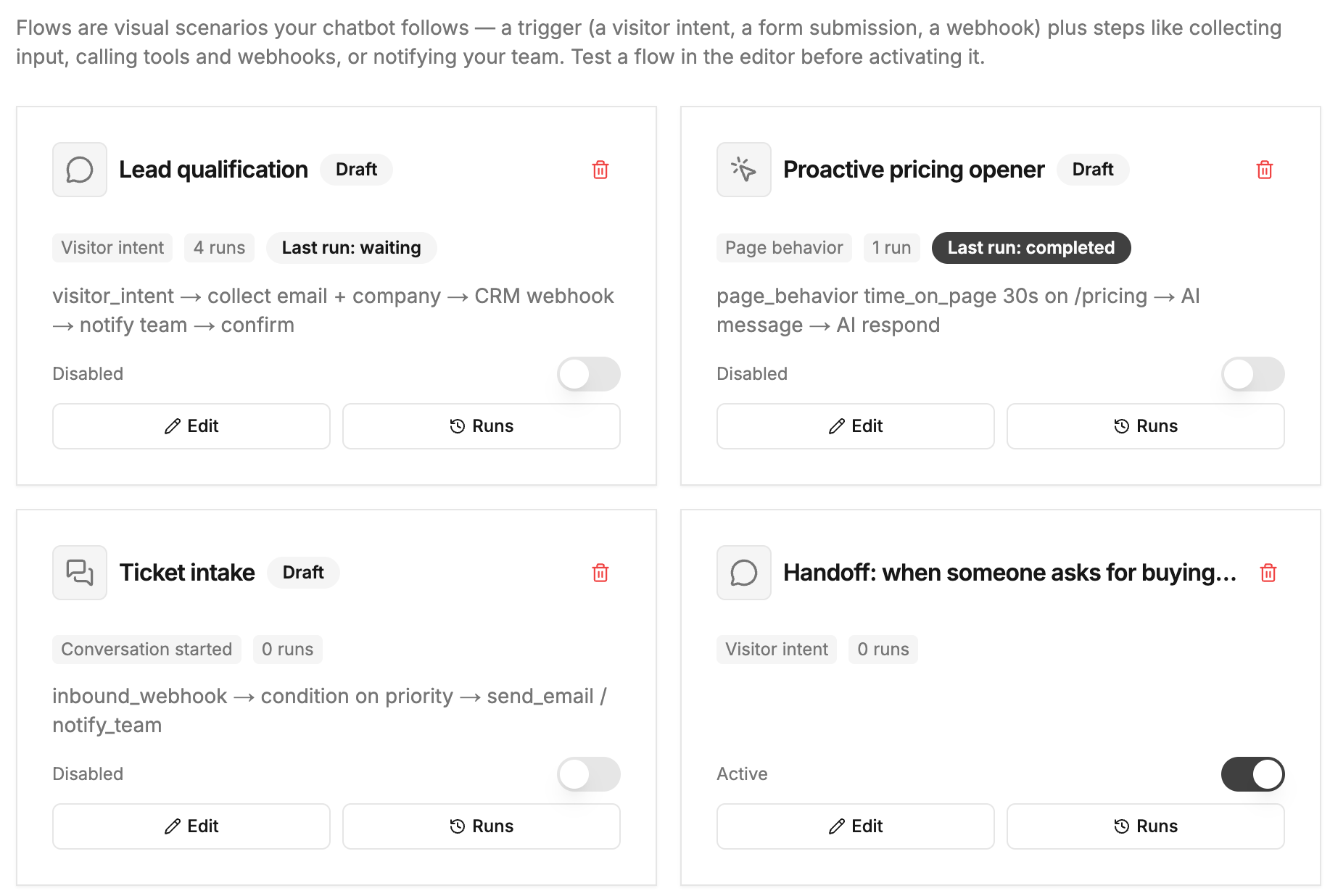
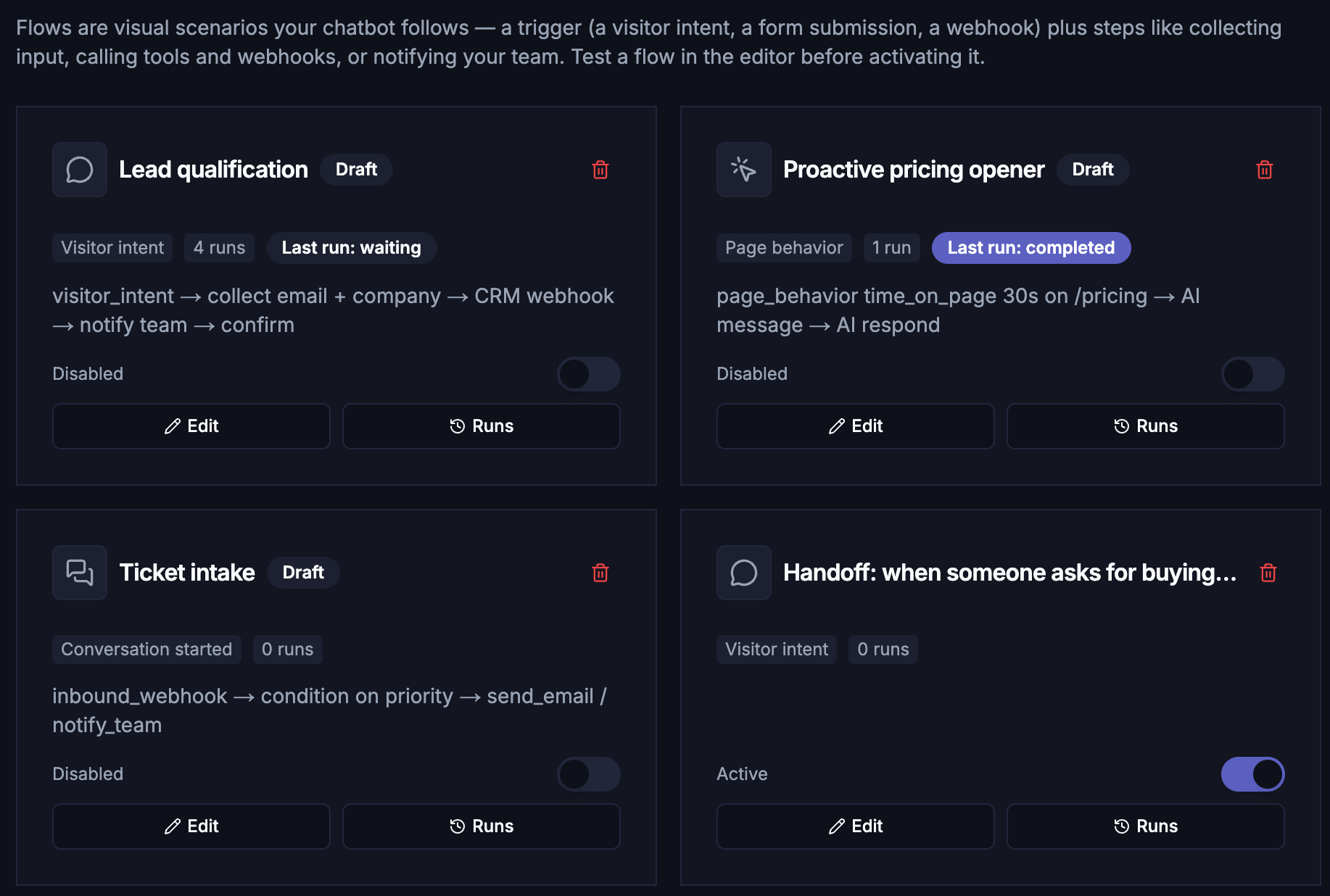 Flows consolidate four older features into one canvas:
* **Smart Triggers** → a `page_behavior` trigger + `ai_message` node
* **Human handoff scenarios** → a `visitor_intent` trigger + `request_human` node
* **Forms** → embedded in a flow with a `show_form` node
* **Cart Recovery** → a `cart_abandoned` trigger + `delay` + `cart_recovery_touch` nodes
The old Smart Triggers, Forms, and Cart Recovery pages redirect here — everything is built
and edited in the flow editor.
Flows require a **Pro plan**. Flow messages count toward your monthly message quota like any
other bot reply.
## How Flows work
1. A **trigger** starts a run — either a visitor message that matches your intent description,
or an event like a form submission.
2. The flow walks the graph node by node: asking questions, branching on conditions, calling
tools and webhooks, sending messages.
3. While a flow is running or waiting for the visitor's answer, it **owns the conversation** —
the visitor's replies resume the flow instead of going to the AI.
4. The run ends when the graph ends, when an **AI respond** node hands the collected results to
the chatbot for a final answer, or when the visitor cancels ("cancel", "stop", "never mind").
## Triggers
Every flow has exactly one trigger — the first node on the canvas.
| Trigger | Starts a run when… |
| ---------------------- | --------------------------------------------------------------------------------------------------------------------------------------------------------------------------------------------------------------------------- |
| `visitor_intent` | A visitor's chat message matches your natural-language intent description (e.g. "wants a callback", "asks about order status"). The AI scores each active flow's intent and the best match above the threshold runs. |
| `page_behavior` | The widget detects page behavior — time on page, exit intent, or (Shopify) cart threshold / product page — and the flow opens the conversation proactively. |
| `form_submitted` | A visitor submits one of your BubblaV forms. |
| `conversation_started` | A new conversation is created. |
| `conversation_rated` | A visitor rates a conversation (thumbs up/down). |
| `handoff_requested` | A live-support ticket is created. |
| `lead_captured` | A visitor's email is captured. |
| `cart_abandoned` | (Shopify) A synced abandoned checkout starts a run — the sync runs every 15 minutes. Payload exposes `{{trigger.email}}`, `{{trigger.recoveryUrl}}`, `{{trigger.totalPrice}}`, `{{trigger.currency}}`, `{{trigger.items}}`. |
| `inbound_webhook` | An external system POSTs to the flow's secret webhook URL — for events from your own backend. |
`visitor_intent` and `page_behavior` are the **chat triggers**: the flow runs inside the
conversation and can talk to the visitor. The others are **event triggers** that run in the
background. Event triggers that carry a conversation (`form_submitted`,
`conversation_started`, `handoff_requested`) can still message the visitor;
`conversation_rated`, `lead_captured`, `cart_abandoned`, and `inbound_webhook` have no
conversation, so chat nodes aren't allowed under them — the editor enforces this.
### Page behavior triggers
A `page_behavior` trigger turns the flow into a proactive opener: the widget watches the
visitor's page behavior and, when it matches, the flow starts a conversation with an
AI-personalized message.
| Subtype | Fires when… |
| ---------------- | -------------------------------------------------------------------------------------- |
| `time_on_page` | The visitor has spent a set dwell time on a matching page. |
| `exit_intent` | The visitor is about to leave (mouse toward the top on desktop, tab switch on mobile). |
| `cart_threshold` | (Shopify) The cart total crosses your configured amount. |
| `product_page` | (Shopify) The visitor dwells on a product page. |
Config: `subtype`, `urlMatchType` (`exact`/`contains`/`prefix`/`regex`), `urlPatterns`,
`dwellSeconds`, `cooldownMinutes`, `sortOrder`, plus `config` for e-commerce subtypes
(`thresholdCents`, `minCartCents`, `currency`). Pair it with an `ai_message` node — the AI
personalizes your `template` with page context and falls back to the template verbatim if
the model is unavailable.
## Node catalog
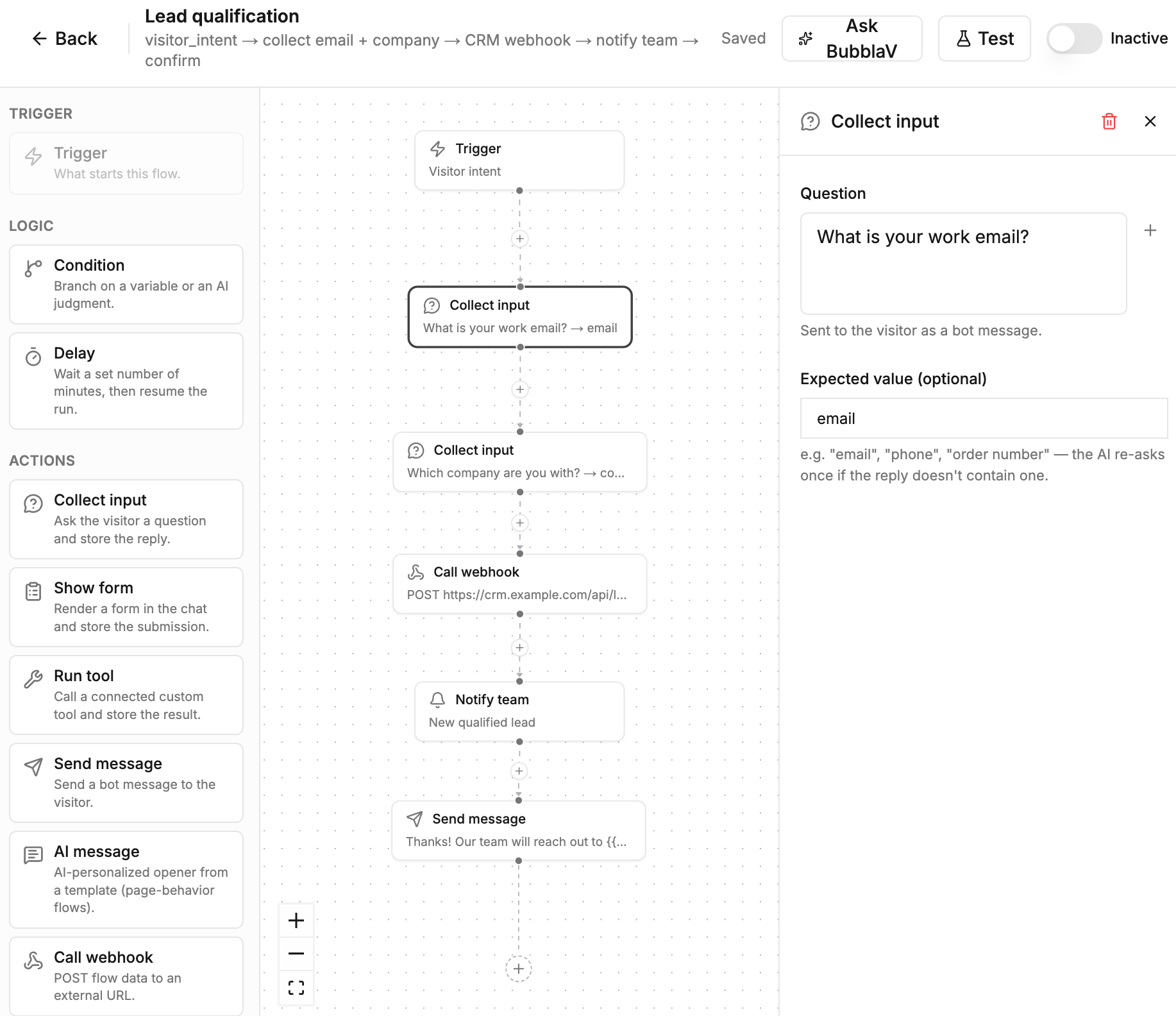
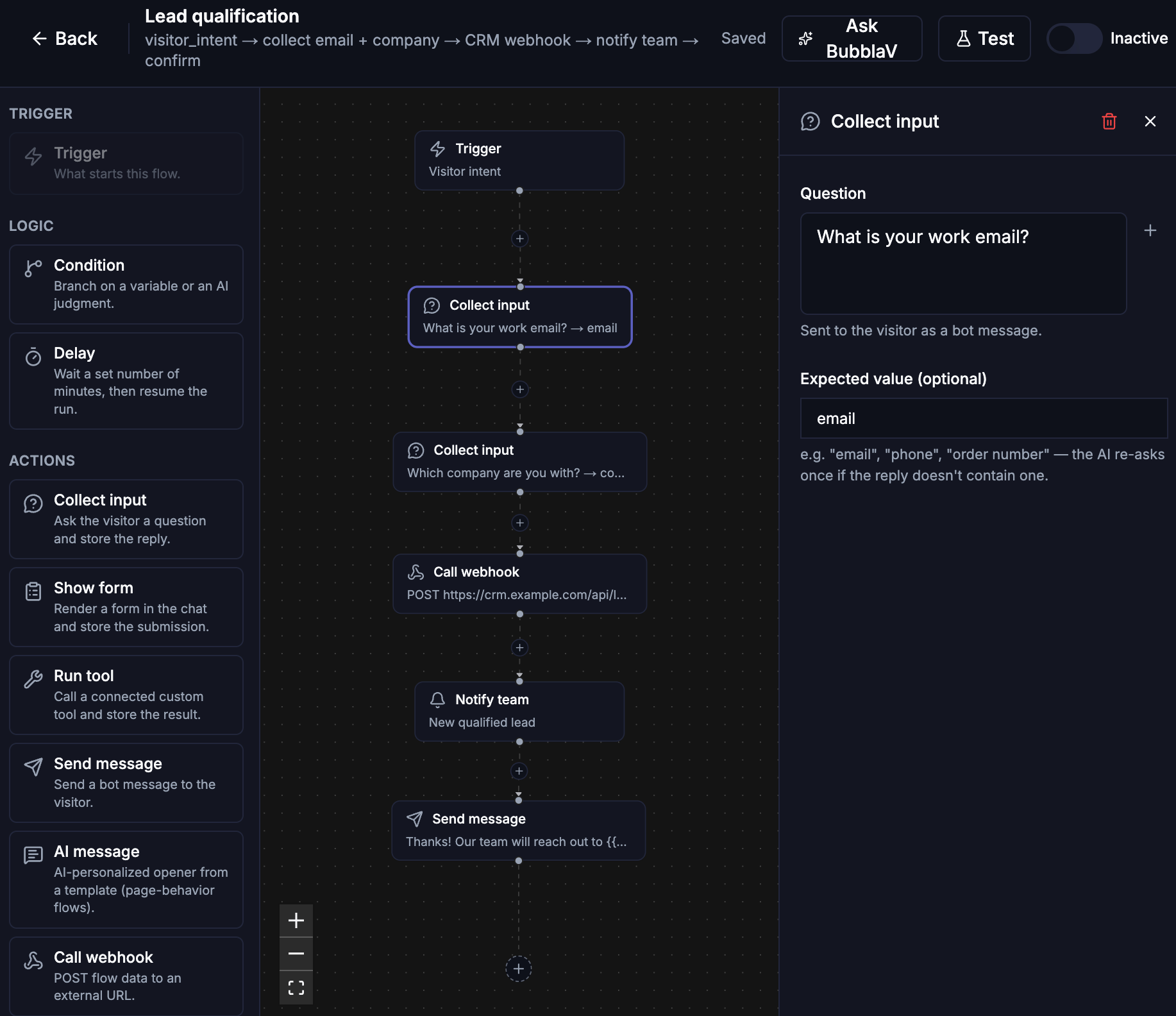
Nodes are the steps of your flow. Drag them from the palette onto the canvas and connect them.
Flows consolidate four older features into one canvas:
* **Smart Triggers** → a `page_behavior` trigger + `ai_message` node
* **Human handoff scenarios** → a `visitor_intent` trigger + `request_human` node
* **Forms** → embedded in a flow with a `show_form` node
* **Cart Recovery** → a `cart_abandoned` trigger + `delay` + `cart_recovery_touch` nodes
The old Smart Triggers, Forms, and Cart Recovery pages redirect here — everything is built
and edited in the flow editor.
Flows require a **Pro plan**. Flow messages count toward your monthly message quota like any
other bot reply.
## How Flows work
1. A **trigger** starts a run — either a visitor message that matches your intent description,
or an event like a form submission.
2. The flow walks the graph node by node: asking questions, branching on conditions, calling
tools and webhooks, sending messages.
3. While a flow is running or waiting for the visitor's answer, it **owns the conversation** —
the visitor's replies resume the flow instead of going to the AI.
4. The run ends when the graph ends, when an **AI respond** node hands the collected results to
the chatbot for a final answer, or when the visitor cancels ("cancel", "stop", "never mind").
## Triggers
Every flow has exactly one trigger — the first node on the canvas.
| Trigger | Starts a run when… |
| ---------------------- | --------------------------------------------------------------------------------------------------------------------------------------------------------------------------------------------------------------------------- |
| `visitor_intent` | A visitor's chat message matches your natural-language intent description (e.g. "wants a callback", "asks about order status"). The AI scores each active flow's intent and the best match above the threshold runs. |
| `page_behavior` | The widget detects page behavior — time on page, exit intent, or (Shopify) cart threshold / product page — and the flow opens the conversation proactively. |
| `form_submitted` | A visitor submits one of your BubblaV forms. |
| `conversation_started` | A new conversation is created. |
| `conversation_rated` | A visitor rates a conversation (thumbs up/down). |
| `handoff_requested` | A live-support ticket is created. |
| `lead_captured` | A visitor's email is captured. |
| `cart_abandoned` | (Shopify) A synced abandoned checkout starts a run — the sync runs every 15 minutes. Payload exposes `{{trigger.email}}`, `{{trigger.recoveryUrl}}`, `{{trigger.totalPrice}}`, `{{trigger.currency}}`, `{{trigger.items}}`. |
| `inbound_webhook` | An external system POSTs to the flow's secret webhook URL — for events from your own backend. |
`visitor_intent` and `page_behavior` are the **chat triggers**: the flow runs inside the
conversation and can talk to the visitor. The others are **event triggers** that run in the
background. Event triggers that carry a conversation (`form_submitted`,
`conversation_started`, `handoff_requested`) can still message the visitor;
`conversation_rated`, `lead_captured`, `cart_abandoned`, and `inbound_webhook` have no
conversation, so chat nodes aren't allowed under them — the editor enforces this.
### Page behavior triggers
A `page_behavior` trigger turns the flow into a proactive opener: the widget watches the
visitor's page behavior and, when it matches, the flow starts a conversation with an
AI-personalized message.
| Subtype | Fires when… |
| ---------------- | -------------------------------------------------------------------------------------- |
| `time_on_page` | The visitor has spent a set dwell time on a matching page. |
| `exit_intent` | The visitor is about to leave (mouse toward the top on desktop, tab switch on mobile). |
| `cart_threshold` | (Shopify) The cart total crosses your configured amount. |
| `product_page` | (Shopify) The visitor dwells on a product page. |
Config: `subtype`, `urlMatchType` (`exact`/`contains`/`prefix`/`regex`), `urlPatterns`,
`dwellSeconds`, `cooldownMinutes`, `sortOrder`, plus `config` for e-commerce subtypes
(`thresholdCents`, `minCartCents`, `currency`). Pair it with an `ai_message` node — the AI
personalizes your `template` with page context and falls back to the template verbatim if
the model is unavailable.
## Node catalog
Nodes are the steps of your flow. Drag them from the palette onto the canvas and connect them.
 | Node | What it does | Settings (`data`) |
| --------------------- | ------------------------------------------------------------------------------------------------------------------------------------------------------------------------------------------------------------------------------------------------------------- | -------------------------------------------------------------------------------------------------------------------------------------------------------------------------- |
| `trigger` | Entry point — exactly one per flow. | `triggerType`, plus `intent` (required for `visitor_intent`) |
| `condition` | Branches the flow. Its outgoing edges are labeled `true`/`false`. | `mode: 'context'` → `field`, `op` (`equals`, `not_equals`, `contains`, `exists`, `not_exists`), `value`; or `mode: 'ai'` → `question` answered against collected variables |
| `delay` | Parks the run until a timer fires, then resumes on the next node. Visitor messages during the wait go to the AI, not the flow. | `minutes` |
| `collect_input` | Sends a question as a bot message and waits; the visitor's reply is stored in a variable. | `question`, `variable`, `expected` (optional, e.g. `email`, `phone` — the AI checks the reply contains a usable value and re-asks once if not) |
| `show_form` | Sends a bot message with one of your forms embedded and waits for the submission. | `formId`, `introMessage`, `variable` |
| `run_tool` | Runs one of your Custom Tools or MCP tools and stores the result. | `toolId`, `args` (values can be literals or `{{var}}`), `variable` |
| `send_message` | Sends a bot message. | `message` |
| `call_webhook` | Calls an external URL with the same SSRF and timeout guards as Custom Tools; optionally signs the request (HMAC) and stores the response. | `url`, `method` (`POST`/`GET`/`PUT`/`PATCH`), `headers`, `body`, `secret`, `variable` |
| `send_email` | Sends a transactional email. | `to`, `subject`, `body` |
| `notify_team` | Sends a notification to your website's team members (bell, push, and email per their preferences). | `title`, `message` |
| `request_human` | Creates a live-support ticket so a teammate can take over. | `message` |
| `ai_respond` | **Terminal, chat flows only** — hands the collected variables to the chatbot, which composes the final answer with your instructions. | `instructions` (optional) |
| `ai_message` | Sends an AI-personalized opener — the AI rewrites your `template` with page context; falls back to the template on failure. | `template` (required), `intentInstructions` (optional — steers follow-up replies) |
| `cart_recovery_touch` | Sends an AI-written recovery message for the run's abandoned cart — chat widget if the visitor is reachable (first touch only), else an unsubscribe-compliant email with a one-click recovery link. Skips when the cart is recovered, expired, or suppressed. | `aiInstructions` (optional), `discountCode` (optional) |
## Variables and `{{var}}` interpolation
Every value a flow collects — visitor replies, form submissions, tool results, webhook
responses — is stored in a named **variable**. Use `{{variable}}` (or a nested path like
`{{order.status}}`) inside any message, question, webhook body, or email to insert the value.
The trigger's payload is available as `{{trigger}}`. Missing variables resolve to an empty
string.
## Build a flow
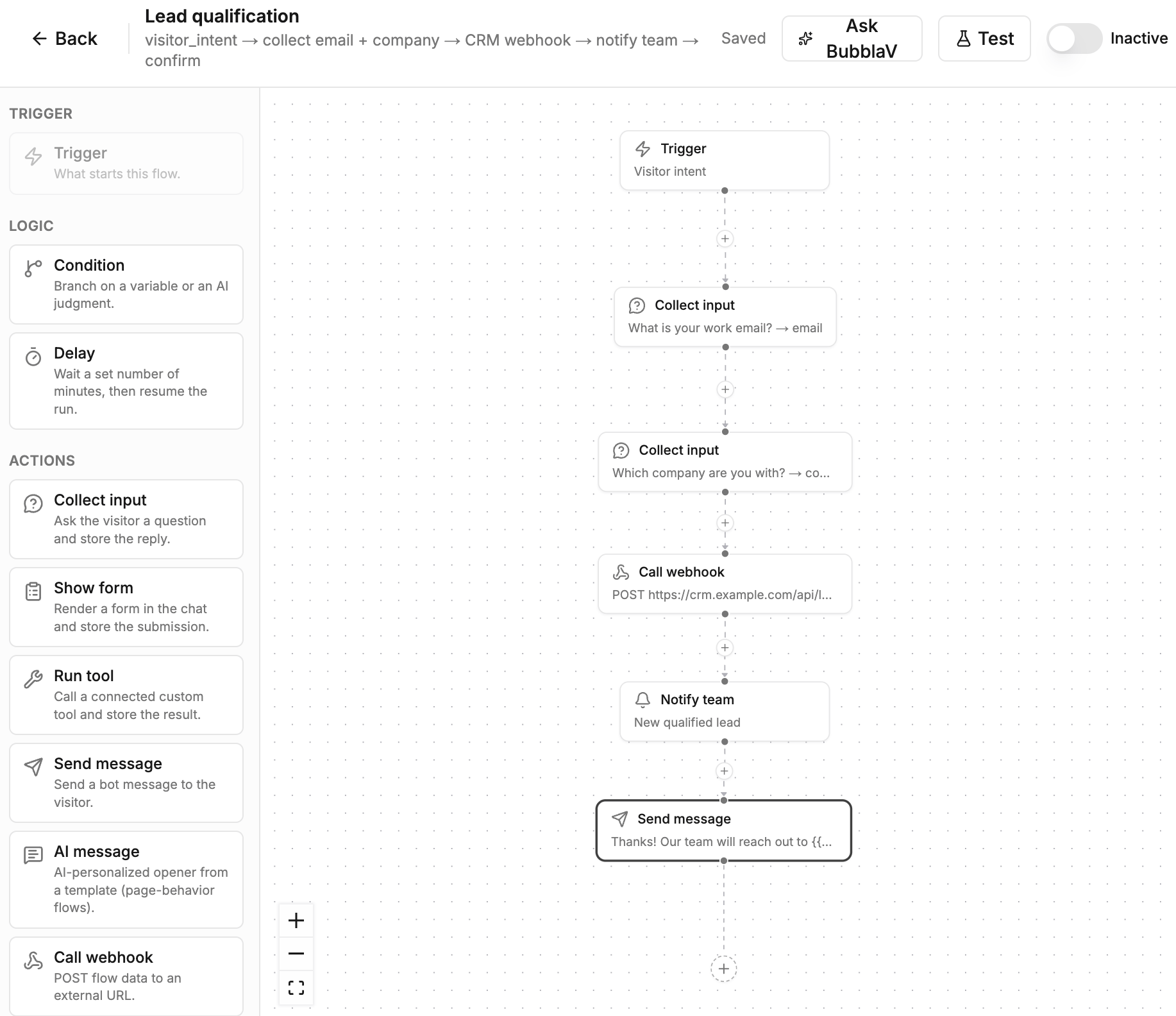
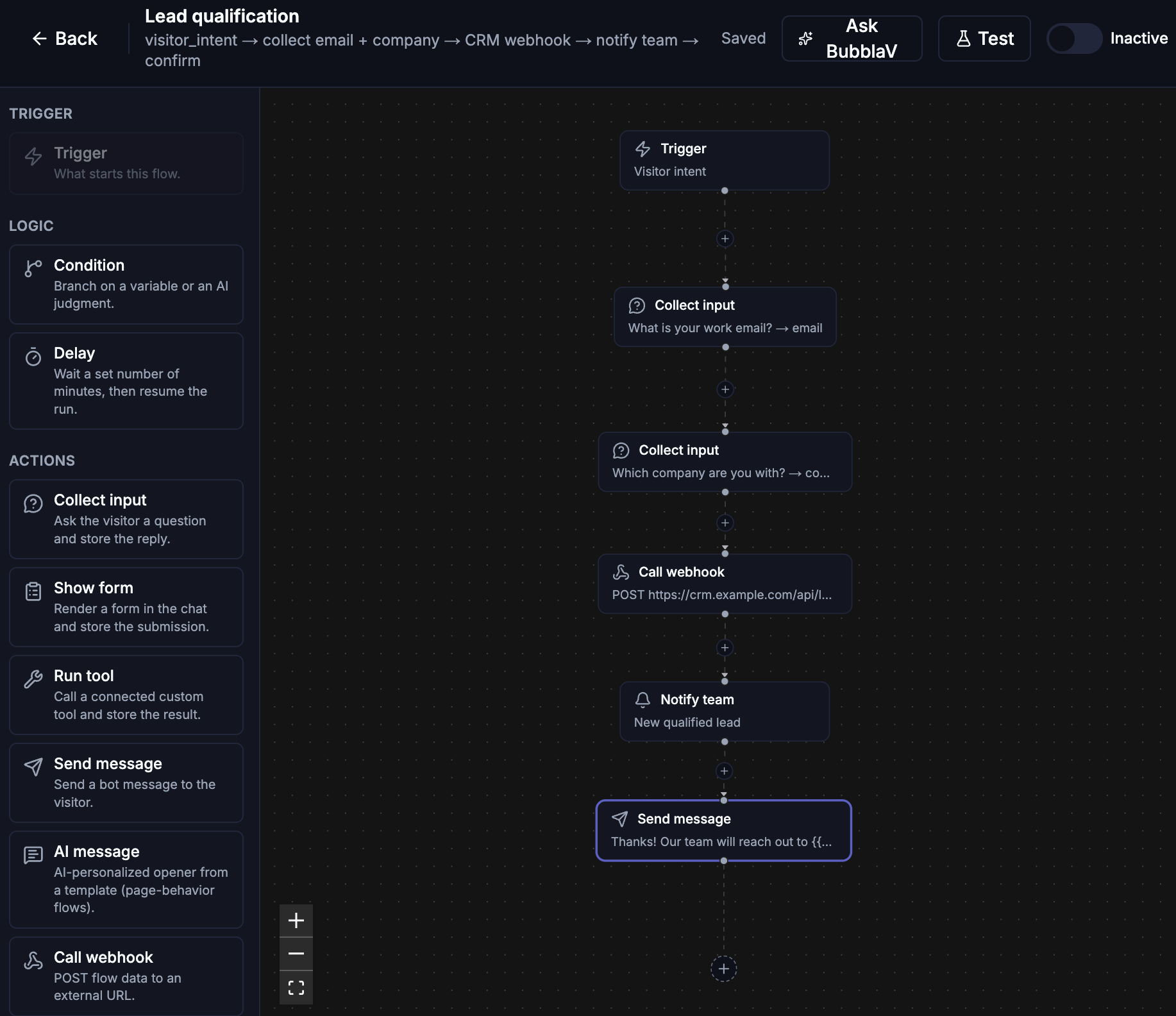
In the dashboard, open your website and go to **Chatbot → Flows**, then click
**New flow**.
Give the flow a name and choose what starts it — a visitor intent or an event.
Drag nodes from the palette and connect them. Click a node to configure it in the side
panel — pick forms and tools from your website's existing ones, or create a new one from
the panel without leaving the editor.
The editor autosaves as you work (watch for "Saving…"/"Saved" in the header). Open the
**Test** panel to run the flow — chat with it like a visitor, or fire a test event for
event triggers.
When the test run looks right, switch the flow to **active**. New flows are saved inactive
— they never run until you turn them on.
| Node | What it does | Settings (`data`) |
| --------------------- | ------------------------------------------------------------------------------------------------------------------------------------------------------------------------------------------------------------------------------------------------------------- | -------------------------------------------------------------------------------------------------------------------------------------------------------------------------- |
| `trigger` | Entry point — exactly one per flow. | `triggerType`, plus `intent` (required for `visitor_intent`) |
| `condition` | Branches the flow. Its outgoing edges are labeled `true`/`false`. | `mode: 'context'` → `field`, `op` (`equals`, `not_equals`, `contains`, `exists`, `not_exists`), `value`; or `mode: 'ai'` → `question` answered against collected variables |
| `delay` | Parks the run until a timer fires, then resumes on the next node. Visitor messages during the wait go to the AI, not the flow. | `minutes` |
| `collect_input` | Sends a question as a bot message and waits; the visitor's reply is stored in a variable. | `question`, `variable`, `expected` (optional, e.g. `email`, `phone` — the AI checks the reply contains a usable value and re-asks once if not) |
| `show_form` | Sends a bot message with one of your forms embedded and waits for the submission. | `formId`, `introMessage`, `variable` |
| `run_tool` | Runs one of your Custom Tools or MCP tools and stores the result. | `toolId`, `args` (values can be literals or `{{var}}`), `variable` |
| `send_message` | Sends a bot message. | `message` |
| `call_webhook` | Calls an external URL with the same SSRF and timeout guards as Custom Tools; optionally signs the request (HMAC) and stores the response. | `url`, `method` (`POST`/`GET`/`PUT`/`PATCH`), `headers`, `body`, `secret`, `variable` |
| `send_email` | Sends a transactional email. | `to`, `subject`, `body` |
| `notify_team` | Sends a notification to your website's team members (bell, push, and email per their preferences). | `title`, `message` |
| `request_human` | Creates a live-support ticket so a teammate can take over. | `message` |
| `ai_respond` | **Terminal, chat flows only** — hands the collected variables to the chatbot, which composes the final answer with your instructions. | `instructions` (optional) |
| `ai_message` | Sends an AI-personalized opener — the AI rewrites your `template` with page context; falls back to the template on failure. | `template` (required), `intentInstructions` (optional — steers follow-up replies) |
| `cart_recovery_touch` | Sends an AI-written recovery message for the run's abandoned cart — chat widget if the visitor is reachable (first touch only), else an unsubscribe-compliant email with a one-click recovery link. Skips when the cart is recovered, expired, or suppressed. | `aiInstructions` (optional), `discountCode` (optional) |
## Variables and `{{var}}` interpolation
Every value a flow collects — visitor replies, form submissions, tool results, webhook
responses — is stored in a named **variable**. Use `{{variable}}` (or a nested path like
`{{order.status}}`) inside any message, question, webhook body, or email to insert the value.
The trigger's payload is available as `{{trigger}}`. Missing variables resolve to an empty
string.
## Build a flow
In the dashboard, open your website and go to **Chatbot → Flows**, then click
**New flow**.
Give the flow a name and choose what starts it — a visitor intent or an event.
Drag nodes from the palette and connect them. Click a node to configure it in the side
panel — pick forms and tools from your website's existing ones, or create a new one from
the panel without leaving the editor.
The editor autosaves as you work (watch for "Saving…"/"Saved" in the header). Open the
**Test** panel to run the flow — chat with it like a visitor, or fire a test event for
event triggers.
When the test run looks right, switch the flow to **active**. New flows are saved inactive
— they never run until you turn them on.
 Stuck? Click **Ask BubblaV** in the editor toolbar and describe the scenario — the assistant
can draft the flow on your canvas for you.
## Test before activating
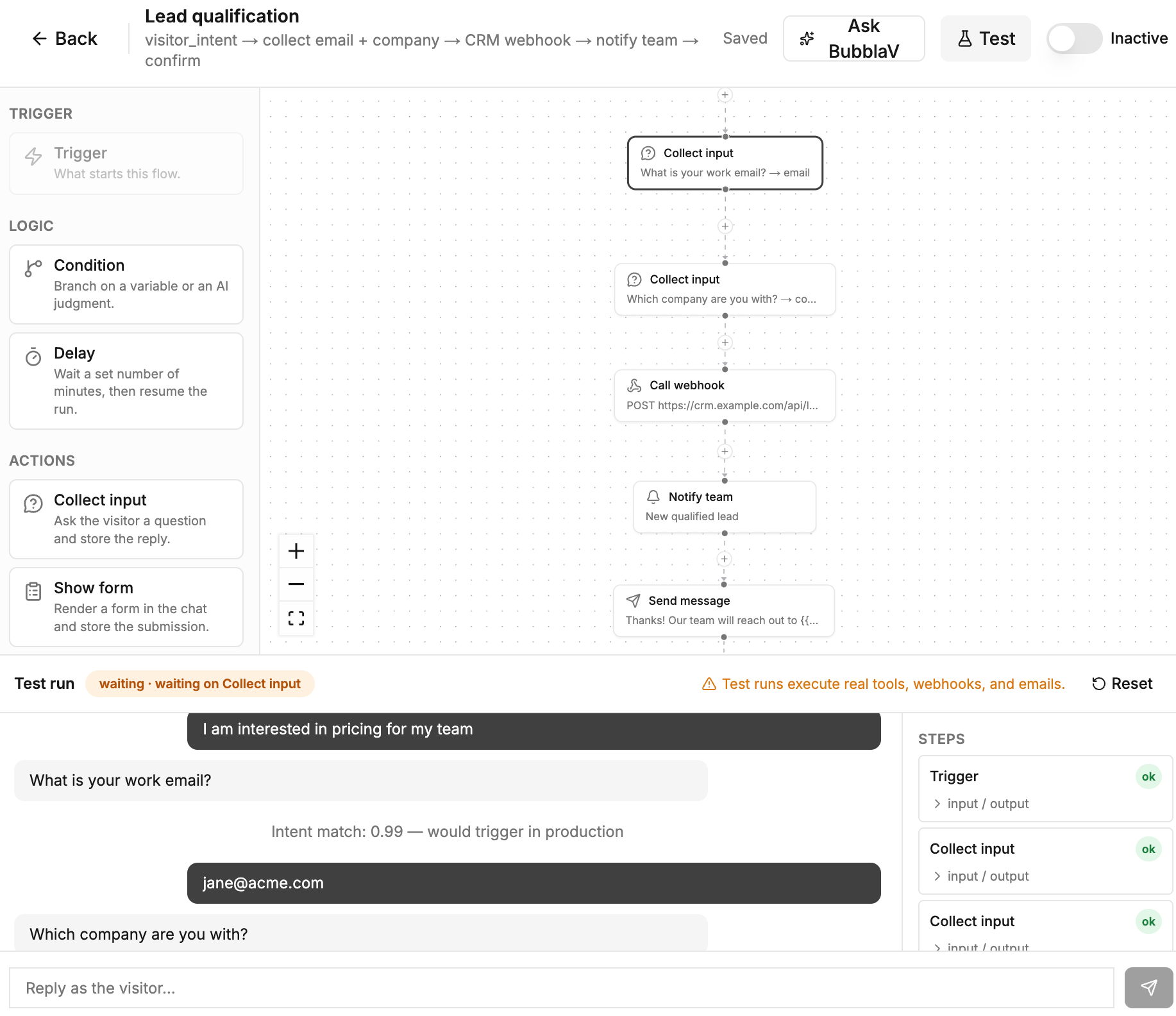
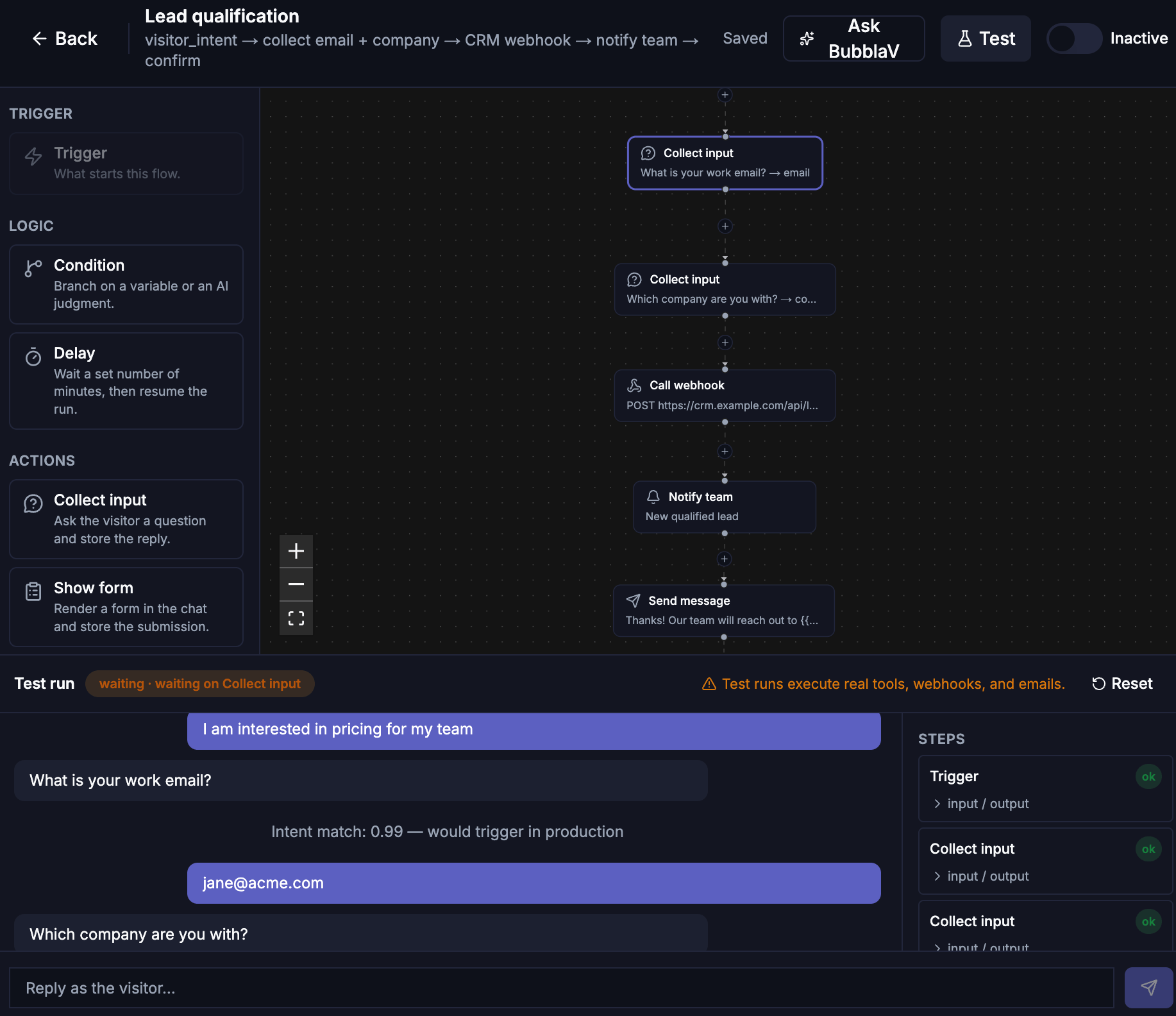
The editor's **Test** panel runs the flow without touching real conversations. Clicking
**Test** saves any pending canvas edits first, so the run always exercises what you see.
* For `visitor_intent` flows, a chat-style transcript lets you play the visitor — send messages,
answer the flow's questions, and watch each step's status. The panel reports the intent-match
score your message would get in production, and typing "cancel" or "stop" exercises the same
escape hatch visitors have. `show_form` nodes render the real form inline — submitting it
resumes the run, and an `ai_respond` node previews the actual AI reply.
* For event triggers, fire a test event with a JSON payload preview. If the run then waits on a
chat node (`collect_input`, `show_form`), the input row switches to a chat box so you can
continue the run like a visitor.
* While a test runs, the canvas highlights the executed path — green for completed nodes, red
for failures, and a pulsing amber ring on the node the run is waiting on.
* Each step in the trace expands to show its exact input and output JSON, so you can see what
data flowed between nodes. Steps that touch the outside world (`run_tool`, `call_webhook`,
`send_email`, `notify_team`, `request_human`) carry a `live` badge.
Test runs execute **real side effects** — tools run, webhooks are called, emails are sent.
Only message delivery is simulated (nothing is sent to a visitor). Point test webhooks at a
service like webhook.site if you don't want to hit production endpoints.
Stuck? Click **Ask BubblaV** in the editor toolbar and describe the scenario — the assistant
can draft the flow on your canvas for you.
## Test before activating
The editor's **Test** panel runs the flow without touching real conversations. Clicking
**Test** saves any pending canvas edits first, so the run always exercises what you see.
* For `visitor_intent` flows, a chat-style transcript lets you play the visitor — send messages,
answer the flow's questions, and watch each step's status. The panel reports the intent-match
score your message would get in production, and typing "cancel" or "stop" exercises the same
escape hatch visitors have. `show_form` nodes render the real form inline — submitting it
resumes the run, and an `ai_respond` node previews the actual AI reply.
* For event triggers, fire a test event with a JSON payload preview. If the run then waits on a
chat node (`collect_input`, `show_form`), the input row switches to a chat box so you can
continue the run like a visitor.
* While a test runs, the canvas highlights the executed path — green for completed nodes, red
for failures, and a pulsing amber ring on the node the run is waiting on.
* Each step in the trace expands to show its exact input and output JSON, so you can see what
data flowed between nodes. Steps that touch the outside world (`run_tool`, `call_webhook`,
`send_email`, `notify_team`, `request_human`) carry a `live` badge.
Test runs execute **real side effects** — tools run, webhooks are called, emails are sent.
Only message delivery is simulated (nothing is sent to a visitor). Point test webhooks at a
service like webhook.site if you don't want to hit production endpoints.
 ## Runs and history
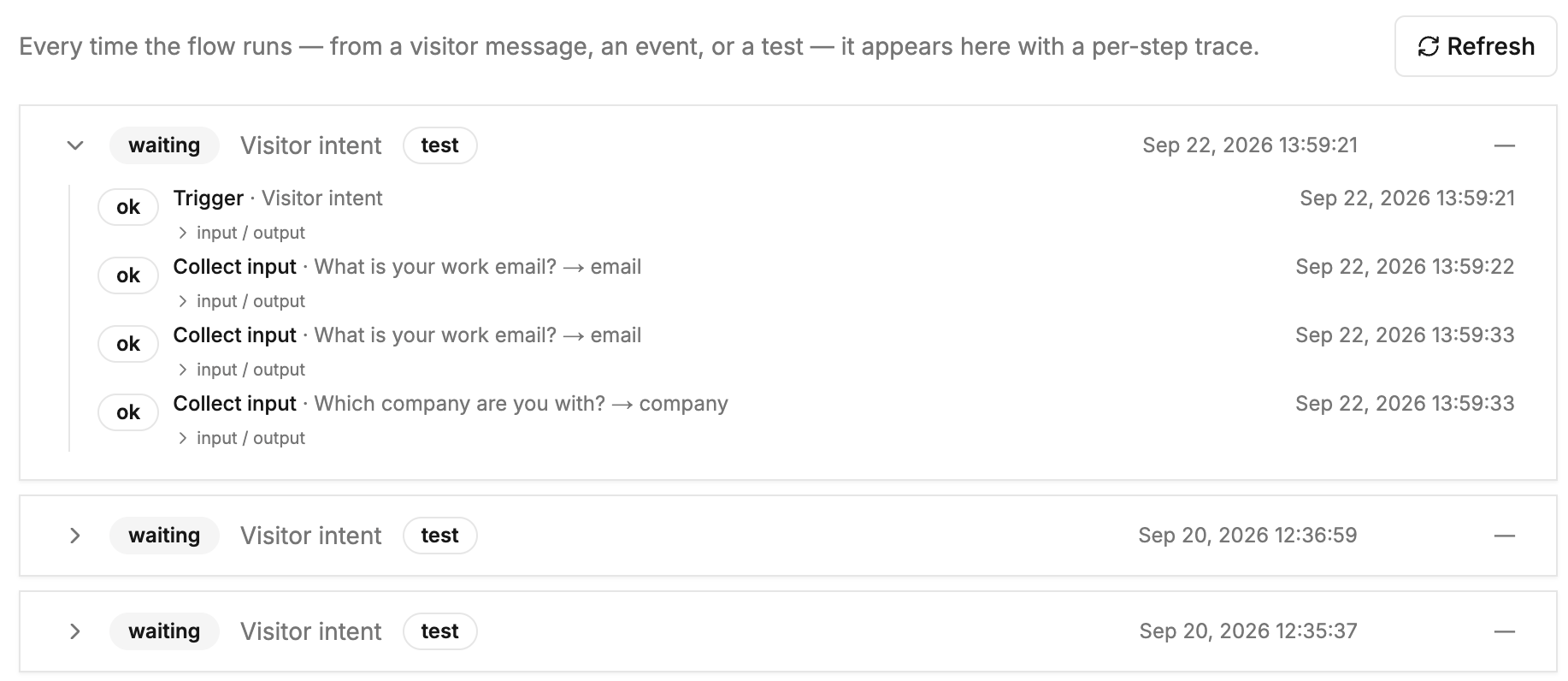
Every execution is recorded as a **run**. Open a flow's **Runs** page to see each run's status
(`running`, `waiting`, `completed`, `failed`, `cancelled`), when it started, and a per-step
trace showing every node's input, output, or error — the fastest way to debug a flow that
didn't behave as expected.
## Runs and history
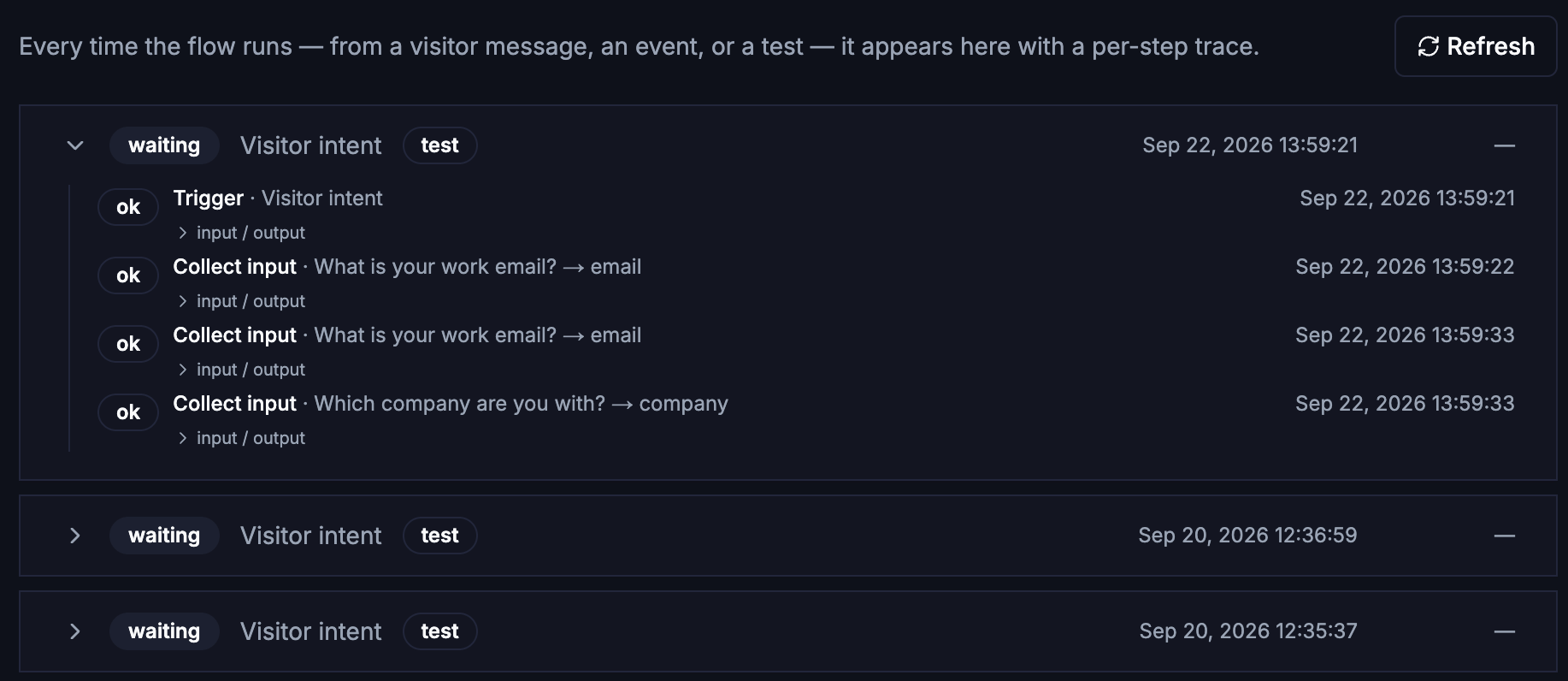
Every execution is recorded as a **run**. Open a flow's **Runs** page to see each run's status
(`running`, `waiting`, `completed`, `failed`, `cancelled`), when it started, and a per-step
trace showing every node's input, output, or error — the fastest way to debug a flow that
didn't behave as expected.
 A run that waits more than 24 hours for a visitor reply is cancelled automatically — timer
waits on a `delay` node are exempt and resume when the timer fires. A visitor can always
escape a waiting flow by saying "cancel" or "stop" — the conversation then goes back to the
normal AI.
## Debug and troubleshoot
When a flow misbehaves, work through it in this order:
1. **Reproduce in the Test panel.** The transcript, intent-match score, and canvas highlight
show exactly which path executed. Expand each step's input/output to see the data it
received and produced.
2. **Check the Runs page.** Every real and test execution is recorded. A `failed` step shows
its error inline; a `waiting` run means the flow is parked on a `collect_input` or
`show_form` node expecting a visitor reply.
3. **Common causes:**
* *Flow never triggers* — the visitor's phrasing doesn't match the intent closely enough.
Test the exact message in the panel; if the score is below the 0.6 threshold, broaden the
intent description.
* *Flow stops mid-run* — a `waiting` status means it's waiting for input, not broken. Check
whether the visitor escaped with "cancel"/"stop" (status `cancelled`) or the run timed
out after 24h.
* *Webhook/tool step failed* — expand the step output for the HTTP status or error. Test
webhooks against a service like webhook.site first.
* *AI reply looks wrong* — `ai_respond` composes from the collected variables; check the
step inputs to confirm the right values were captured, and tighten the node's
`instructions`.
## Example flows
Six recipes to copy — each is a chain of nodes you can build in a few minutes.
### Lead qualification
`visitor_intent` ("interested in pricing / wants a quote") → `collect_input` email
(`expected: email`) → `collect_input` company → `call_webhook` to your CRM → `notify_team` →
`send_message` confirmation.
The visitor asks about pricing, the flow collects their email and company, posts the lead to
your CRM, pings your team, and confirms to the visitor — all inside one conversation.
### Proactive opener (Smart Trigger)
`page_behavior` (`time_on_page`, 30s on `/pricing*`) → `ai_message` template → `ai_respond`.
The widget watches visitors dwell on your pricing page, opens the chat with an
AI-personalized opener, then lets the chatbot answer follow-ups. This is the old Smart
Triggers pattern as a flow.
### Human handoff
`visitor_intent` ("wants to speak to a human / asks for sales") → `collect_input` email →
`request_human`.
The old handoff-scenario pattern: the flow matches the visitor's intent, optionally collects
contact details first, then creates a live-support ticket so a teammate can take over with
the full transcript attached. See [Human handoff](/user-guide/human-handoff).
### Form in a flow
`visitor_intent` ("wants a demo / wants to sign up") → `show_form` (your signup form) →
`send_message` confirmation.
Instead of the AI deciding when to surface a form, the flow controls it: the form renders
in chat at exactly the step you place it, and the submission lands in a variable you can
pass to a webhook or email downstream.
### Ticket intake (event)
`inbound_webhook` → `condition` on `{{trigger.priority}}` → `send_email` to support /
`notify_team`.
Your backend POSTs a ticket payload to the flow's webhook URL; the flow routes high-priority
tickets to the support inbox and notifies the team about the rest. Event triggers have no
visitor conversation, so only non-chat nodes are used.
### Cart recovery (Shopify)
`cart_abandoned` → `delay` 60m → `cart_recovery_touch` → `delay` 24h → `cart_recovery_touch`.
Every synced abandoned checkout starts a run: the flow waits an hour, sends an AI-written
recovery message (chat widget if the visitor is still around, email otherwise), waits a day,
then sends one follow-up. A completed purchase cancels the run mid-wait. See
[Shopify](/user-guide/integrations/shopify#ai-abandoned-cart-recovery).
## Best practices
* **Write intents like a visitor would phrase them** — "wants to speak to sales", not "sales
intent trigger".
* **Collect one thing per `collect_input`** — short questions get better answers, and each
answer lands in its own variable.
* **Set `expected` when the answer has a shape** — `email`, `phone`, `order number` — so the
flow re-asks once instead of storing "I don't know".
* **End chat flows with `ai_respond` or `send_message`** — don't leave the visitor hanging on a
silent last step.
* **Test with real-looking data** — `run_tool` and `call_webhook` hit your real endpoints even
in test runs.
## Plans & limits
Flows require a **Pro plan** or higher. There's no limit on the number of flows per website.
Flow messages count toward your plan's message quota like any bot reply. See
[Billing & Plans](/user-guide/billing) for details.
## Related
The webhook tools a flow can call with `run_tool`.
Build the forms a `show_form` node embeds in chat.
What happens after a `request_human` node creates a ticket.
How the chat widget looks when a flow opens with your message.
A run that waits more than 24 hours for a visitor reply is cancelled automatically — timer
waits on a `delay` node are exempt and resume when the timer fires. A visitor can always
escape a waiting flow by saying "cancel" or "stop" — the conversation then goes back to the
normal AI.
## Debug and troubleshoot
When a flow misbehaves, work through it in this order:
1. **Reproduce in the Test panel.** The transcript, intent-match score, and canvas highlight
show exactly which path executed. Expand each step's input/output to see the data it
received and produced.
2. **Check the Runs page.** Every real and test execution is recorded. A `failed` step shows
its error inline; a `waiting` run means the flow is parked on a `collect_input` or
`show_form` node expecting a visitor reply.
3. **Common causes:**
* *Flow never triggers* — the visitor's phrasing doesn't match the intent closely enough.
Test the exact message in the panel; if the score is below the 0.6 threshold, broaden the
intent description.
* *Flow stops mid-run* — a `waiting` status means it's waiting for input, not broken. Check
whether the visitor escaped with "cancel"/"stop" (status `cancelled`) or the run timed
out after 24h.
* *Webhook/tool step failed* — expand the step output for the HTTP status or error. Test
webhooks against a service like webhook.site first.
* *AI reply looks wrong* — `ai_respond` composes from the collected variables; check the
step inputs to confirm the right values were captured, and tighten the node's
`instructions`.
## Example flows
Six recipes to copy — each is a chain of nodes you can build in a few minutes.
### Lead qualification
`visitor_intent` ("interested in pricing / wants a quote") → `collect_input` email
(`expected: email`) → `collect_input` company → `call_webhook` to your CRM → `notify_team` →
`send_message` confirmation.
The visitor asks about pricing, the flow collects their email and company, posts the lead to
your CRM, pings your team, and confirms to the visitor — all inside one conversation.
### Proactive opener (Smart Trigger)
`page_behavior` (`time_on_page`, 30s on `/pricing*`) → `ai_message` template → `ai_respond`.
The widget watches visitors dwell on your pricing page, opens the chat with an
AI-personalized opener, then lets the chatbot answer follow-ups. This is the old Smart
Triggers pattern as a flow.
### Human handoff
`visitor_intent` ("wants to speak to a human / asks for sales") → `collect_input` email →
`request_human`.
The old handoff-scenario pattern: the flow matches the visitor's intent, optionally collects
contact details first, then creates a live-support ticket so a teammate can take over with
the full transcript attached. See [Human handoff](/user-guide/human-handoff).
### Form in a flow
`visitor_intent` ("wants a demo / wants to sign up") → `show_form` (your signup form) →
`send_message` confirmation.
Instead of the AI deciding when to surface a form, the flow controls it: the form renders
in chat at exactly the step you place it, and the submission lands in a variable you can
pass to a webhook or email downstream.
### Ticket intake (event)
`inbound_webhook` → `condition` on `{{trigger.priority}}` → `send_email` to support /
`notify_team`.
Your backend POSTs a ticket payload to the flow's webhook URL; the flow routes high-priority
tickets to the support inbox and notifies the team about the rest. Event triggers have no
visitor conversation, so only non-chat nodes are used.
### Cart recovery (Shopify)
`cart_abandoned` → `delay` 60m → `cart_recovery_touch` → `delay` 24h → `cart_recovery_touch`.
Every synced abandoned checkout starts a run: the flow waits an hour, sends an AI-written
recovery message (chat widget if the visitor is still around, email otherwise), waits a day,
then sends one follow-up. A completed purchase cancels the run mid-wait. See
[Shopify](/user-guide/integrations/shopify#ai-abandoned-cart-recovery).
## Best practices
* **Write intents like a visitor would phrase them** — "wants to speak to sales", not "sales
intent trigger".
* **Collect one thing per `collect_input`** — short questions get better answers, and each
answer lands in its own variable.
* **Set `expected` when the answer has a shape** — `email`, `phone`, `order number` — so the
flow re-asks once instead of storing "I don't know".
* **End chat flows with `ai_respond` or `send_message`** — don't leave the visitor hanging on a
silent last step.
* **Test with real-looking data** — `run_tool` and `call_webhook` hit your real endpoints even
in test runs.
## Plans & limits
Flows require a **Pro plan** or higher. There's no limit on the number of flows per website.
Flow messages count toward your plan's message quota like any bot reply. See
[Billing & Plans](/user-guide/billing) for details.
## Related
The webhook tools a flow can call with `run_tool`.
Build the forms a `show_form` node embeds in chat.
What happens after a `request_human` node creates a ticket.
How the chat widget looks when a flow opens with your message.