> ## Documentation Index
> Fetch the complete documentation index at: https://docs.bubblav.com/llms.txt
> Use this file to discover all available pages before exploring further.
# MCP Servers
> Connect to Model Context Protocol servers for advanced AI capabilities
MCP (Model Context Protocol) servers extend your chatbot with standardized AI capabilities. Unlike custom tools that connect to your APIs, MCP servers provide pre-built tools following an open protocol.
## What is MCP?
Model Context Protocol is an open standard for connecting AI systems to external tools and data sources. MCP servers expose:
* **Tools**: Actions the AI can perform
* **Resources**: Data the AI can access
* **Prompts**: Pre-defined conversation templates
MCP is an advanced feature. Most users should start with [Integrations Overview](/user-guide/integrations/overview) or [Custom Tools](/user-guide/integrations/custom-tools).
## When to Use MCP vs Custom Tools
| Feature | Custom Tools | MCP Servers |
| ---------------- | ---------------- | ------------------- |
| Setup complexity | Simple | Advanced |
| Protocol | HTTP/REST | MCP (SSE over HTTP) |
| Best for | Your own APIs | Pre-built AI tools |
| Authentication | Built-in options | Server-specific |
**Use Custom Tools when:**
* Connecting to your own backend
* Simple API integrations
* Need built-in auth options
**Use MCP when:**
* Using pre-built MCP servers
* Need advanced AI capabilities
* Building with MCP ecosystem
***
## Adding an MCP Server
Go to **Dashboard** → **Integrations** → **MCP Servers** → **Add Server**
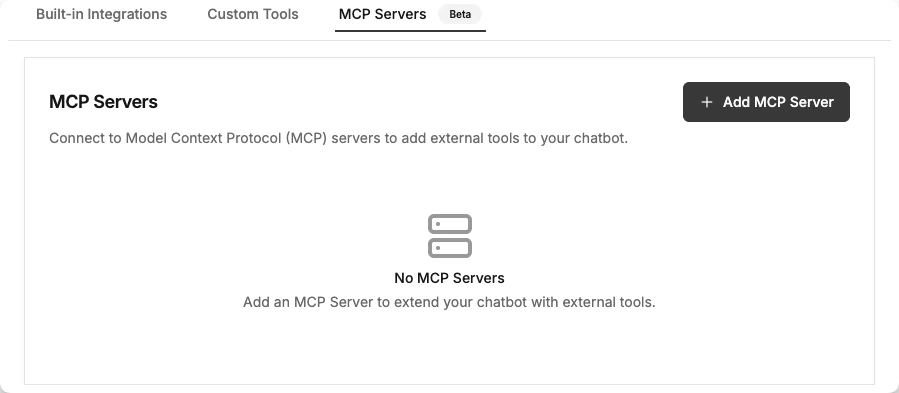
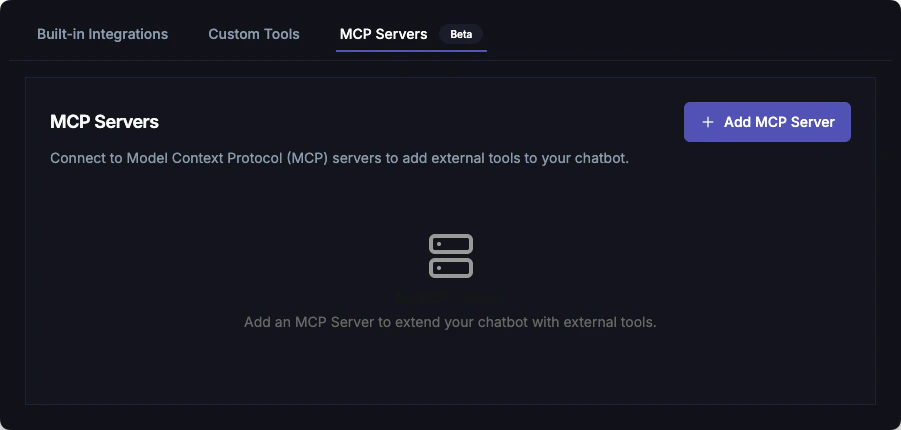 Fill in the server configuration:
**Server Name** (required)
* A friendly name for this server
* Example: "File Browser", "Database Query"
**Server URL** (required)
* The MCP server endpoint URL using Server-Sent Events (SSE)
* Example: `https://mcp.example.com/sse`
* Must be accessible over HTTPS
If your MCP server requires authentication, add custom headers:
* **Header Key**: e.g., `Authorization`, `X-API-Key`
* **Header Value**: Your authentication token or key
Common examples:
* `Authorization: Bearer your-token-here`
* `X-API-Key: your-api-key`
Save the configuration. The server will connect and expose available tools.
***
## Configuration Examples
### Remote MCP Server
Connect to a remote MCP server with authentication:
| Field | Value |
| ------- | --------------------------------------- |
| Name | Custom Server |
| URL | `https://mcp.example.com/sse` |
| Headers | `Authorization: Bearer your-token-here` |
### Public MCP Server
Connect to a public MCP server without authentication:
| Field | Value |
| ------- | ----------------------------------- |
| Name | Public Tools Server |
| URL | `https://public-mcp-server.com/sse` |
| Headers | (none required) |
***
## Available Tools
After connecting, the server's tools appear in your dashboard. Common tool types:
* **File operations**: Read, write, list files
* **Database queries**: SQL or natural language queries
* **Web scraping**: Fetch and parse web content
* **API integrations**: Pre-built API connectors
Each tool shows:
* Name and description
* Required parameters
* Return type
***
## Managing MCP Servers
### View Connected Servers
Go to **Dashboard** → **Integrations** → **MCP Servers** to see:
* Connection status
* Available tools
* Last activity
### Disconnect
1. Find the server card
2. Click the settings icon
3. Select **Disconnect**
### Reconnect
If a server disconnects:
1. Check the server is running
2. Verify configuration
3. Click **Reconnect**
***
## Troubleshooting
* Verify the server URL is correct and accessible
* Check that the server supports SSE (Server-Sent Events) transport
* Review authentication headers if required
* Ensure the server is running and reachable over HTTPS
* Wait for server initialization
* Check server logs for errors
* Verify server exposes tools correctly
* Check network stability and HTTPS connectivity
* Verify the server URL is still valid
* Review server health and availability
* Check authentication headers haven't expired
***
## Security Considerations
MCP servers can execute code and access data. Only connect trusted servers.
* **Verify sources**: Only use official or audited MCP servers
* **Limit access**: Configure minimal permissions
* **Monitor activity**: Review tool usage in logs
* **Authentication headers**: Store sensitive tokens securely and never expose them in logs
* **HTTPS only**: Always use HTTPS URLs to protect data in transit
***
## Next Steps
Build simple API integrations
Connect popular platforms
Fill in the server configuration:
**Server Name** (required)
* A friendly name for this server
* Example: "File Browser", "Database Query"
**Server URL** (required)
* The MCP server endpoint URL using Server-Sent Events (SSE)
* Example: `https://mcp.example.com/sse`
* Must be accessible over HTTPS
If your MCP server requires authentication, add custom headers:
* **Header Key**: e.g., `Authorization`, `X-API-Key`
* **Header Value**: Your authentication token or key
Common examples:
* `Authorization: Bearer your-token-here`
* `X-API-Key: your-api-key`
Save the configuration. The server will connect and expose available tools.
***
## Configuration Examples
### Remote MCP Server
Connect to a remote MCP server with authentication:
| Field | Value |
| ------- | --------------------------------------- |
| Name | Custom Server |
| URL | `https://mcp.example.com/sse` |
| Headers | `Authorization: Bearer your-token-here` |
### Public MCP Server
Connect to a public MCP server without authentication:
| Field | Value |
| ------- | ----------------------------------- |
| Name | Public Tools Server |
| URL | `https://public-mcp-server.com/sse` |
| Headers | (none required) |
***
## Available Tools
After connecting, the server's tools appear in your dashboard. Common tool types:
* **File operations**: Read, write, list files
* **Database queries**: SQL or natural language queries
* **Web scraping**: Fetch and parse web content
* **API integrations**: Pre-built API connectors
Each tool shows:
* Name and description
* Required parameters
* Return type
***
## Managing MCP Servers
### View Connected Servers
Go to **Dashboard** → **Integrations** → **MCP Servers** to see:
* Connection status
* Available tools
* Last activity
### Disconnect
1. Find the server card
2. Click the settings icon
3. Select **Disconnect**
### Reconnect
If a server disconnects:
1. Check the server is running
2. Verify configuration
3. Click **Reconnect**
***
## Troubleshooting
* Verify the server URL is correct and accessible
* Check that the server supports SSE (Server-Sent Events) transport
* Review authentication headers if required
* Ensure the server is running and reachable over HTTPS
* Wait for server initialization
* Check server logs for errors
* Verify server exposes tools correctly
* Check network stability and HTTPS connectivity
* Verify the server URL is still valid
* Review server health and availability
* Check authentication headers haven't expired
***
## Security Considerations
MCP servers can execute code and access data. Only connect trusted servers.
* **Verify sources**: Only use official or audited MCP servers
* **Limit access**: Configure minimal permissions
* **Monitor activity**: Review tool usage in logs
* **Authentication headers**: Store sensitive tokens securely and never expose them in logs
* **HTTPS only**: Always use HTTPS URLs to protect data in transit
***
## Next Steps
Build simple API integrations
Connect popular platforms