> ## Documentation Index
> Fetch the complete documentation index at: https://docs.bubblav.com/llms.txt
> Use this file to discover all available pages before exploring further.
# Shopify
> Connect your online store for order tracking and product search
Transform your chatbot into a powerful e-commerce assistant. Customers can track orders, search products, and get instant answers about your store.
## Why Connect Shopify?
Customers check order status using order numbers
Interactive product discovery with filters and pricing
Support agents see order history and customer value in real-time
Reduce support workload with accurate, instant info
## Visitor Insights for Support Agents
The Shopify integration enriches the **Visitor Insight** panel in your BubblaV dashboard, providing support agents with critical customer context during live chats:
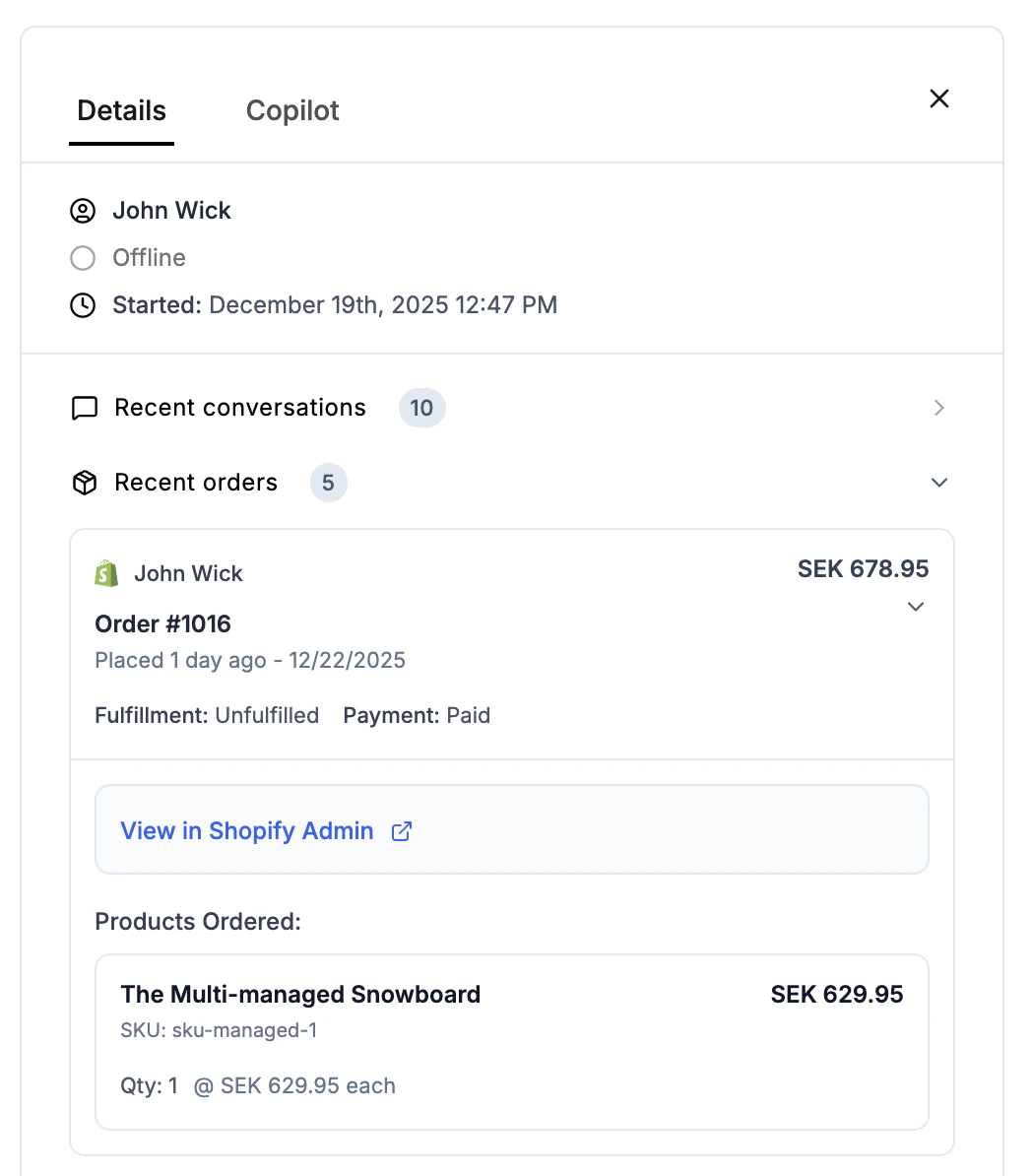 * **Order History**: A detailed list of current and past orders with fulfillment and payment status.
* **Order Tracking**: Real-time tracking information including carrier, tracking numbers, and delivery status.
* **Product Details**: View exactly which products were ordered, including images and itemized prices.
* **Admin Access**: Direct links to view orders in your Shopify Admin for quick management.
* **Refunds & Returns**: View refunded amounts and the status of any active return requests.
By having this information at their fingertips, support agents can resolve order-related questions faster and provide a more personalized experience.
## Prerequisites
* Active Shopify store
* Store owner or staff permissions
## Setup Steps
Go to the [BubblaV Shopify App listing](https://apps.shopify.com/bubblav) and click **Install app**.
If you have multiple stores, select the store where you want to install BubblaV.
Review the permissions and click **Install app** to authorize BubblaV.
You'll be redirected to your dashboard. The Shopify card should now show **Connected**.
***
## Return Policy Configuration
After connecting Shopify, you can configure the return policy settings for the **Initiate Return** tool. These settings control when customers can request returns.
### Return Window
The **Return Window** specifies the maximum number of days after order placement that customers can request a return.
* **Default**: 30 days
* **Range**: 1-365 days
* **Location**: In the Shopify integration settings, find the **Return Policy Configuration** section
**Example**: If set to 30 days, customers can only request returns for orders placed within the last 30 days.
### Minimum Order Age
The **Minimum Order Age** specifies how many hours must pass after an order is placed before a return can be requested. This prevents immediate returns right after purchase.
* **Default**: 0 hours (immediate returns allowed)
* **Range**: 0-168 hours (0-7 days)
* **Location**: In the Shopify integration settings, find the **Return Policy Configuration** section
**Examples**:
* **0 hours**: Returns can be requested immediately after order placement
* **24 hours**: Customers must wait 24 hours after placing an order before requesting a return
* **48 hours**: Customers must wait 2 days before requesting a return
Setting a minimum order age (e.g., 24-48 hours) can help prevent impulse returns and give customers time to receive and evaluate their purchase.
### How to Configure
1. Go to **Dashboard** → **Integrations** → **Shopify**
2. Scroll to the **Return Policy Configuration** section
3. Set **Return Window (days)** - Maximum days after order placement to allow returns
4. Set **Minimum Order Age (hours)** - Minimum hours after order before returns allowed (0 = immediate)
5. Click **Save Return Configuration**
***
## Available Tools After Connection
| Tool | What It Does | Example Query |
| ------------------------------------ | ---------------------------- | ----------------------------------------------------------- |
| `shopify_track_order` | Track orders by number/ID | "Track order #1001" |
| `shopify_search_products` | Search product catalog | "Show running shoes under \$50" |
| `shopify_get_product` | Get product details | "Tell me about this product" |
| `shopify_customer_orders` | Customer order history | "My orders for [john@example.com](mailto:john@example.com)" |
| `shopify_initiate_return` | Start a return request | "I want to return my order" |
| `shopify_create_return` | Process return authorization | "Process my return" |
| `shopify_search_pages` | Search store content pages | "What's your return policy?" |
| `shopify_check_gift_card_balance` | Check gift card balance | "Check my gift card ending in 1234" |
| `shopify_validate_discount_code` | Validate promo codes | "Is code SUMMER25 valid?" |
| `shopify_check_product_availability` | Check stock levels | "Is this available in size Large?" |
| `shopify_get_store_locations` | List store locations | "Where are your stores?" |
| `shopify_get_shipping_rates` | Calculate shipping costs | "How much is shipping to New York?" |
| `shopify_get_collections` | Browse product categories | "What product categories do you have?" |
| `shopify_cancel_order` | Cancel unfulfilled orders | "Cancel my order #1001" |
## Test Your Integration
Try these queries on your website:
* **Order History**: A detailed list of current and past orders with fulfillment and payment status.
* **Order Tracking**: Real-time tracking information including carrier, tracking numbers, and delivery status.
* **Product Details**: View exactly which products were ordered, including images and itemized prices.
* **Admin Access**: Direct links to view orders in your Shopify Admin for quick management.
* **Refunds & Returns**: View refunded amounts and the status of any active return requests.
By having this information at their fingertips, support agents can resolve order-related questions faster and provide a more personalized experience.
## Prerequisites
* Active Shopify store
* Store owner or staff permissions
## Setup Steps
Go to the [BubblaV Shopify App listing](https://apps.shopify.com/bubblav) and click **Install app**.
If you have multiple stores, select the store where you want to install BubblaV.
Review the permissions and click **Install app** to authorize BubblaV.
You'll be redirected to your dashboard. The Shopify card should now show **Connected**.
***
## Return Policy Configuration
After connecting Shopify, you can configure the return policy settings for the **Initiate Return** tool. These settings control when customers can request returns.
### Return Window
The **Return Window** specifies the maximum number of days after order placement that customers can request a return.
* **Default**: 30 days
* **Range**: 1-365 days
* **Location**: In the Shopify integration settings, find the **Return Policy Configuration** section
**Example**: If set to 30 days, customers can only request returns for orders placed within the last 30 days.
### Minimum Order Age
The **Minimum Order Age** specifies how many hours must pass after an order is placed before a return can be requested. This prevents immediate returns right after purchase.
* **Default**: 0 hours (immediate returns allowed)
* **Range**: 0-168 hours (0-7 days)
* **Location**: In the Shopify integration settings, find the **Return Policy Configuration** section
**Examples**:
* **0 hours**: Returns can be requested immediately after order placement
* **24 hours**: Customers must wait 24 hours after placing an order before requesting a return
* **48 hours**: Customers must wait 2 days before requesting a return
Setting a minimum order age (e.g., 24-48 hours) can help prevent impulse returns and give customers time to receive and evaluate their purchase.
### How to Configure
1. Go to **Dashboard** → **Integrations** → **Shopify**
2. Scroll to the **Return Policy Configuration** section
3. Set **Return Window (days)** - Maximum days after order placement to allow returns
4. Set **Minimum Order Age (hours)** - Minimum hours after order before returns allowed (0 = immediate)
5. Click **Save Return Configuration**
***
## Available Tools After Connection
| Tool | What It Does | Example Query |
| ------------------------------------ | ---------------------------- | ----------------------------------------------------------- |
| `shopify_track_order` | Track orders by number/ID | "Track order #1001" |
| `shopify_search_products` | Search product catalog | "Show running shoes under \$50" |
| `shopify_get_product` | Get product details | "Tell me about this product" |
| `shopify_customer_orders` | Customer order history | "My orders for [john@example.com](mailto:john@example.com)" |
| `shopify_initiate_return` | Start a return request | "I want to return my order" |
| `shopify_create_return` | Process return authorization | "Process my return" |
| `shopify_search_pages` | Search store content pages | "What's your return policy?" |
| `shopify_check_gift_card_balance` | Check gift card balance | "Check my gift card ending in 1234" |
| `shopify_validate_discount_code` | Validate promo codes | "Is code SUMMER25 valid?" |
| `shopify_check_product_availability` | Check stock levels | "Is this available in size Large?" |
| `shopify_get_store_locations` | List store locations | "Where are your stores?" |
| `shopify_get_shipping_rates` | Calculate shipping costs | "How much is shipping to New York?" |
| `shopify_get_collections` | Browse product categories | "What product categories do you have?" |
| `shopify_cancel_order` | Cancel unfulfilled orders | "Cancel my order #1001" |
## Test Your Integration
Try these queries on your website:
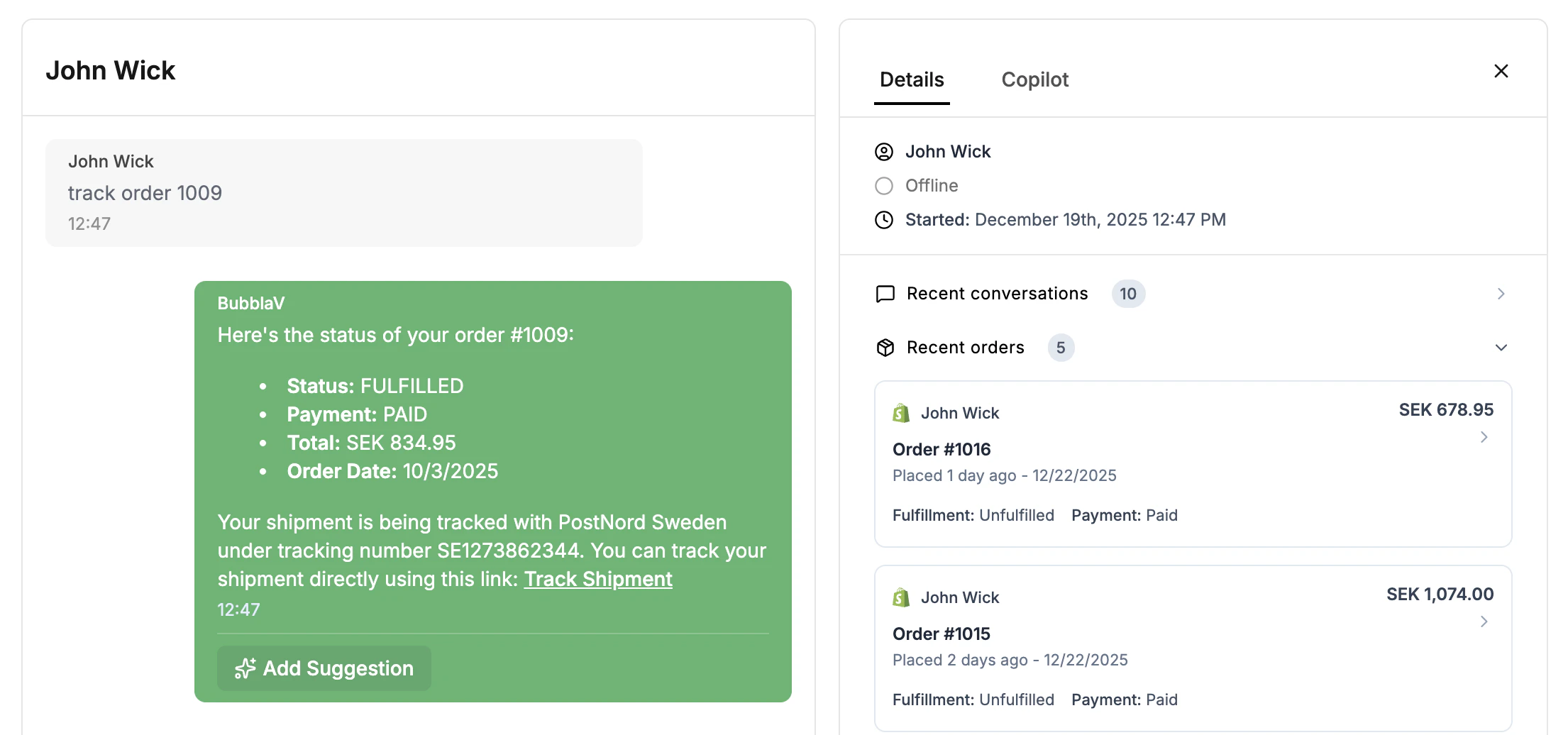 * "Track order #1001" (use a real order number)
* "Show me your products"
* "What running shoes do you have?"
## Troubleshooting
* Verify you're using `.myshopify.com` format
* Check store is active at `https://your-store.myshopify.com`
* Clear browser cache and try incognito mode
* Ensure you have app installation permissions
* Wait a few minutes for activation
* Verify store has orders/products data
**Security**: We only request read-only permissions. Your store data remains secure.
* "Track order #1001" (use a real order number)
* "Show me your products"
* "What running shoes do you have?"
## Troubleshooting
* Verify you're using `.myshopify.com` format
* Check store is active at `https://your-store.myshopify.com`
* Clear browser cache and try incognito mode
* Ensure you have app installation permissions
* Wait a few minutes for activation
* Verify store has orders/products data
**Security**: We only request read-only permissions. Your store data remains secure.