> ## Documentation Index
> Fetch the complete documentation index at: https://docs.bubblav.com/llms.txt
> Use this file to discover all available pages before exploring further.
# Stripe
> Let your chatbot answer customer billing questions
Enable your AI chatbot to answer billing questions, show invoices, and help customers manage their subscriptions through Stripe.
## Why Connect Stripe?
* **Instant Billing Answers**: Customers get subscription status, billing dates, and invoice history immediately
* **Self-Service Links**: Generate secure Stripe Billing Portal links for payment method updates
* **Visitor Insights**: Provide support agents with real-time billing data directly in the conversation view
* **Reduced Support Tickets**: Deflect 80%+ of common billing questions automatically
* **Secure by Default**: Read-only access with email verification and masked card numbers
## Visitor Insights for Support Agents
When your support agents are chatting with customers in the BubblaV dashboard, the Stripe integration provides a dedicated **Visitor Insight** panel. This gives your team instant access to:
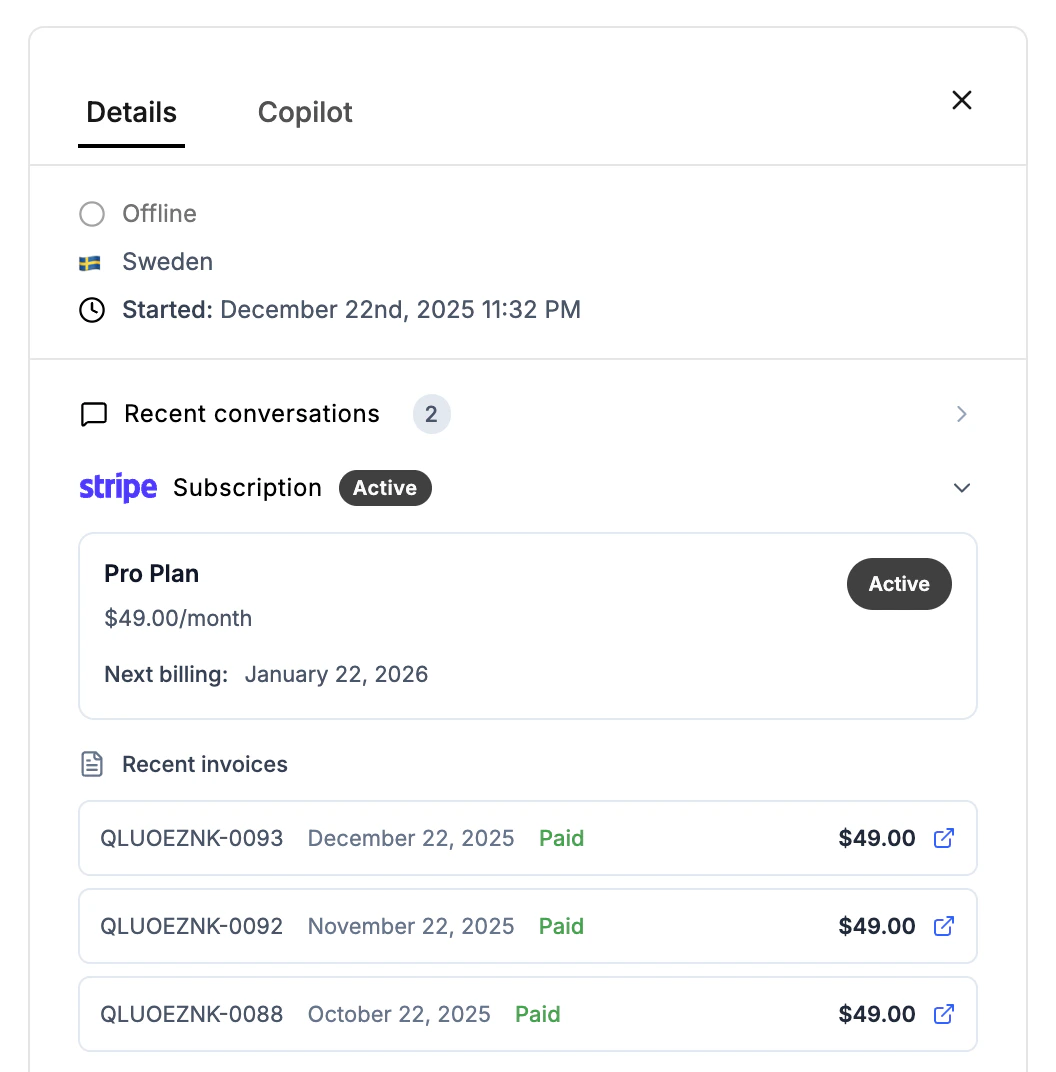 * **Subscription Status**: See if the customer is on an active, trialing, or past-due plan.
* **Billing History**: View the last 5 invoices, including payment status and PDF download links.
* **Payment Method**: See the customer's current payment method (e.g., Visa \*\*\*\*4242) at a glance.
* **Next Billing Date**: Know exactly when the customer's next payment is scheduled.
This specialized view ensures your support team has all the context they need to provide exceptional, personalized support without switching tabs.
## Prerequisites
Before connecting, you'll need:
* A Stripe account with customers and subscriptions
* Admin access to create API keys in Stripe Dashboard
## Setup Steps
### Step 1: Create a Restricted API Key in Stripe
Go to [Stripe Dashboard → Developers → API keys](https://dashboard.stripe.com/apikeys)
In the **Restricted keys** section, click the **+ Create restricted key** button
When prompted "How will you use this API key?", select:
**"Providing this key to another website"**
This is the correct option because BubblaV is a third-party application that connects to your Stripe account.
Do NOT select "Building your own integration" - that option is for custom code projects.
Enter a name like `BubblaV Chatbot` so you can identify it later
Set the following permissions for the key. Each permission controls what data BubblaV can access:
**Read Permissions (Required):**
| Resource | Permission | Why We Need It |
| ----------------------- | ---------- | ---------------------------------------------------------------------------- |
| **Customers** | Read | Look up customers by email to verify identity before showing billing info |
| **Subscriptions** | Read | Show subscription status, current plan, billing cycle, and next payment date |
| **Invoices** | Read | Display invoice history with PDF download links and hosted invoice pages |
| **Charges and Refunds** | Read | Show payment history with receipt links and transaction status |
| **Payment Methods** | Read | Display masked card info (last 4 digits only) for customer reference |
| **Products** | Read | Retrieve product names for accurate plan descriptions |
**Write Permissions (Required for full functionality):**
| Resource | Permission | Why We Need It |
| ------------------- | ---------- | --------------------------------------------------------------------------------------------------- |
| **Customer portal** | Write | Generate secure Billing Portal links so customers can self-manage subscriptions and payment methods |
| **Invoices** | Write | Resend invoice emails to customers when requested |
**Finding permissions**: In Stripe's restricted key interface, you may need to search or scroll to find these specific resources. Use the search box if available.
Click **Create key** to generate the restricted key
### Step 2: Connect to BubblaV
Go to **Dashboard** → **Integrations** → **Stripe**
Paste your Stripe API key (starts with `rk_live_`, `rk_test_`, `sk_live_`, or `sk_test_`)
Click **Connect** to validate the key and enable billing tools
***
## Configuration Settings
After connecting, configure how the chatbot handles billing operations.
### Billing Portal Return URL
The URL where customers are redirected after visiting the Stripe Billing Portal.
* **Default**: Your website's homepage
* **Recommended**: Your account or billing page (e.g., `https://yoursite.com/account`)
* **Location**: **Dashboard** → **Integrations** → **Stripe** → **Configure** → **Settings**
***
## Available Tools
Once connected, these tools become available to your chatbot:
| Tool | Description |
| --------------------------- | ------------------------------------------------------------------------- |
| **Get Subscription Status** | Current plan, status, billing cycle, next payment date |
| **Get Invoice History** | Past invoices with PDF download and hosted invoice links |
| **Get Payment History** | Recent charges with receipt links and payment method details |
| **Get Billing Info** | Customer billing details with masked card numbers |
| **Resend Invoice** | Resend invoice email or provide invoice links for auto-charged invoices |
| **Get Billing Portal Link** | Generate secure self-service portal link (5-minute expiry) |
| **Cancel Subscription** | Provides billing portal link for self-service cancellation |
| **Get Upcoming Invoice** | Preview the next invoice before it's generated (amount, date, line items) |
| **Apply Coupon** | Apply a coupon or promo code to a customer's active subscription |
| **Get Available Plans** | List all subscription plans with pricing for upgrade/downgrade options |
| **Get Credit Balance** | Check the customer's account credit balance for future invoices |
***
## How It Works
1. **Customer asks a billing question** (e.g., "When is my next payment?")
2. **AI verifies customer** by looking up their email in Stripe
3. **Data is retrieved** securely from Stripe's API
4. **Formatted response** is provided with relevant links
Customer verification uses email matching. The chatbot only provides billing information to verified users whose email matches a customer record in your Stripe account.
***
## Security
* **Read-only by default**: No changes to subscriptions - all changes go through Stripe's Billing Portal
* **Email verification**: Customers must be verified before accessing billing data
* **Masked card numbers**: Only last 4 digits are ever shown (e.g., `•••• 4242`)
* **Encrypted credentials**: API keys are encrypted at rest
* **PCI compliant**: We never store full card numbers or sensitive payment data
***
## FAQs
At minimum, you need read access to: Customers, Subscriptions, Invoices, Charges, Payment Methods, and Products. For billing portal links, you also need Customer Portal write access.
Customers are verified by their email address. When a customer asks a billing question, the chatbot looks up their email in your Stripe customer records. Only matching customers receive billing information.
The chatbot generates a secure Stripe Billing Portal link where customers can update payment methods, view invoices, and manage subscriptions. The chatbot cannot directly modify payment methods for security.
Stripe's customer search API is not available in the India region due to regulatory requirements. Customers on India-based Stripe accounts may need to contact support directly or provide additional verification.
Yes. We use Stripe's official API with encrypted credentials. Your API key is never exposed, card numbers are always masked, and we comply with PCI DSS, GDPR, and SOC 2 standards.
Yes! We recommend connecting with a test key (`sk_test_...`) first to verify the integration before using your live key. Test keys work with Stripe's test mode data.
The integration will show an error status in your dashboard. Simply reconnect with a new API key to restore functionality.
***
## Troubleshooting
### "Invalid API key" Error
* Verify the key starts with `sk_` or `rk_`
* Check that the key hasn't been revoked in Stripe Dashboard
* Ensure you're using the correct environment (test vs live)
### "Customer not found" Response
* The customer's email must match exactly in Stripe
* Check if the customer exists in your Stripe account
* For India-region accounts, customer search is not available
### Tools Not Appearing
* Verify the integration status is "Connected"
* Check that tools are enabled in **Configure** → **Tools**
* Refresh your integrations page
### Billing Portal Link Not Working
* Ensure your Stripe account has the Billing Portal configured
* Check that the API key has "Customer portal" write permissions
* Verify the return URL is a valid, accessible URL
***
## Example Conversations
Here are examples of how customers can interact with your chatbot:
* **Subscription Status**: See if the customer is on an active, trialing, or past-due plan.
* **Billing History**: View the last 5 invoices, including payment status and PDF download links.
* **Payment Method**: See the customer's current payment method (e.g., Visa \*\*\*\*4242) at a glance.
* **Next Billing Date**: Know exactly when the customer's next payment is scheduled.
This specialized view ensures your support team has all the context they need to provide exceptional, personalized support without switching tabs.
## Prerequisites
Before connecting, you'll need:
* A Stripe account with customers and subscriptions
* Admin access to create API keys in Stripe Dashboard
## Setup Steps
### Step 1: Create a Restricted API Key in Stripe
Go to [Stripe Dashboard → Developers → API keys](https://dashboard.stripe.com/apikeys)
In the **Restricted keys** section, click the **+ Create restricted key** button
When prompted "How will you use this API key?", select:
**"Providing this key to another website"**
This is the correct option because BubblaV is a third-party application that connects to your Stripe account.
Do NOT select "Building your own integration" - that option is for custom code projects.
Enter a name like `BubblaV Chatbot` so you can identify it later
Set the following permissions for the key. Each permission controls what data BubblaV can access:
**Read Permissions (Required):**
| Resource | Permission | Why We Need It |
| ----------------------- | ---------- | ---------------------------------------------------------------------------- |
| **Customers** | Read | Look up customers by email to verify identity before showing billing info |
| **Subscriptions** | Read | Show subscription status, current plan, billing cycle, and next payment date |
| **Invoices** | Read | Display invoice history with PDF download links and hosted invoice pages |
| **Charges and Refunds** | Read | Show payment history with receipt links and transaction status |
| **Payment Methods** | Read | Display masked card info (last 4 digits only) for customer reference |
| **Products** | Read | Retrieve product names for accurate plan descriptions |
**Write Permissions (Required for full functionality):**
| Resource | Permission | Why We Need It |
| ------------------- | ---------- | --------------------------------------------------------------------------------------------------- |
| **Customer portal** | Write | Generate secure Billing Portal links so customers can self-manage subscriptions and payment methods |
| **Invoices** | Write | Resend invoice emails to customers when requested |
**Finding permissions**: In Stripe's restricted key interface, you may need to search or scroll to find these specific resources. Use the search box if available.
Click **Create key** to generate the restricted key
### Step 2: Connect to BubblaV
Go to **Dashboard** → **Integrations** → **Stripe**
Paste your Stripe API key (starts with `rk_live_`, `rk_test_`, `sk_live_`, or `sk_test_`)
Click **Connect** to validate the key and enable billing tools
***
## Configuration Settings
After connecting, configure how the chatbot handles billing operations.
### Billing Portal Return URL
The URL where customers are redirected after visiting the Stripe Billing Portal.
* **Default**: Your website's homepage
* **Recommended**: Your account or billing page (e.g., `https://yoursite.com/account`)
* **Location**: **Dashboard** → **Integrations** → **Stripe** → **Configure** → **Settings**
***
## Available Tools
Once connected, these tools become available to your chatbot:
| Tool | Description |
| --------------------------- | ------------------------------------------------------------------------- |
| **Get Subscription Status** | Current plan, status, billing cycle, next payment date |
| **Get Invoice History** | Past invoices with PDF download and hosted invoice links |
| **Get Payment History** | Recent charges with receipt links and payment method details |
| **Get Billing Info** | Customer billing details with masked card numbers |
| **Resend Invoice** | Resend invoice email or provide invoice links for auto-charged invoices |
| **Get Billing Portal Link** | Generate secure self-service portal link (5-minute expiry) |
| **Cancel Subscription** | Provides billing portal link for self-service cancellation |
| **Get Upcoming Invoice** | Preview the next invoice before it's generated (amount, date, line items) |
| **Apply Coupon** | Apply a coupon or promo code to a customer's active subscription |
| **Get Available Plans** | List all subscription plans with pricing for upgrade/downgrade options |
| **Get Credit Balance** | Check the customer's account credit balance for future invoices |
***
## How It Works
1. **Customer asks a billing question** (e.g., "When is my next payment?")
2. **AI verifies customer** by looking up their email in Stripe
3. **Data is retrieved** securely from Stripe's API
4. **Formatted response** is provided with relevant links
Customer verification uses email matching. The chatbot only provides billing information to verified users whose email matches a customer record in your Stripe account.
***
## Security
* **Read-only by default**: No changes to subscriptions - all changes go through Stripe's Billing Portal
* **Email verification**: Customers must be verified before accessing billing data
* **Masked card numbers**: Only last 4 digits are ever shown (e.g., `•••• 4242`)
* **Encrypted credentials**: API keys are encrypted at rest
* **PCI compliant**: We never store full card numbers or sensitive payment data
***
## FAQs
At minimum, you need read access to: Customers, Subscriptions, Invoices, Charges, Payment Methods, and Products. For billing portal links, you also need Customer Portal write access.
Customers are verified by their email address. When a customer asks a billing question, the chatbot looks up their email in your Stripe customer records. Only matching customers receive billing information.
The chatbot generates a secure Stripe Billing Portal link where customers can update payment methods, view invoices, and manage subscriptions. The chatbot cannot directly modify payment methods for security.
Stripe's customer search API is not available in the India region due to regulatory requirements. Customers on India-based Stripe accounts may need to contact support directly or provide additional verification.
Yes. We use Stripe's official API with encrypted credentials. Your API key is never exposed, card numbers are always masked, and we comply with PCI DSS, GDPR, and SOC 2 standards.
Yes! We recommend connecting with a test key (`sk_test_...`) first to verify the integration before using your live key. Test keys work with Stripe's test mode data.
The integration will show an error status in your dashboard. Simply reconnect with a new API key to restore functionality.
***
## Troubleshooting
### "Invalid API key" Error
* Verify the key starts with `sk_` or `rk_`
* Check that the key hasn't been revoked in Stripe Dashboard
* Ensure you're using the correct environment (test vs live)
### "Customer not found" Response
* The customer's email must match exactly in Stripe
* Check if the customer exists in your Stripe account
* For India-region accounts, customer search is not available
### Tools Not Appearing
* Verify the integration status is "Connected"
* Check that tools are enabled in **Configure** → **Tools**
* Refresh your integrations page
### Billing Portal Link Not Working
* Ensure your Stripe account has the Billing Portal configured
* Check that the API key has "Customer portal" write permissions
* Verify the return URL is a valid, accessible URL
***
## Example Conversations
Here are examples of how customers can interact with your chatbot:
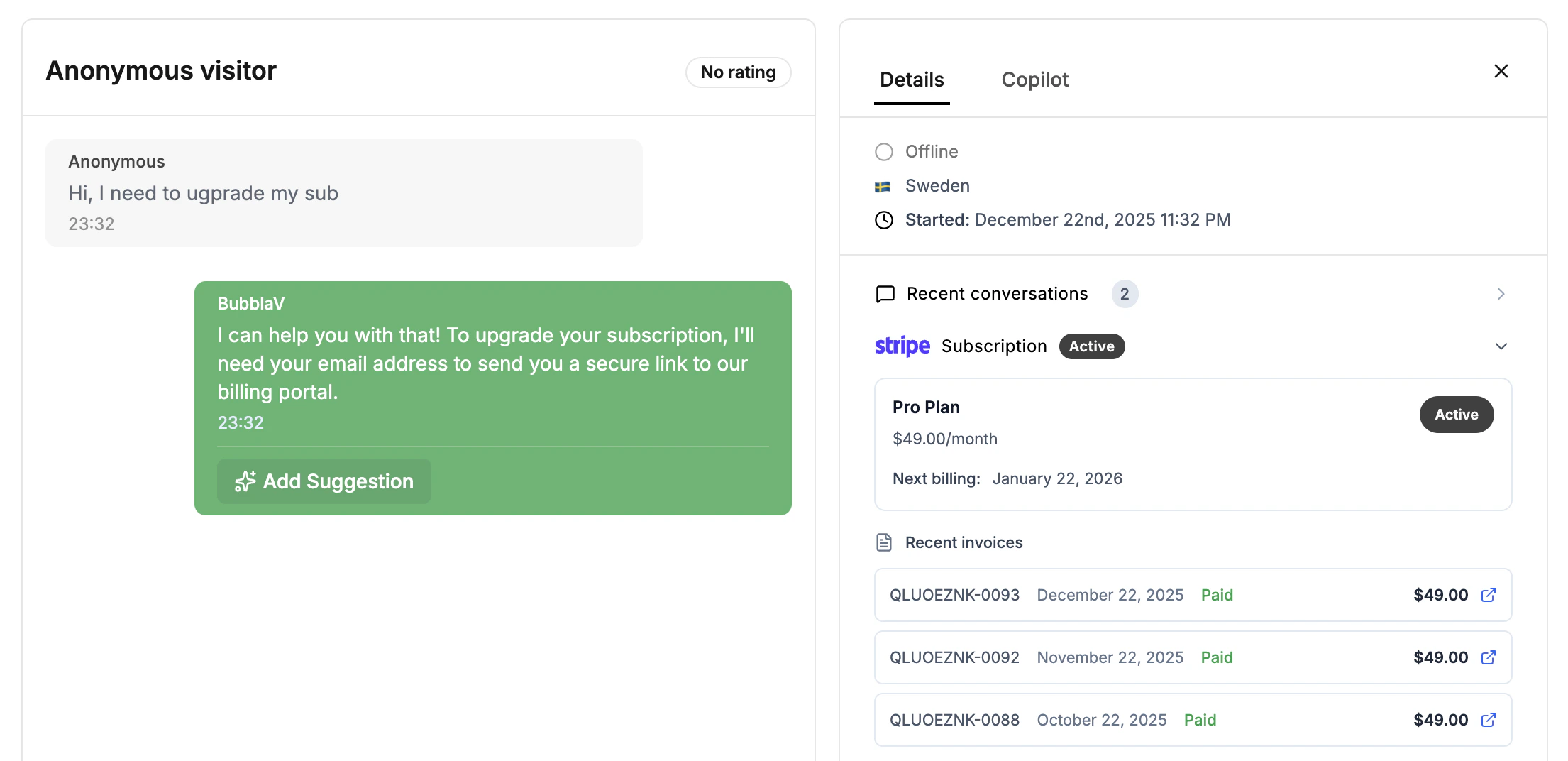 **Checking subscription status:**
> Customer: "When is my next payment due?"
> Bot: "Your Pro subscription renews on January 15 for \$49/month. Would you like to see your recent invoices?"
**Viewing invoices:**
> Customer: "Can I see my last invoice?"
> Bot: "Here's your most recent invoice: Invoice #INV-0042 - \$49.00 (Paid). \[Download PDF] \[View Online]"
**Self-service:**
> Customer: "I need to update my credit card"
> Bot: "You can update your payment method securely through our billing portal: \[Manage Billing →]. This link expires in 5 minutes."
**Checking subscription status:**
> Customer: "When is my next payment due?"
> Bot: "Your Pro subscription renews on January 15 for \$49/month. Would you like to see your recent invoices?"
**Viewing invoices:**
> Customer: "Can I see my last invoice?"
> Bot: "Here's your most recent invoice: Invoice #INV-0042 - \$49.00 (Paid). \[Download PDF] \[View Online]"
**Self-service:**
> Customer: "I need to update my credit card"
> Bot: "You can update your payment method securely through our billing portal: \[Manage Billing →]. This link expires in 5 minutes."