> ## Documentation Index
> Fetch the complete documentation index at: https://docs.bubblav.com/llms.txt
> Use this file to discover all available pages before exploring further.
# Files
> Upload documents like PDFs and Word docs to your knowledge base
Not all knowledge lives on your website. Uploading files is the best way to integrate product manuals, deep-dive whitepapers, or long-form internal documentation into your chatbot's brain.
 ## Supported Formats
| Format | Extension | Best For |
| -------- | --------- | ---------------------------- |
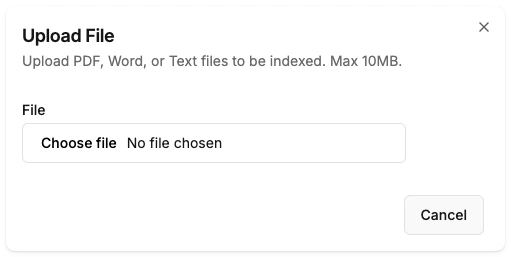
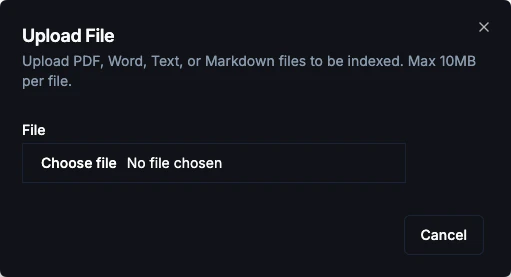
| PDF | `.pdf` | Manuals, policies, brochures |
| Text | `.txt` | Plain text content |
| Markdown | `.md` | Formatted documentation |
| Word | `.docx` | Business documents |
## Upload Limits
* **Maximum file size**: 10 MB per file.
* **Page Consumption**: Each uploaded file counts as 1 "page" towards your plan's total page limit.
## How to Upload
Go to **Dashboard** → **Knowledge** → **Files**
Click **Upload Files** or drag and drop files directly into the dashboard.
BubblaV will automatically extract text, split it into chunks, and create embeddings for search.
Once the status changes to **Processed**, the content is available for the AI.
Ensure your PDFs contain searchable text. Scanned images without OCR (Optical Character Recognition) cannot be read by the AI.
## Managing Files
* **Preview**: Click on a file name to see a preview of the extracted text.
* **Delete**: Remove files at any time to reclaim page limit capacity.
***
## Next Steps
Add manually curated questions and answers.
Auto-crawl your website content.
## Supported Formats
| Format | Extension | Best For |
| -------- | --------- | ---------------------------- |
| PDF | `.pdf` | Manuals, policies, brochures |
| Text | `.txt` | Plain text content |
| Markdown | `.md` | Formatted documentation |
| Word | `.docx` | Business documents |
## Upload Limits
* **Maximum file size**: 10 MB per file.
* **Page Consumption**: Each uploaded file counts as 1 "page" towards your plan's total page limit.
## How to Upload
Go to **Dashboard** → **Knowledge** → **Files**
Click **Upload Files** or drag and drop files directly into the dashboard.
BubblaV will automatically extract text, split it into chunks, and create embeddings for search.
Once the status changes to **Processed**, the content is available for the AI.
Ensure your PDFs contain searchable text. Scanned images without OCR (Optical Character Recognition) cannot be read by the AI.
## Managing Files
* **Preview**: Click on a file name to see a preview of the extracted text.
* **Delete**: Remove files at any time to reclaim page limit capacity.
***
## Next Steps
Add manually curated questions and answers.
Auto-crawl your website content.