> ## Documentation Index
> Fetch the complete documentation index at: https://docs.bubblav.com/llms.txt
> Use this file to discover all available pages before exploring further.
# Knowledge Overview
> How your chatbot learns and uses knowledge to answer questions
The Knowledge Base is your chatbot's brain. It stores all the information the AI uses to answer customer questions accurately and helpfully.
 ## How It Works
You provide content via website crawling, file uploads, Q\&A entries, or sitemaps
Content is broken into chunks, analyzed, and converted to embeddings for semantic search
When a customer asks a question, the AI finds the most relevant knowledge chunks
The AI uses those chunks to formulate natural, accurate, contextual answers
***
## Knowledge Sources
BubblaV supports six types of knowledge sources:
Manage your main website, sub-domains, sitemaps, and llms-full.txt files
Add specific URLs to crawl
Upload PDFs, Word docs, text files, and Markdown
Manually add specific question and answer pairs
Identify content gaps and review answerable questions
Train your AI with your resolved support tickets
***
## Plan Limits
Your subscription plan determines how much knowledge you can add:
| Plan | Max Pages | File Upload Size | Data Sync |
| -------- | ----------- | ---------------- | --------- |
| **Free** | 50 pages | 10 MB per file | Manual |
| **Pro** | 5,000 pages | 10 MB per file | Weekly |
Page count includes all sources: crawled pages, uploaded files, and Q\&A entries.
***
## Quick Start
The fastest way to train your chatbot:
When you create a new website in your dashboard, you'll be prompted to enter your main website URL. The crawling process starts automatically after you add the website.
**To add a main website later:**
1. Go to **Knowledge** → **Websites**
2. Enter your website URL (e.g., `https://example.com`)
3. Click **Add** - crawling begins automatically
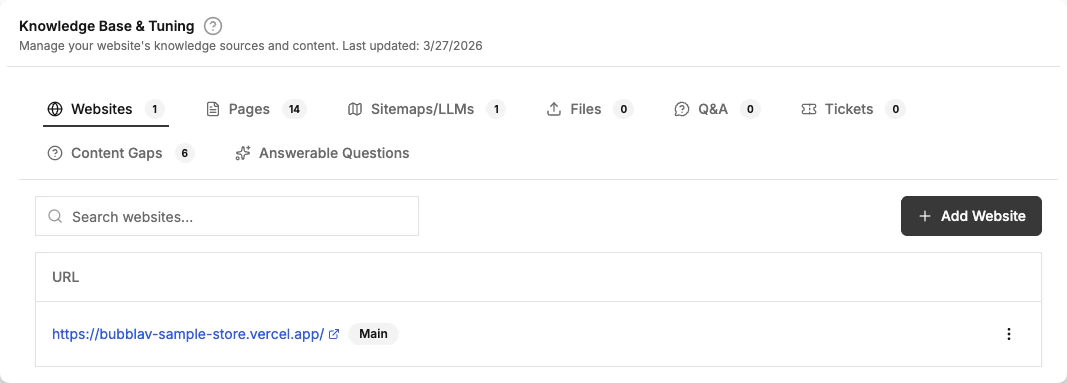
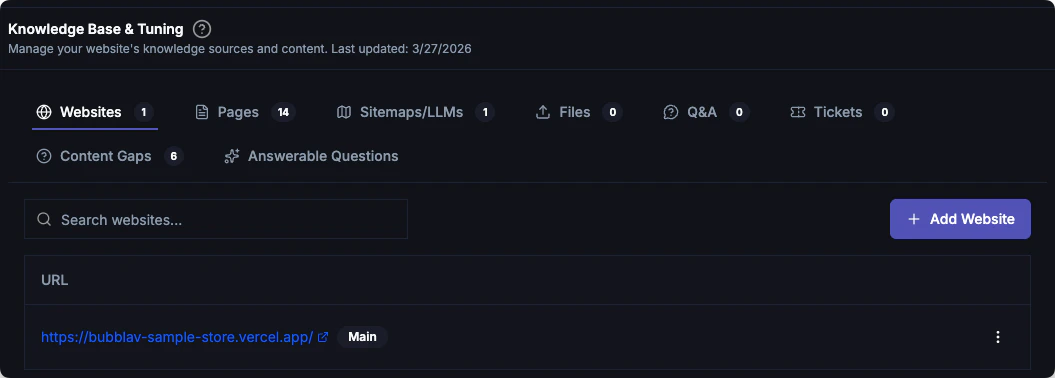
The **Websites** tab also lets you manage sitemaps and llms-full.txt files alongside your websites.
**Sub-websites** are additional domains to include in your knowledge base (e.g., `https://blog.example.com`).
**Sitemaps & LLMs** lets you add sitemap.xml or llms-full.txt URLs for faster crawling.
To add either:
1. Go to **Knowledge** → **Websites**
2. Use the **Add Website** or **Add URL** button in the appropriate section
The crawling process runs automatically in the background. You can monitor progress in the **Knowledge** → **Pages** section. No manual start button is needed.
Once crawling completes, check the crawled pages list and disable any you don't want included in your knowledge base
Ask questions to verify the bot answers correctly using your newly added content
***
## Best Practices
Re-crawl your website after making content changes. Pro plans have automatic weekly syncs.
Clear, concise content works best. Avoid vague language or marketing fluff.
Disable login pages, privacy policies, or other pages that shouldn't influence answers.
Use the Q\&A section for frequently asked questions that aren't on your website.
The AI identifies what it can't answer. Add Q\&A for unanswered questions to improve accuracy.
***
## What Makes Good Knowledge?
✅ **Good for chatbots:**
* Product descriptions and specifications
* FAQ pages with clear answers
* How-to guides and tutorials
* Shipping and return policies
* Contact and support information
❌ **Not ideal:**
* Login/registration pages
* Cart and checkout pages
* Dynamic content that changes frequently
* Image-only pages without text
* Duplicate content across multiple pages
***
## Next Steps
Learn how to crawl your website
Manually add question and answer pairs
Identify and fix missing knowledge
Verify your chatbot works correctly
## How It Works
You provide content via website crawling, file uploads, Q\&A entries, or sitemaps
Content is broken into chunks, analyzed, and converted to embeddings for semantic search
When a customer asks a question, the AI finds the most relevant knowledge chunks
The AI uses those chunks to formulate natural, accurate, contextual answers
***
## Knowledge Sources
BubblaV supports six types of knowledge sources:
Manage your main website, sub-domains, sitemaps, and llms-full.txt files
Add specific URLs to crawl
Upload PDFs, Word docs, text files, and Markdown
Manually add specific question and answer pairs
Identify content gaps and review answerable questions
Train your AI with your resolved support tickets
***
## Plan Limits
Your subscription plan determines how much knowledge you can add:
| Plan | Max Pages | File Upload Size | Data Sync |
| -------- | ----------- | ---------------- | --------- |
| **Free** | 50 pages | 10 MB per file | Manual |
| **Pro** | 5,000 pages | 10 MB per file | Weekly |
Page count includes all sources: crawled pages, uploaded files, and Q\&A entries.
***
## Quick Start
The fastest way to train your chatbot:
When you create a new website in your dashboard, you'll be prompted to enter your main website URL. The crawling process starts automatically after you add the website.
**To add a main website later:**
1. Go to **Knowledge** → **Websites**
2. Enter your website URL (e.g., `https://example.com`)
3. Click **Add** - crawling begins automatically
The **Websites** tab also lets you manage sitemaps and llms-full.txt files alongside your websites.
**Sub-websites** are additional domains to include in your knowledge base (e.g., `https://blog.example.com`).
**Sitemaps & LLMs** lets you add sitemap.xml or llms-full.txt URLs for faster crawling.
To add either:
1. Go to **Knowledge** → **Websites**
2. Use the **Add Website** or **Add URL** button in the appropriate section
The crawling process runs automatically in the background. You can monitor progress in the **Knowledge** → **Pages** section. No manual start button is needed.
Once crawling completes, check the crawled pages list and disable any you don't want included in your knowledge base
Ask questions to verify the bot answers correctly using your newly added content
***
## Best Practices
Re-crawl your website after making content changes. Pro plans have automatic weekly syncs.
Clear, concise content works best. Avoid vague language or marketing fluff.
Disable login pages, privacy policies, or other pages that shouldn't influence answers.
Use the Q\&A section for frequently asked questions that aren't on your website.
The AI identifies what it can't answer. Add Q\&A for unanswered questions to improve accuracy.
***
## What Makes Good Knowledge?
✅ **Good for chatbots:**
* Product descriptions and specifications
* FAQ pages with clear answers
* How-to guides and tutorials
* Shipping and return policies
* Contact and support information
❌ **Not ideal:**
* Login/registration pages
* Cart and checkout pages
* Dynamic content that changes frequently
* Image-only pages without text
* Duplicate content across multiple pages
***
## Next Steps
Learn how to crawl your website
Manually add question and answer pairs
Identify and fix missing knowledge
Verify your chatbot works correctly