> ## Documentation Index
> Fetch the complete documentation index at: https://docs.bubblav.com/llms.txt
> Use this file to discover all available pages before exploring further.
# Q&A
> Add manual question and answer pairs to your knowledge base
Q\&A entries (formerly Text Snippets) let you manually add specific knowledge that isn't easily captured by website crawling. They are perfect for FAQs, specific policy details, or handling common customer queries with precise answers.
 ## Why use Q\&A?
While crawling captures your website content, Q\&A pairs allow you to:
* **Be precise**: Control exactly how the AI answers common questions.
* **Fill gaps**: Add information that isn't yet documented on your site.
* **Priority**: Q\&A entries have high priority in the AI's retrieval process.
Store return policies, shipping times, or pricing.
Holiday hours, temporary closures, or seasonal sales.
Information known to support staff but not on the public site.
Define industry-specific terms for your customers.
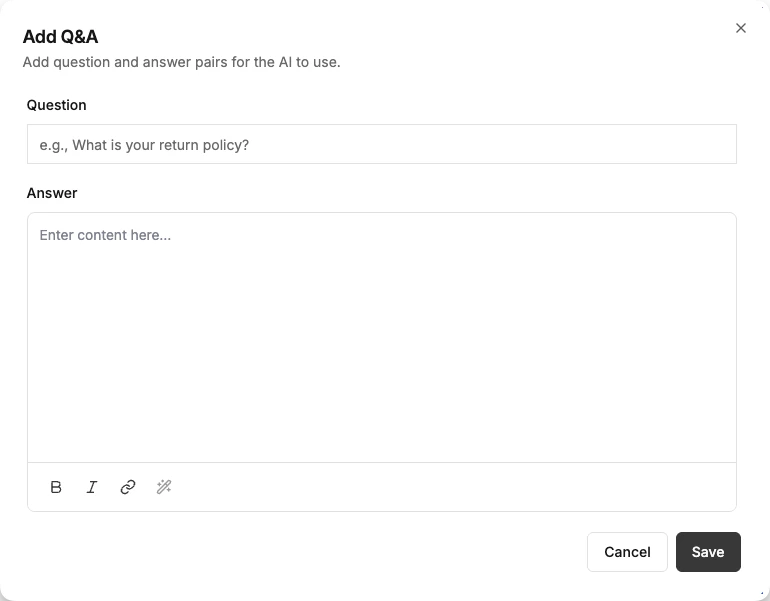
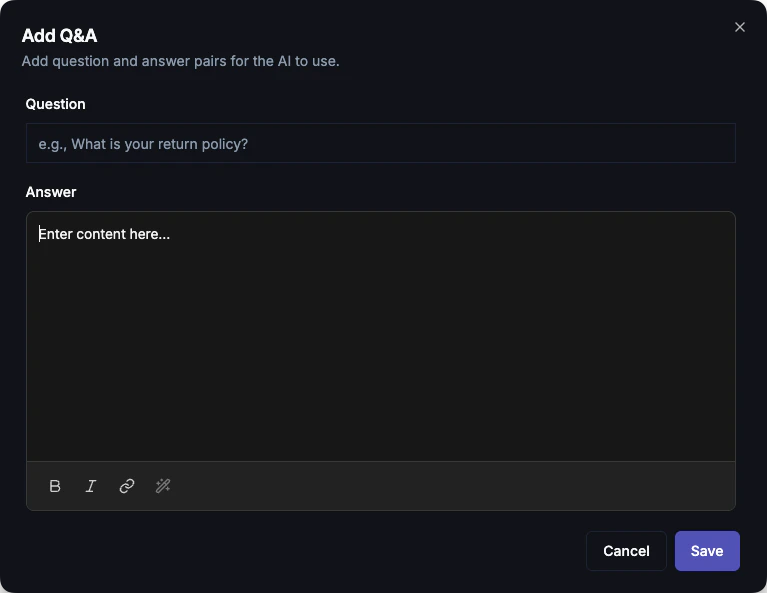
## Adding a Q\&A Entry
Go to **Dashboard** → **Knowledge** → **Q\&A**
Click **Add Q\&A**
Enter the question in the **Question** field (e.g., "What is your refund policy?").
Write the response in the **Answer** field. Markdown formatting is fully supported.
Click **Save**. The entry is immediately available for the AI to use.
## Markdown Support
The Answer field supports full Markdown, allowing you to format lists, bold text, and even links:
```markdown theme={null}
# Return Policy
We offer **full refunds** within 30 days of purchase.
## Requirements
- Original receipt or order number
- Item in original condition
[Learn more about returns](/returns)
```
## Managing Entries
* **Search**: Use the search bar in the Q\&A tab to find specific entries.
* **Edit**: Click on any entry to modify its question or answer.
* **Delete**: Use the trash icon to remove an entry if it's no longer relevant.
***
## Best Practices
Keep entries focused. Instead of one large "Policies" entry, create separate entries for "Returns", "Shipping", and "Privacy".
Phrase questions exactly like a customer would. Instead of "Return Policy", use "How do I return an item?".
Q\&A entries act as "hard-coded" knowledge. Ensure you update them if your policies or products change.
***
## Next Steps
See what questions customers are asking that you haven't answered yet.
Auto-crawl your website content.
## Why use Q\&A?
While crawling captures your website content, Q\&A pairs allow you to:
* **Be precise**: Control exactly how the AI answers common questions.
* **Fill gaps**: Add information that isn't yet documented on your site.
* **Priority**: Q\&A entries have high priority in the AI's retrieval process.
Store return policies, shipping times, or pricing.
Holiday hours, temporary closures, or seasonal sales.
Information known to support staff but not on the public site.
Define industry-specific terms for your customers.
## Adding a Q\&A Entry
Go to **Dashboard** → **Knowledge** → **Q\&A**
Click **Add Q\&A**
Enter the question in the **Question** field (e.g., "What is your refund policy?").
Write the response in the **Answer** field. Markdown formatting is fully supported.
Click **Save**. The entry is immediately available for the AI to use.
## Markdown Support
The Answer field supports full Markdown, allowing you to format lists, bold text, and even links:
```markdown theme={null}
# Return Policy
We offer **full refunds** within 30 days of purchase.
## Requirements
- Original receipt or order number
- Item in original condition
[Learn more about returns](/returns)
```
## Managing Entries
* **Search**: Use the search bar in the Q\&A tab to find specific entries.
* **Edit**: Click on any entry to modify its question or answer.
* **Delete**: Use the trash icon to remove an entry if it's no longer relevant.
***
## Best Practices
Keep entries focused. Instead of one large "Policies" entry, create separate entries for "Returns", "Shipping", and "Privacy".
Phrase questions exactly like a customer would. Instead of "Return Policy", use "How do I return an item?".
Q\&A entries act as "hard-coded" knowledge. Ensure you update them if your policies or products change.
***
## Next Steps
See what questions customers are asking that you haven't answered yet.
Auto-crawl your website content.