> ## Documentation Index
> Fetch the complete documentation index at: https://docs.bubblav.com/llms.txt
> Use this file to discover all available pages before exploring further.
# Chat with Customers
> Managing conversations and the live support queue
The Live Support dashboard is your command center for customer conversations. Monitor incoming chats, take over from the AI, and resolve issues efficiently.
## The Conversation Queue
### Views
Access different views to manage your workload:
| View | What You See |
| -------------- | --------------------------------------------------------- |
| **All** | Complete history of all conversations and support tickets |
| **Inbox** | Conversations and tickets assigned to you |
| **Unassigned** | Support cases waiting to be assigned to an agent |
### Filters
Filter conversations by status:
| Filter | What You See |
| -------------- | ------------------------------------- |
| **All** | All conversations and support tickets |
| **Active** | Currently active support tickets |
| **Solved** | Resolved/archived support tickets |
| **Mine** | Support cases assigned to you |
| **Unassigned** | Support cases not yet assigned |
### Sorting
Sort conversations by:
* **Newest first**: Most recent conversations at the top
* **Oldest first**: Oldest conversations at the top
* **Unread first**: Conversations with unread messages prioritized
***
## Joining a Conversation
Click on a conversation in the queue on the left side. Unread conversations show a blue indicator with the unread count.
Read the conversation so far in the main chat area. See what the customer asked and how the bot responded.
When you start typing a message in the input box at the bottom, the conversation automatically switches to human interaction mode. The bot is paused and you can chat directly with the customer.
Type your message and press Enter or click Send. Your messages appear on the right side with your name, while customer messages appear on the left.
### What the Customer Sees
When you join a conversation:
* The typing indicator shows you're responding
* Your messages appear like normal chat messages
* The conversation seamlessly transitions from bot to human agent
***
## The Chat Interface
 ### Message Area
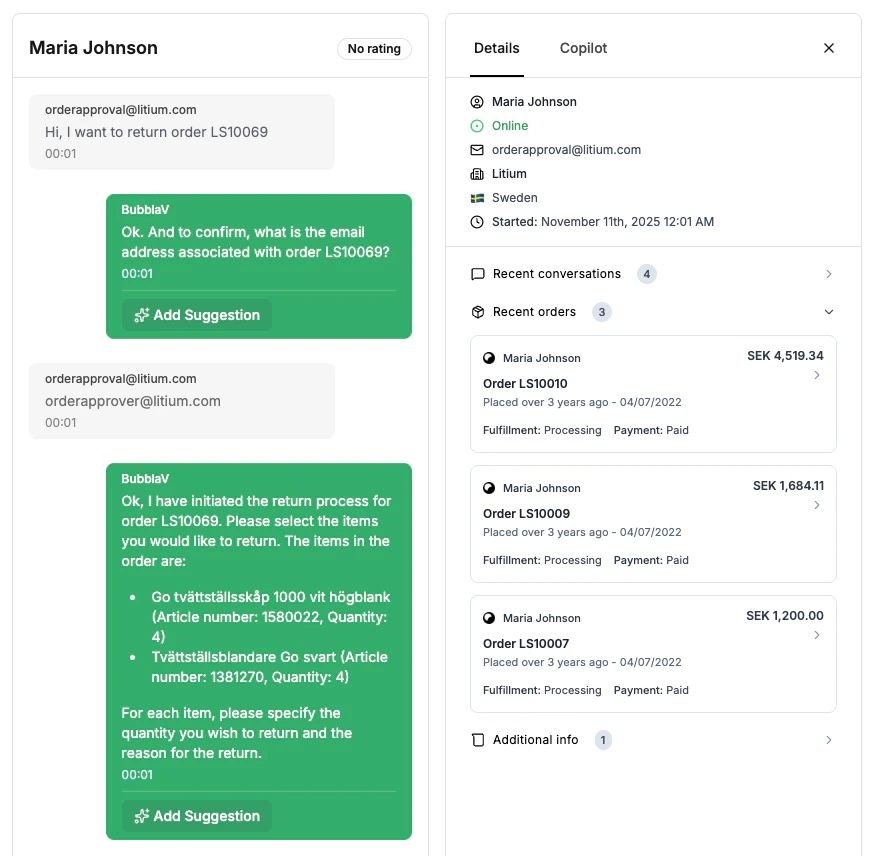
* **Customer messages**: Left side, with timestamp
* **Bot messages**: Right side, labeled "AI"
* **Your messages**: Right side, labeled with your name
### Input Area
* **Text box**: Type your message
* **Send button**: Or press Enter
* **Attachment button**: Send files or images (coming soon)
### Customer Info Panel
The right sidebar shows customer insights and context. Click the info icon to view:
### Message Area
* **Customer messages**: Left side, with timestamp
* **Bot messages**: Right side, labeled "AI"
* **Your messages**: Right side, labeled with your name
### Input Area
* **Text box**: Type your message
* **Send button**: Or press Enter
* **Attachment button**: Send files or images (coming soon)
### Customer Info Panel
The right sidebar shows customer insights and context. Click the info icon to view:
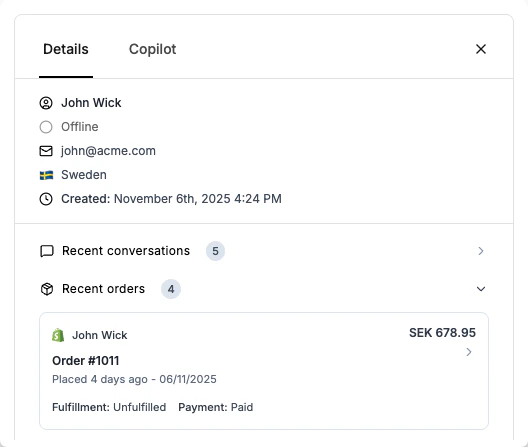 The insights panel displays:
| Info | Source |
| -------------------------- | ------------------------------------------------------ |
| **Name** | From conversation or form |
| **Email** | If provided by customer |
| **Current page** | What they're viewing right now |
| **Device** | Mobile or desktop |
| **Location** | Country/region |
| **Started** | When conversation began |
| **Previous conversations** | History of past interactions |
| **Integration data** | Orders, tickets, appointments from connected platforms |
***
## Integration Context
If you have integrations connected, see relevant customer data:
### Shopify Data
* Recent orders with status
* Order totals and items
* Customer lifetime value
* Previous support interactions
### Calendly Data
* Upcoming appointments
* Past meetings
* Booking history
### Zendesk Data
* Open tickets
* Previous tickets
* Support history
Integration data helps you provide personalized support without asking customers to repeat information.
***
## Managing Conversations
### Proactive Conversations
You can start conversations with visitors before they reach out to you:
1. Go to **Live Support** → **Online Visitors**
2. Find a visitor you want to engage
3. Click **Start Live Chat**
4. Send your greeting message
The conversation appears in your Live Support queue like any other chat.
[Learn more about Online Visitors →](/user-guide/live-support/online-visitors)
### Hand Over to Bot
When the issue is resolved, you can hand the conversation back to the bot:
Make sure the customer's issue is fully addressed
Click **Hand Over to Bot** to return the conversation to AI mode. The bot will handle future messages from this customer.
When you hand over to the bot, the conversation state changes from "human\_interaction" back to "bot". The customer can continue chatting with the AI.
When you reply to a visitor's message, they will receive an email notification after 5 minutes if they haven't returned to the conversation. This ensures they never miss your response. [Configure email notifications →](/user-guide/live-support/email-notifications)
***
## Real-time Updates
The Live Support dashboard updates in real-time:
* **New messages**: Appear instantly as customers send them
* **Unread indicators**: Blue badges show unread message counts
* **Online status**: Green dot indicates when a visitor is currently online
* **Conversation list**: Automatically refreshes when new conversations start
***
## Best Practices
Start with a friendly greeting using their name if available.
Summarize their problem to show you understand before solving it.
Reference their order, page, or history to personalize the response.
Keep messages short and scannable. Break long responses into multiple messages.
Ask "Is there anything else I can help with?" before closing.
***
## Keyboard Shortcuts
| Shortcut | Action |
| --------------- | ------------ |
| `Enter` | Send message |
| `Shift + Enter` | New line |
| `Ctrl/Cmd + K` | Quick search |
\| `Esc` | Close current chat |
***
## Troubleshooting
* Check your internet connection
* Refresh the page
* Verify you've claimed the conversation
* Customer info appears after they provide it
* Integration data requires connected accounts
* Check the Resolved tab
* Another agent may have claimed it
* Use the All view to find it
***
## Next Steps
Get AI-powered response suggestions
View conversation analytics
The insights panel displays:
| Info | Source |
| -------------------------- | ------------------------------------------------------ |
| **Name** | From conversation or form |
| **Email** | If provided by customer |
| **Current page** | What they're viewing right now |
| **Device** | Mobile or desktop |
| **Location** | Country/region |
| **Started** | When conversation began |
| **Previous conversations** | History of past interactions |
| **Integration data** | Orders, tickets, appointments from connected platforms |
***
## Integration Context
If you have integrations connected, see relevant customer data:
### Shopify Data
* Recent orders with status
* Order totals and items
* Customer lifetime value
* Previous support interactions
### Calendly Data
* Upcoming appointments
* Past meetings
* Booking history
### Zendesk Data
* Open tickets
* Previous tickets
* Support history
Integration data helps you provide personalized support without asking customers to repeat information.
***
## Managing Conversations
### Proactive Conversations
You can start conversations with visitors before they reach out to you:
1. Go to **Live Support** → **Online Visitors**
2. Find a visitor you want to engage
3. Click **Start Live Chat**
4. Send your greeting message
The conversation appears in your Live Support queue like any other chat.
[Learn more about Online Visitors →](/user-guide/live-support/online-visitors)
### Hand Over to Bot
When the issue is resolved, you can hand the conversation back to the bot:
Make sure the customer's issue is fully addressed
Click **Hand Over to Bot** to return the conversation to AI mode. The bot will handle future messages from this customer.
When you hand over to the bot, the conversation state changes from "human\_interaction" back to "bot". The customer can continue chatting with the AI.
When you reply to a visitor's message, they will receive an email notification after 5 minutes if they haven't returned to the conversation. This ensures they never miss your response. [Configure email notifications →](/user-guide/live-support/email-notifications)
***
## Real-time Updates
The Live Support dashboard updates in real-time:
* **New messages**: Appear instantly as customers send them
* **Unread indicators**: Blue badges show unread message counts
* **Online status**: Green dot indicates when a visitor is currently online
* **Conversation list**: Automatically refreshes when new conversations start
***
## Best Practices
Start with a friendly greeting using their name if available.
Summarize their problem to show you understand before solving it.
Reference their order, page, or history to personalize the response.
Keep messages short and scannable. Break long responses into multiple messages.
Ask "Is there anything else I can help with?" before closing.
***
## Keyboard Shortcuts
| Shortcut | Action |
| --------------- | ------------ |
| `Enter` | Send message |
| `Shift + Enter` | New line |
| `Ctrl/Cmd + K` | Quick search |
\| `Esc` | Close current chat |
***
## Troubleshooting
* Check your internet connection
* Refresh the page
* Verify you've claimed the conversation
* Customer info appears after they provide it
* Integration data requires connected accounts
* Check the Resolved tab
* Another agent may have claimed it
* Use the All view to find it
***
## Next Steps
Get AI-powered response suggestions
View conversation analytics