> ## Documentation Index
> Fetch the complete documentation index at: https://docs.bubblav.com/llms.txt
> Use this file to discover all available pages before exploring further.
# AI Copilot
> AI-powered assistance for human agents
Copilot is your AI assistant during live chats. Get instant suggested responses based on your knowledge base, customer context, and conversation history. Respond faster while maintaining accuracy.
Copilot suggestions are only visible to you, never to the customer.
## How Copilot Works
While you're chatting with a customer, Copilot:
1. **Analyzes** the conversation in real-time
2. **Searches** your knowledge base for relevant information
3. **Considers** customer context (integration data, history)
4. **Suggests** response options you can use or edit
***
## Using Copilot
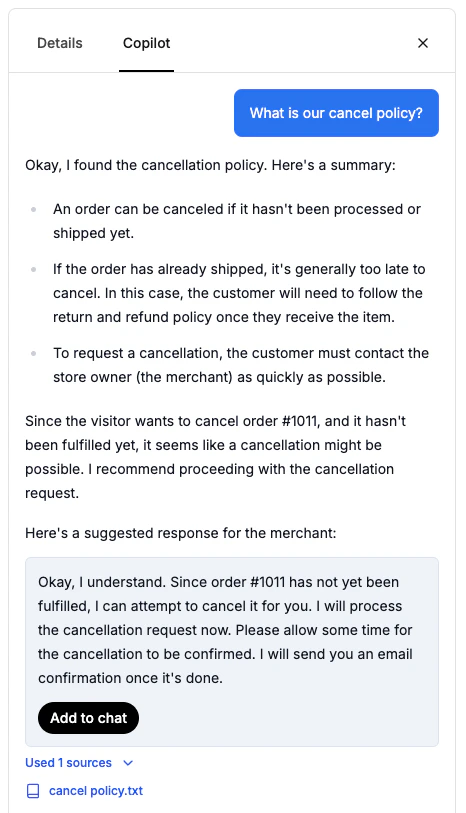
Copilot is a chat interface in the **Copilot** tab of the right sidebar. It helps you by:
* Answering your questions about products, policies, or customer information
* Searching your knowledge base for relevant information
* Looking up customer data from integrations
* Providing context about the conversation
 ### How to Use Copilot
Click the **Copilot** tab in the right sidebar to open the chat interface. You'll see a chat interface where you can ask questions.
Type your question in the input box at the bottom. For example:
* "What's our return policy?"
* "What products does this customer have?"
* "What did the customer ask about earlier?"
Copilot will search your knowledge base, integrations, and conversation history to provide an answer.
Copilot displays its response in the chat. You can see sources it used (like knowledge base pages or integration data) below the response.
Click the copy button on any response to copy it to your chat message box, then edit and personalize it before sending to the customer.
***
## What Copilot Uses
Copilot draws from multiple sources to create relevant suggestions:
### Knowledge Base
* Website content
* Uploaded files
* Q\&A entries
### Customer Context
| Data | How It Helps |
| ------------------ | ---------------------------------- |
| **Current page** | Understand what they're looking at |
| **Previous chats** | Reference past conversations |
| **Name/email** | Personalize responses |
### Integration Data
If you have integrations connected:
**Shopify:**
* Order status and tracking
* Product details
* Customer purchase history
**Calendly:**
* Available appointments
* Scheduled meetings
**Custom Tools:**
* Any data your tools return
The more data sources you connect, the smarter Copilot becomes.
***
## Copilot Features
### Draft a Reply
Turn any visitor message into a ready-to-send reply with one click. Hover a visitor's message and click **Draft reply** — Copilot writes a complete draft straight into your composer, using the conversation, your knowledge base, and the visitor's context. Tweak it and send.
* **Reads visitor attachments**: when a visitor shares a PDF, document, or image, Copilot reads it so the draft can reference what they sent.
* **Drafts persist**: your draft is saved as you switch between tickets, so you never lose work mid-reply.
Draft reply is a starting point — review and personalize it before sending.
### Knowledge Base Search
Copilot searches your knowledge base to answer questions:
```
You: "What's our return policy?"
Copilot: "Based on your knowledge base, you offer full
refunds within 30 days of purchase. Items must be in
original condition with tags attached. [Source: Return
Policy page]"
```
### Integration Data Lookup
Copilot can access data from your connected integrations:
```
You: "What orders does this customer have?"
Copilot: "This customer has 3 orders:
- Order #12345: $89.99 (Shipped)
- Order #12346: $45.50 (Delivered)
- Order #12347: $120.00 (Processing)
[Source: Shopify integration]"
```
### Web Search (Optional)
Enable web search to get real-time information from the internet:
1. Toggle the **Web Search** switch in the Copilot interface
2. Ask questions about external topics
3. Copilot will search the web and provide current information
Web search is disabled by default. Enable it when you need information not in your knowledge base.
***
## Best Practices
Copilot is smart but not perfect. Read suggestions before sending.
Insert the customer's name or reference specific details they mentioned.
Copilot shines when you need accurate policy info or product details.
If the first suggestion isn't quite right, click Regenerate for alternatives.
Better knowledge base = better Copilot suggestions. Keep content updated.
***
## When to Use Copilot
### Great For
✅ Looking up policy details
✅ Finding product information
✅ Checking customer order history
✅ Getting technical specifications
✅ Understanding conversation context
### Remember
* Always personalize drafts and suggestions before sending to customers
* Use your judgment for emotional or sensitive situations
***
## Copilot Tips
### Best Practices
* **Be specific**: Ask clear, specific questions for better answers
* **Use for lookups**: Great for finding policy details, product information, or customer data
* **Copy and edit**: Copy Copilot responses to your chat, then personalize them before sending
* **Enable web search**: Turn on web search when you need information not in your knowledge base
***
## Team Benefits
Copilot helps your entire team:
### For New Agents
* Learn correct answers quickly
* Consistent information from day one
* Reduced training time
### For Experienced Agents
* Handle more chats simultaneously
* Never forget policy details
* Focus on relationship building
### For Managers
* Ensure consistent quality
* Reduce errors across team
* Track which suggestions work best
***
## Improving Copilot
Make Copilot more helpful:
Add missing information to your knowledge base so Copilot can find it
Create Q\&A entries for frequently asked questions
Connect more integrations (Shopify, Zendesk, etc.) for richer customer context
Regularly update your knowledge base with current information
***
## Troubleshooting
* Check your internet connection
* Verify you have knowledge base content
* Try refreshing the page
* Update your knowledge base content
* Add specific Q\&A pairs for common questions
* Check for outdated information
* Add more detailed content to knowledge base
* Connect integrations for customer context
* Enable web search for external information
***
## Next Steps
Master the chat interface
Improve Copilot with better content
### How to Use Copilot
Click the **Copilot** tab in the right sidebar to open the chat interface. You'll see a chat interface where you can ask questions.
Type your question in the input box at the bottom. For example:
* "What's our return policy?"
* "What products does this customer have?"
* "What did the customer ask about earlier?"
Copilot will search your knowledge base, integrations, and conversation history to provide an answer.
Copilot displays its response in the chat. You can see sources it used (like knowledge base pages or integration data) below the response.
Click the copy button on any response to copy it to your chat message box, then edit and personalize it before sending to the customer.
***
## What Copilot Uses
Copilot draws from multiple sources to create relevant suggestions:
### Knowledge Base
* Website content
* Uploaded files
* Q\&A entries
### Customer Context
| Data | How It Helps |
| ------------------ | ---------------------------------- |
| **Current page** | Understand what they're looking at |
| **Previous chats** | Reference past conversations |
| **Name/email** | Personalize responses |
### Integration Data
If you have integrations connected:
**Shopify:**
* Order status and tracking
* Product details
* Customer purchase history
**Calendly:**
* Available appointments
* Scheduled meetings
**Custom Tools:**
* Any data your tools return
The more data sources you connect, the smarter Copilot becomes.
***
## Copilot Features
### Draft a Reply
Turn any visitor message into a ready-to-send reply with one click. Hover a visitor's message and click **Draft reply** — Copilot writes a complete draft straight into your composer, using the conversation, your knowledge base, and the visitor's context. Tweak it and send.
* **Reads visitor attachments**: when a visitor shares a PDF, document, or image, Copilot reads it so the draft can reference what they sent.
* **Drafts persist**: your draft is saved as you switch between tickets, so you never lose work mid-reply.
Draft reply is a starting point — review and personalize it before sending.
### Knowledge Base Search
Copilot searches your knowledge base to answer questions:
```
You: "What's our return policy?"
Copilot: "Based on your knowledge base, you offer full
refunds within 30 days of purchase. Items must be in
original condition with tags attached. [Source: Return
Policy page]"
```
### Integration Data Lookup
Copilot can access data from your connected integrations:
```
You: "What orders does this customer have?"
Copilot: "This customer has 3 orders:
- Order #12345: $89.99 (Shipped)
- Order #12346: $45.50 (Delivered)
- Order #12347: $120.00 (Processing)
[Source: Shopify integration]"
```
### Web Search (Optional)
Enable web search to get real-time information from the internet:
1. Toggle the **Web Search** switch in the Copilot interface
2. Ask questions about external topics
3. Copilot will search the web and provide current information
Web search is disabled by default. Enable it when you need information not in your knowledge base.
***
## Best Practices
Copilot is smart but not perfect. Read suggestions before sending.
Insert the customer's name or reference specific details they mentioned.
Copilot shines when you need accurate policy info or product details.
If the first suggestion isn't quite right, click Regenerate for alternatives.
Better knowledge base = better Copilot suggestions. Keep content updated.
***
## When to Use Copilot
### Great For
✅ Looking up policy details
✅ Finding product information
✅ Checking customer order history
✅ Getting technical specifications
✅ Understanding conversation context
### Remember
* Always personalize drafts and suggestions before sending to customers
* Use your judgment for emotional or sensitive situations
***
## Copilot Tips
### Best Practices
* **Be specific**: Ask clear, specific questions for better answers
* **Use for lookups**: Great for finding policy details, product information, or customer data
* **Copy and edit**: Copy Copilot responses to your chat, then personalize them before sending
* **Enable web search**: Turn on web search when you need information not in your knowledge base
***
## Team Benefits
Copilot helps your entire team:
### For New Agents
* Learn correct answers quickly
* Consistent information from day one
* Reduced training time
### For Experienced Agents
* Handle more chats simultaneously
* Never forget policy details
* Focus on relationship building
### For Managers
* Ensure consistent quality
* Reduce errors across team
* Track which suggestions work best
***
## Improving Copilot
Make Copilot more helpful:
Add missing information to your knowledge base so Copilot can find it
Create Q\&A entries for frequently asked questions
Connect more integrations (Shopify, Zendesk, etc.) for richer customer context
Regularly update your knowledge base with current information
***
## Troubleshooting
* Check your internet connection
* Verify you have knowledge base content
* Try refreshing the page
* Update your knowledge base content
* Add specific Q\&A pairs for common questions
* Check for outdated information
* Add more detailed content to knowledge base
* Connect integrations for customer context
* Enable web search for external information
***
## Next Steps
Master the chat interface
Improve Copilot with better content