> ## Documentation Index
> Fetch the complete documentation index at: https://docs.bubblav.com/llms.txt
> Use this file to discover all available pages before exploring further.
# Live Support Overview
> Real-time customer conversations with AI assistance
Live Support combines AI automation with human expertise. Monitor conversations, jump in when needed, and use AI Copilot to respond faster. Your customers get the best of both worlds.
**Viewing conversations** is available on all plans. **Support tickets, joining live conversations, and AI Copilot** require **Pro** plans.
## Omni-Channel Support
Manage customer conversations from multiple channels in a unified inbox:
| Channel | Description |
| ---------------------- | ---------------------------------- |
| **Website Widget** | Chat with visitors on your website |
| **Facebook Messenger** | Respond to Messenger conversations |
| **Instagram** | Handle Instagram direct messages |
| **Discord** | Handle support in Discord channels |
| **Slack** | Manage customer queries from Slack |
| **Email (IMAP)** | Triage and reply to support emails |
Each conversation shows a platform badge, so you always know where the customer is messaging from. When you reply, your message is automatically routed back to the customer's original platform.
## Why Live Support?
Some problems need human judgment and empathy
High-value customers often need personal attention
Step in when the AI can't answer
Personal touch creates loyal customers
***
## How It Works
View all active chats in your Live Support dashboard
Receive notifications when customers ask for human help or the bot struggles
Click to join a conversation and start chatting directly with the customer
Get AI-suggested responses based on your knowledge base
Mark the issue resolved and let the AI resume for future questions
***
## Dashboard Overview
Access Live Support at **Dashboard** → **Messages**
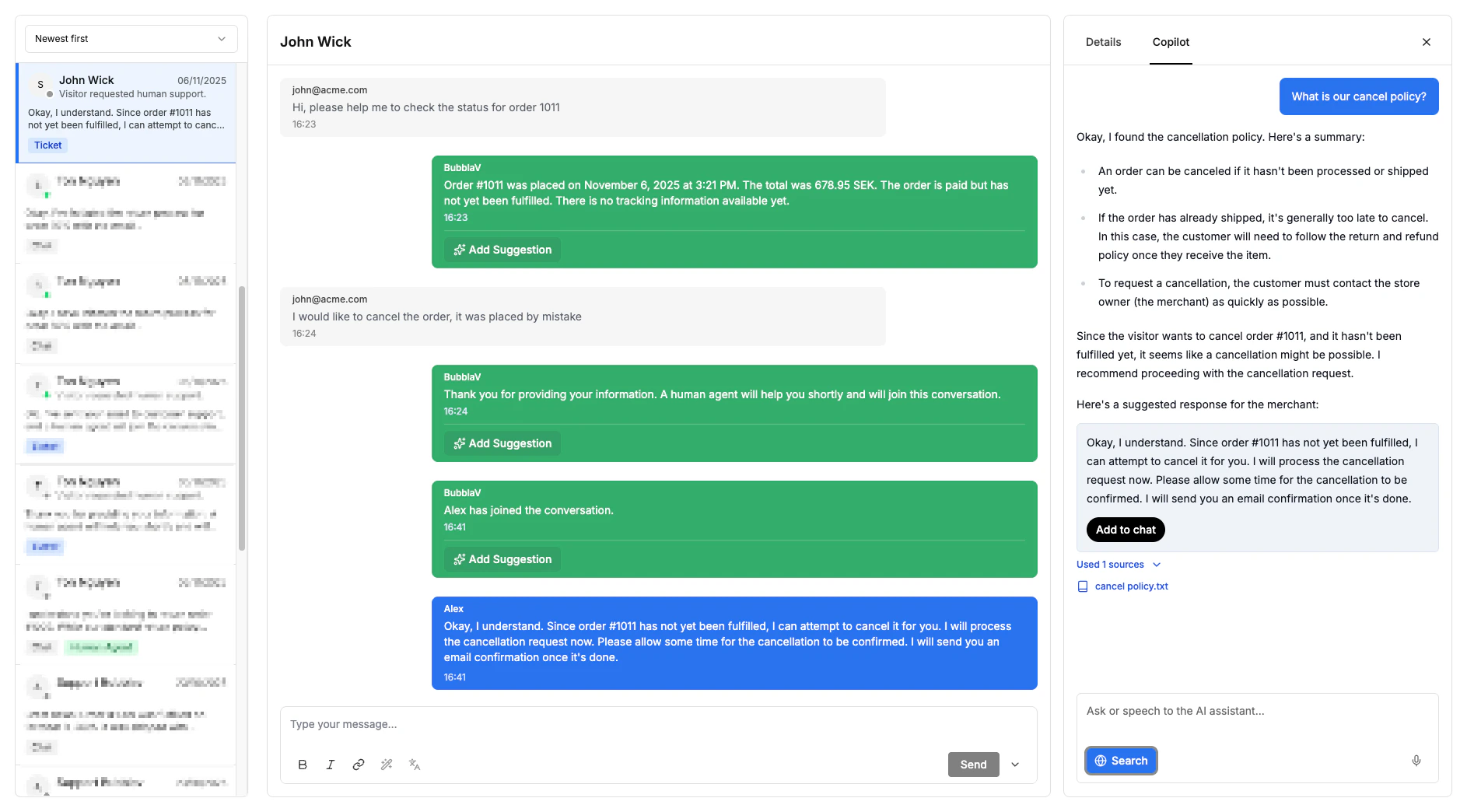 ### Conversation Views
| View | Shows |
| -------------- | ------------------------------------------------------- |
| **All** | Every conversation and support ticket, past and present |
| **Inbox** | Conversations assigned to you (your active cases) |
| **Unassigned** | Support cases waiting to be assigned to an agent |
### Conversation Filters
| Filter | What You See |
| -------------- | ------------------------------------- |
| **All** | All conversations and support tickets |
| **Active** | Currently active support tickets |
| **Solved** | Resolved/archived support tickets |
| **Mine** | Support cases assigned to you |
| **Unassigned** | Support cases not yet assigned |
### Conversation Status
| Status | Meaning |
| ------------------ | --------------------------------- |
| 🟢 **Bot** | Bot is handling this conversation |
| 🔵 **Human Agent** | An agent is actively chatting |
| **Active** | Support ticket is open |
| **Archived** | Support ticket is resolved |
### Message Tags
When viewing conversations, you'll see various tags on messages:
| Tag | Description |
| -------------------------- | -------------------------------------------------------------------- |
| **Human Agent** | Message sent by a human support agent (not AI) |
| **AI** / **Bot** | Automated response from the AI chatbot |
| **Visitor** / **Customer** | Message from the customer/visitor |
| **System** | Automated system notification (e.g., "Agent joined conversation") |
| **Ticket** | Indicates this is a support ticket (not a regular conversation) |
| **Platform Badges** | Shows source: Widget, Messenger, Instagram, Discord, Slack, or Email |
| **Rating Badges** | Customer satisfaction: Good (green), Bad (red), or No rating |
| **Unread Badge** | Number showing unread message count |
***
### When to Take Over
The dashboard alerts you when:
* **Customer asks for human**: "I want to talk to a real person"
* **Bot says "I don't know"** multiple times
* **Conversation is long**: Customer hasn't gotten resolution
* **Keywords detected**: Custom trigger words you define
***
## Key Features
### Real-time Messaging
* Instant message delivery
* Typing indicators
* Read receipts
* Message history
### Customer Context Panel
See everything about your customer:
* Name and email (if provided)
* Current page they're viewing
* Previous conversations
* Integration data (Shopify orders, etc.)
* Platform source (Widget, Messenger, Instagram, Discord, Slack, or Email)
### AI Copilot
Get AI-powered suggestions while you chat:
* Suggested responses
* Knowledge base lookups
* Quick reply templates
[Learn more about Copilot →](/user-guide/live-support/copilot)
### Email Notifications
Stay informed about new messages even when you're not in the dashboard. Visitors and agents receive email notifications when new messages arrive, with automatic spam prevention.
Features:
* **Visitor emails**: When agents reply to their messages
* **Agent emails**: When visitors reply after you've left
* **5-minute delay**: Prevents spam if users return quickly
* **Custom branding**: Use your logo and sender email
* **Rate limiting**: Maximum 1 email per conversation
[Learn more about Email Notifications →](/user-guide/live-support/email-notifications)
***
## Plan Features
| Feature | Free | Pro |
| ----------------------------- | ---- | --- |
| View conversations & messages | ✅ | ✅ |
| Support tickets | ❌ | ✅ |
| Join live conversations | ❌ | ✅ |
| AI Copilot assistant | ❌ | ✅ |
| Team members | 1 | 3 |
| Customer context | ✅ | ✅ |
| Integration data | ✅ | ✅ |
| Analytics | ✅ | ✅ |
***
## Getting Started
Go to **Dashboard** → **Messages** to view all conversations
To create support tickets, join live conversations, or use AI Copilot, [upgrade to Pro](https://www.bubblav.com/pricing)
Enable browser/email notifications in Settings
Watch for waiting customers and start chatting!
***
## Best Practices
Customers expect fast responses in live chat. Aim for under 30 seconds.
Don't reinvent the wheel. AI suggestions ensure accuracy and speed.
Review their history and current page before responding.
Make sure the issue is fully handled before marking resolved.
When done, resume AI so future questions are handled automatically.
***
## Next Steps
Monitor visitors in real-time
Learn the chat interface
Use AI to respond faster
Stay notified via email
Connect Discord server
Connect Slack workspace
### Conversation Views
| View | Shows |
| -------------- | ------------------------------------------------------- |
| **All** | Every conversation and support ticket, past and present |
| **Inbox** | Conversations assigned to you (your active cases) |
| **Unassigned** | Support cases waiting to be assigned to an agent |
### Conversation Filters
| Filter | What You See |
| -------------- | ------------------------------------- |
| **All** | All conversations and support tickets |
| **Active** | Currently active support tickets |
| **Solved** | Resolved/archived support tickets |
| **Mine** | Support cases assigned to you |
| **Unassigned** | Support cases not yet assigned |
### Conversation Status
| Status | Meaning |
| ------------------ | --------------------------------- |
| 🟢 **Bot** | Bot is handling this conversation |
| 🔵 **Human Agent** | An agent is actively chatting |
| **Active** | Support ticket is open |
| **Archived** | Support ticket is resolved |
### Message Tags
When viewing conversations, you'll see various tags on messages:
| Tag | Description |
| -------------------------- | -------------------------------------------------------------------- |
| **Human Agent** | Message sent by a human support agent (not AI) |
| **AI** / **Bot** | Automated response from the AI chatbot |
| **Visitor** / **Customer** | Message from the customer/visitor |
| **System** | Automated system notification (e.g., "Agent joined conversation") |
| **Ticket** | Indicates this is a support ticket (not a regular conversation) |
| **Platform Badges** | Shows source: Widget, Messenger, Instagram, Discord, Slack, or Email |
| **Rating Badges** | Customer satisfaction: Good (green), Bad (red), or No rating |
| **Unread Badge** | Number showing unread message count |
***
### When to Take Over
The dashboard alerts you when:
* **Customer asks for human**: "I want to talk to a real person"
* **Bot says "I don't know"** multiple times
* **Conversation is long**: Customer hasn't gotten resolution
* **Keywords detected**: Custom trigger words you define
***
## Key Features
### Real-time Messaging
* Instant message delivery
* Typing indicators
* Read receipts
* Message history
### Customer Context Panel
See everything about your customer:
* Name and email (if provided)
* Current page they're viewing
* Previous conversations
* Integration data (Shopify orders, etc.)
* Platform source (Widget, Messenger, Instagram, Discord, Slack, or Email)
### AI Copilot
Get AI-powered suggestions while you chat:
* Suggested responses
* Knowledge base lookups
* Quick reply templates
[Learn more about Copilot →](/user-guide/live-support/copilot)
### Email Notifications
Stay informed about new messages even when you're not in the dashboard. Visitors and agents receive email notifications when new messages arrive, with automatic spam prevention.
Features:
* **Visitor emails**: When agents reply to their messages
* **Agent emails**: When visitors reply after you've left
* **5-minute delay**: Prevents spam if users return quickly
* **Custom branding**: Use your logo and sender email
* **Rate limiting**: Maximum 1 email per conversation
[Learn more about Email Notifications →](/user-guide/live-support/email-notifications)
***
## Plan Features
| Feature | Free | Pro |
| ----------------------------- | ---- | --- |
| View conversations & messages | ✅ | ✅ |
| Support tickets | ❌ | ✅ |
| Join live conversations | ❌ | ✅ |
| AI Copilot assistant | ❌ | ✅ |
| Team members | 1 | 3 |
| Customer context | ✅ | ✅ |
| Integration data | ✅ | ✅ |
| Analytics | ✅ | ✅ |
***
## Getting Started
Go to **Dashboard** → **Messages** to view all conversations
To create support tickets, join live conversations, or use AI Copilot, [upgrade to Pro](https://www.bubblav.com/pricing)
Enable browser/email notifications in Settings
Watch for waiting customers and start chatting!
***
## Best Practices
Customers expect fast responses in live chat. Aim for under 30 seconds.
Don't reinvent the wheel. AI suggestions ensure accuracy and speed.
Review their history and current page before responding.
Make sure the issue is fully handled before marking resolved.
When done, resume AI so future questions are handled automatically.
***
## Next Steps
Monitor visitors in real-time
Learn the chat interface
Use AI to respond faster
Stay notified via email
Connect Discord server
Connect Slack workspace