> ## Documentation Index
> Fetch the complete documentation index at: https://docs.bubblav.com/llms.txt
> Use this file to discover all available pages before exploring further.
# Free Reports
> Essential analytics available on all plans
These reports are available to all BubblaV users, including those on the Free plan. Get instant insights into your chatbot's core performance.
***
## Analytics Dashboard
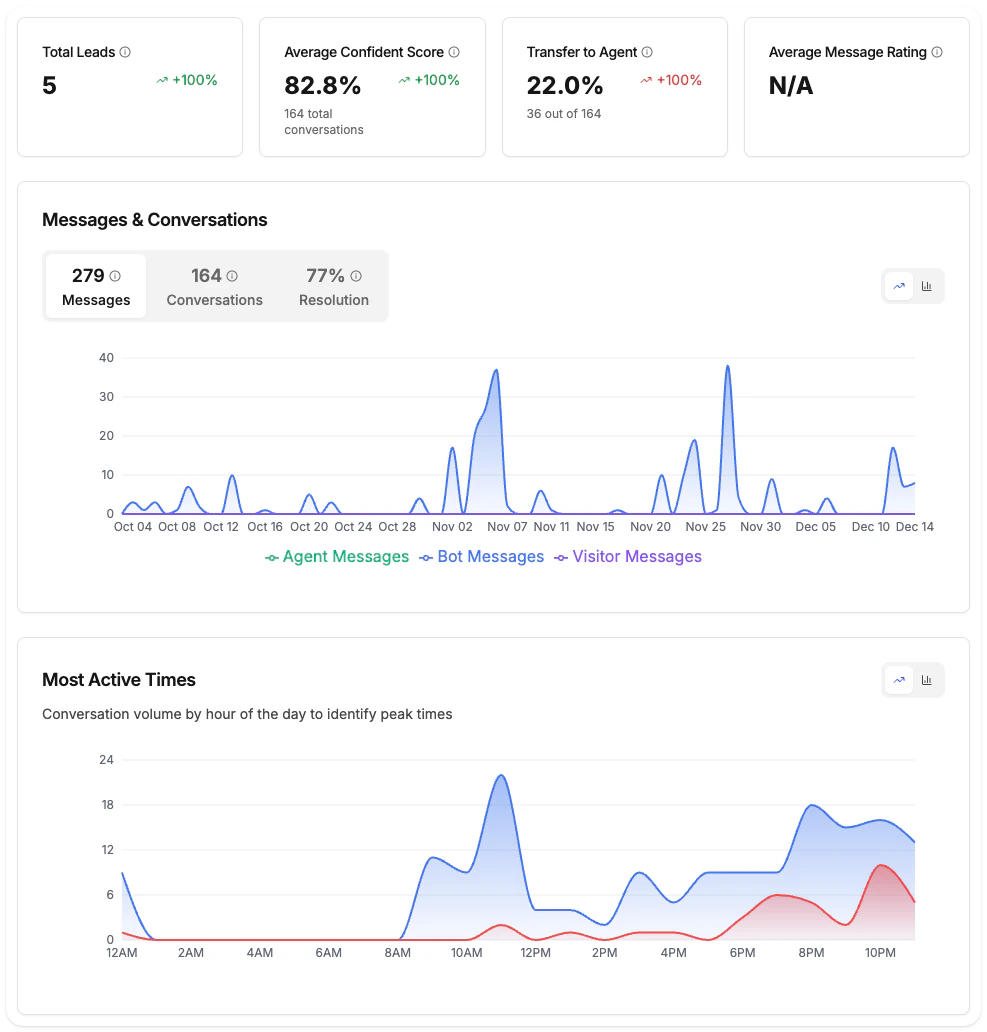
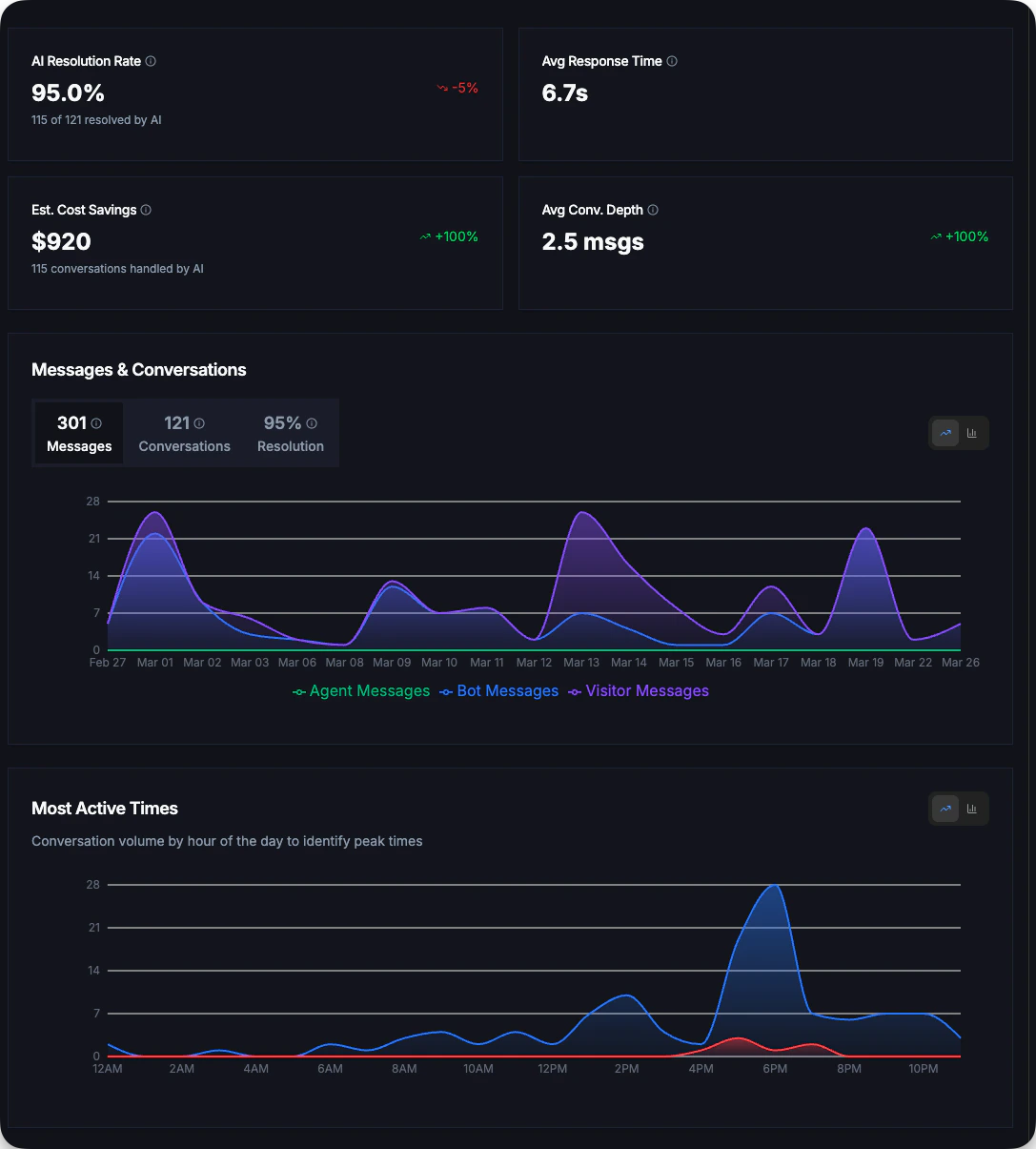
The analytics dashboard displays four key metrics that give you a quick snapshot of your chatbot's performance.
 ### Key Metrics
Percentage of conversations fully resolved by AI without human agent involvement. **Higher is better.**
This is the inverse of "Transfer to Agent" - it shows how effectively your AI handles customer queries independently.
Average time for the AI to generate and send a response. **Lower is better** for user experience.
Displayed in seconds (e.g., "6.3s") or milliseconds for faster responses.
Number of unique visitors who provided their email address during conversations.
Track how effectively your chatbot captures contact information for follow-up.
Average rating of bot messages based on visitor feedback. **100% means all rated messages were positive** (thumbs up).
Shows the ratio of positive to total rated messages.
### Understanding the Numbers
| Metric | Good | Needs Attention |
| ---------------------- | ----- | --------------- |
| **AI Resolution Rate** | > 80% | \< 60% |
| **Avg Response Time** | \< 5s | > 10s |
| **Message Rating** | > 80% | \< 60% |
Each metric card shows a **trend indicator** comparing to the previous period. Green arrows indicate improvement, red arrows indicate decline.
***
## Messages & Conversations Trend
Track conversation and message volume over time with the trend chart.
### Key Metrics
Percentage of conversations fully resolved by AI without human agent involvement. **Higher is better.**
This is the inverse of "Transfer to Agent" - it shows how effectively your AI handles customer queries independently.
Average time for the AI to generate and send a response. **Lower is better** for user experience.
Displayed in seconds (e.g., "6.3s") or milliseconds for faster responses.
Number of unique visitors who provided their email address during conversations.
Track how effectively your chatbot captures contact information for follow-up.
Average rating of bot messages based on visitor feedback. **100% means all rated messages were positive** (thumbs up).
Shows the ratio of positive to total rated messages.
### Understanding the Numbers
| Metric | Good | Needs Attention |
| ---------------------- | ----- | --------------- |
| **AI Resolution Rate** | > 80% | \< 60% |
| **Avg Response Time** | \< 5s | > 10s |
| **Message Rating** | > 80% | \< 60% |
Each metric card shows a **trend indicator** comparing to the previous period. Green arrows indicate improvement, red arrows indicate decline.
***
## Messages & Conversations Trend
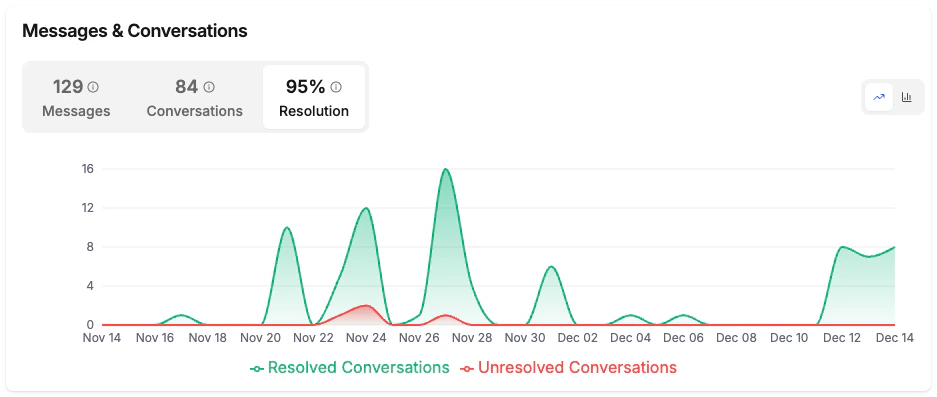
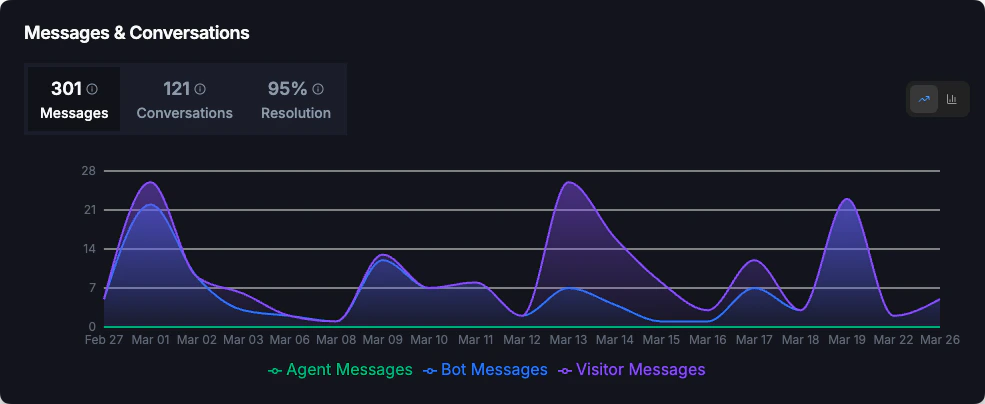
Track conversation and message volume over time with the trend chart.
 ### Three Views
The chart offers three tabs to analyze different aspects:
View message volume breakdown:
* **Bot messages**: Responses from your AI chatbot
* **Agent messages**: Responses from human agents (if live support is enabled)
* **Visitor messages**: Questions and messages from website visitors
Compare conversation types:
* **Bot conversations**: Chats handled entirely by AI
* **Live chat conversations**: Chats involving human agents
Track conversation outcomes:
* **Resolved**: Conversations successfully completed
* **Unresolved**: Conversations that ended without resolution
### What to Look For
This chart helps you identify:
* **Busiest days and weeks**: Plan support coverage accordingly
* **Seasonal patterns**: Prepare for recurring high-traffic periods
* **Campaign impact**: See spikes after marketing campaigns
* **Resolution trends**: Monitor if resolution rate is improving over time
***
## Export Reports
All users can export their report data as CSV files.
Choose the time period you want to export using the date picker
Click the **Export Report** button in the top-right corner
The file downloads automatically with all available analytics data
### What's Included in Export
* Conversation details and metadata
* Message content and timestamps
* Lead information (emails captured)
* All analytics metrics
* Visitor country data
***
## Improving Your Metrics
* Add more content to your knowledge base
* Create Q\&A entries for frequently asked questions
* Review and address unanswered questions (Pro+ feature)
* Keep your website content up to date with regular crawls
Response time is primarily determined by AI processing. If times are consistently high:
* Simplify complex knowledge base entries
* Break long answers into shorter, focused responses
* Contact support if response times exceed 15 seconds consistently
* Enable the email capture feature in widget settings
* Ask for email at appropriate points in the conversation
* Offer value (like sending a summary) in exchange for email
* Review conversations with negative feedback
* Update knowledge base with more accurate answers
* Ensure your AI's tone matches your brand voice
* Add more detailed answers for complex topics
***
## Answerable Questions
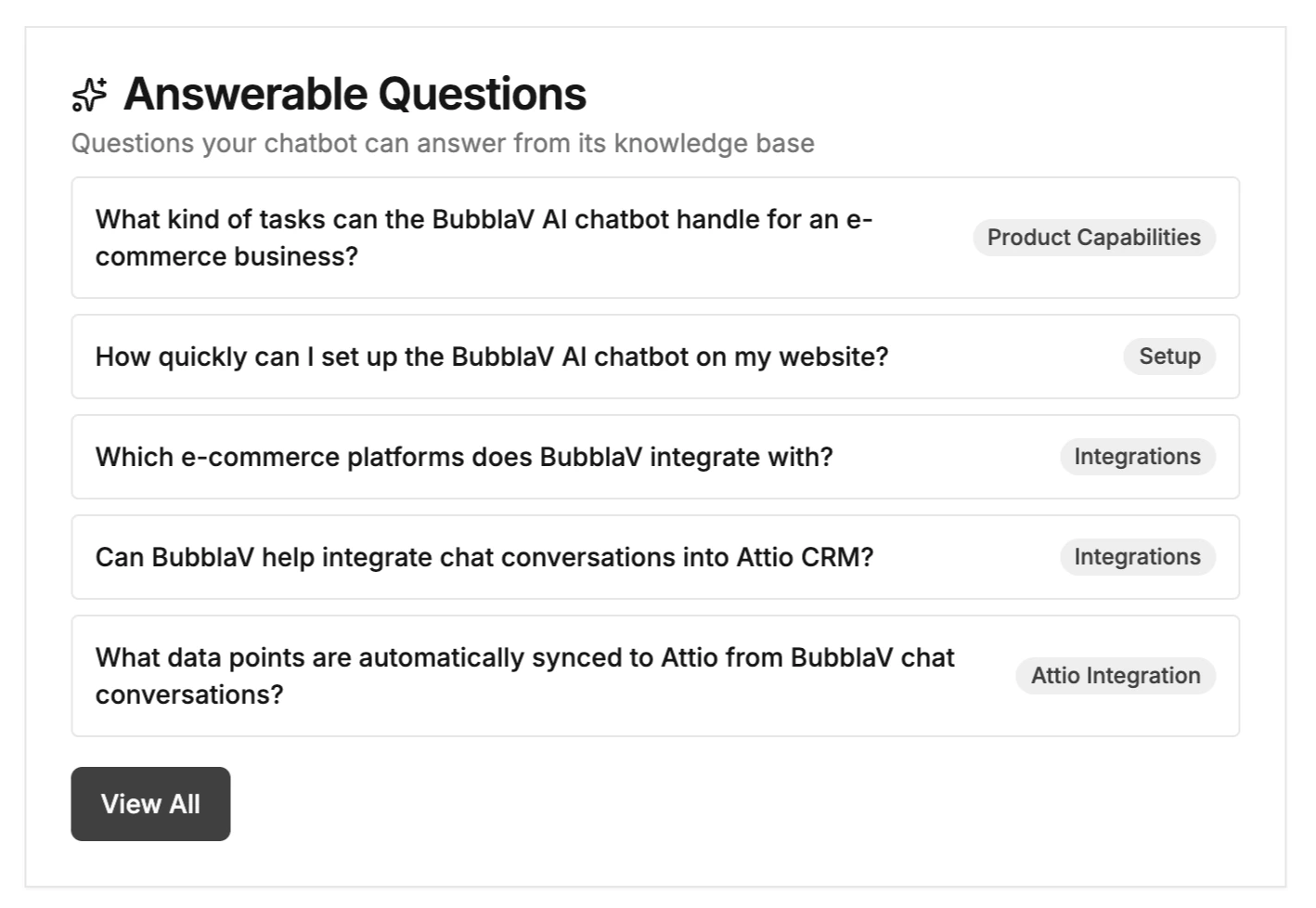
See what questions your AI chatbot can answer from its knowledge base. This feature helps you understand the scope of your chatbot's capabilities.
### Three Views
The chart offers three tabs to analyze different aspects:
View message volume breakdown:
* **Bot messages**: Responses from your AI chatbot
* **Agent messages**: Responses from human agents (if live support is enabled)
* **Visitor messages**: Questions and messages from website visitors
Compare conversation types:
* **Bot conversations**: Chats handled entirely by AI
* **Live chat conversations**: Chats involving human agents
Track conversation outcomes:
* **Resolved**: Conversations successfully completed
* **Unresolved**: Conversations that ended without resolution
### What to Look For
This chart helps you identify:
* **Busiest days and weeks**: Plan support coverage accordingly
* **Seasonal patterns**: Prepare for recurring high-traffic periods
* **Campaign impact**: See spikes after marketing campaigns
* **Resolution trends**: Monitor if resolution rate is improving over time
***
## Export Reports
All users can export their report data as CSV files.
Choose the time period you want to export using the date picker
Click the **Export Report** button in the top-right corner
The file downloads automatically with all available analytics data
### What's Included in Export
* Conversation details and metadata
* Message content and timestamps
* Lead information (emails captured)
* All analytics metrics
* Visitor country data
***
## Improving Your Metrics
* Add more content to your knowledge base
* Create Q\&A entries for frequently asked questions
* Review and address unanswered questions (Pro+ feature)
* Keep your website content up to date with regular crawls
Response time is primarily determined by AI processing. If times are consistently high:
* Simplify complex knowledge base entries
* Break long answers into shorter, focused responses
* Contact support if response times exceed 15 seconds consistently
* Enable the email capture feature in widget settings
* Ask for email at appropriate points in the conversation
* Offer value (like sending a summary) in exchange for email
* Review conversations with negative feedback
* Update knowledge base with more accurate answers
* Ensure your AI's tone matches your brand voice
* Add more detailed answers for complex topics
***
## Answerable Questions
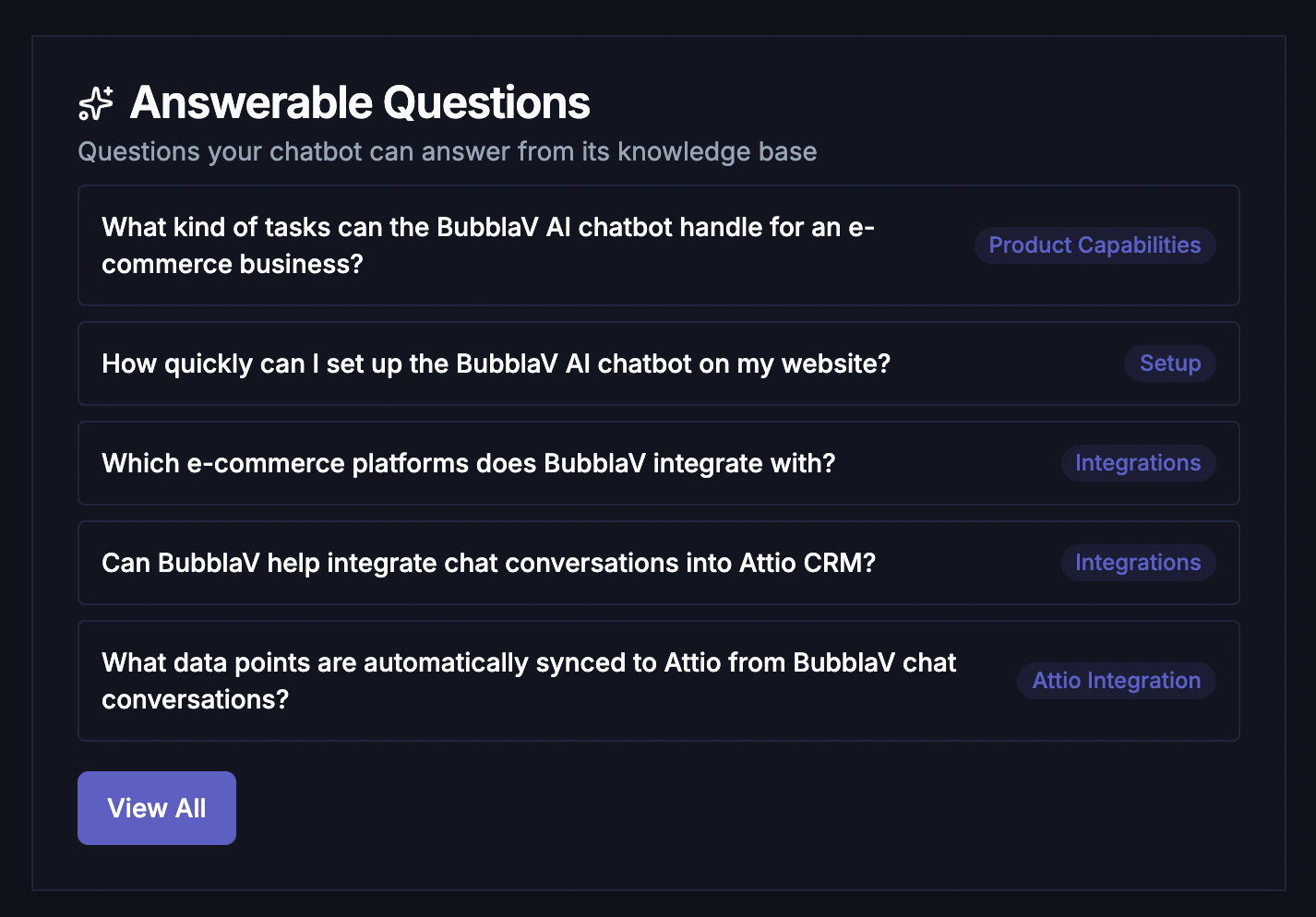
See what questions your AI chatbot can answer from its knowledge base. This feature helps you understand the scope of your chatbot's capabilities.
 ### What's Shown
| Column | Description |
| ------------ | ---------------------------------------------------------- |
| **Question** | A question visitors could ask that your chatbot can answer |
| **Category** | Topic category (e.g., Pricing, Support, Product) |
### How Questions Are Generated
The AI analyzes your knowledge base (website content, files, Q\&A entries) and generates realistic questions that visitors might ask. Questions are automatically regenerated when you add or update knowledge.
Questions are displayed on your dashboard. To see the full list and manage them, go to the **Knowledge** section and select the **Answerable Questions** tab.
### Use This To
* **Validate your knowledge base**: Confirm your chatbot can answer common questions
* **Identify content gaps**: See what topics are covered well vs. missing
* **Train your team**: Share this list with support staff to understand AI capabilities
* **Content planning**: Add knowledge for important questions that aren't covered
***
## Most Asked Questions
Track what your visitors are actually asking to identify trends and content gaps.
### What's Shown
| Column | Description |
| ------------ | ---------------------------------------------------------- |
| **Question** | A question visitors could ask that your chatbot can answer |
| **Category** | Topic category (e.g., Pricing, Support, Product) |
### How Questions Are Generated
The AI analyzes your knowledge base (website content, files, Q\&A entries) and generates realistic questions that visitors might ask. Questions are automatically regenerated when you add or update knowledge.
Questions are displayed on your dashboard. To see the full list and manage them, go to the **Knowledge** section and select the **Answerable Questions** tab.
### Use This To
* **Validate your knowledge base**: Confirm your chatbot can answer common questions
* **Identify content gaps**: See what topics are covered well vs. missing
* **Train your team**: Share this list with support staff to understand AI capabilities
* **Content planning**: Add knowledge for important questions that aren't covered
***
## Most Asked Questions
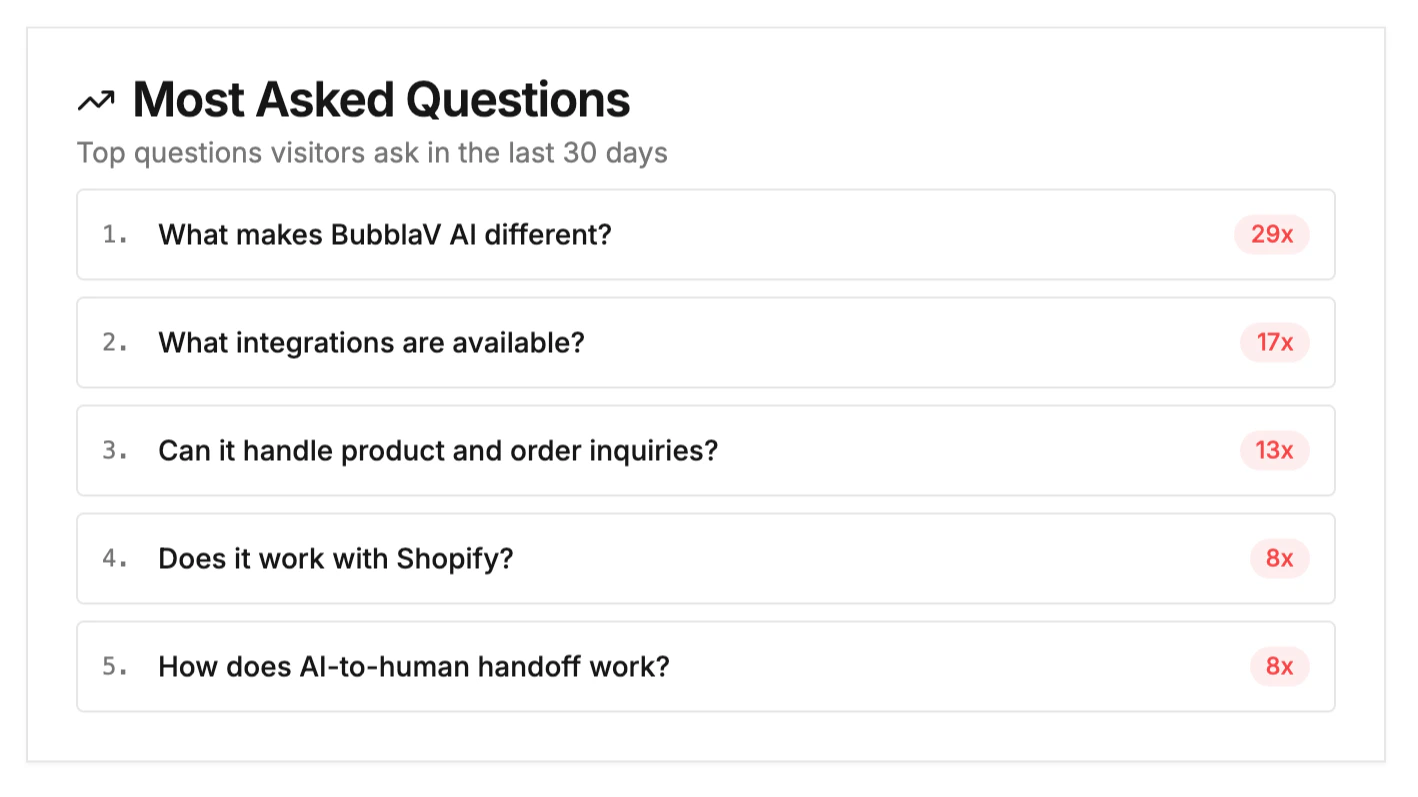
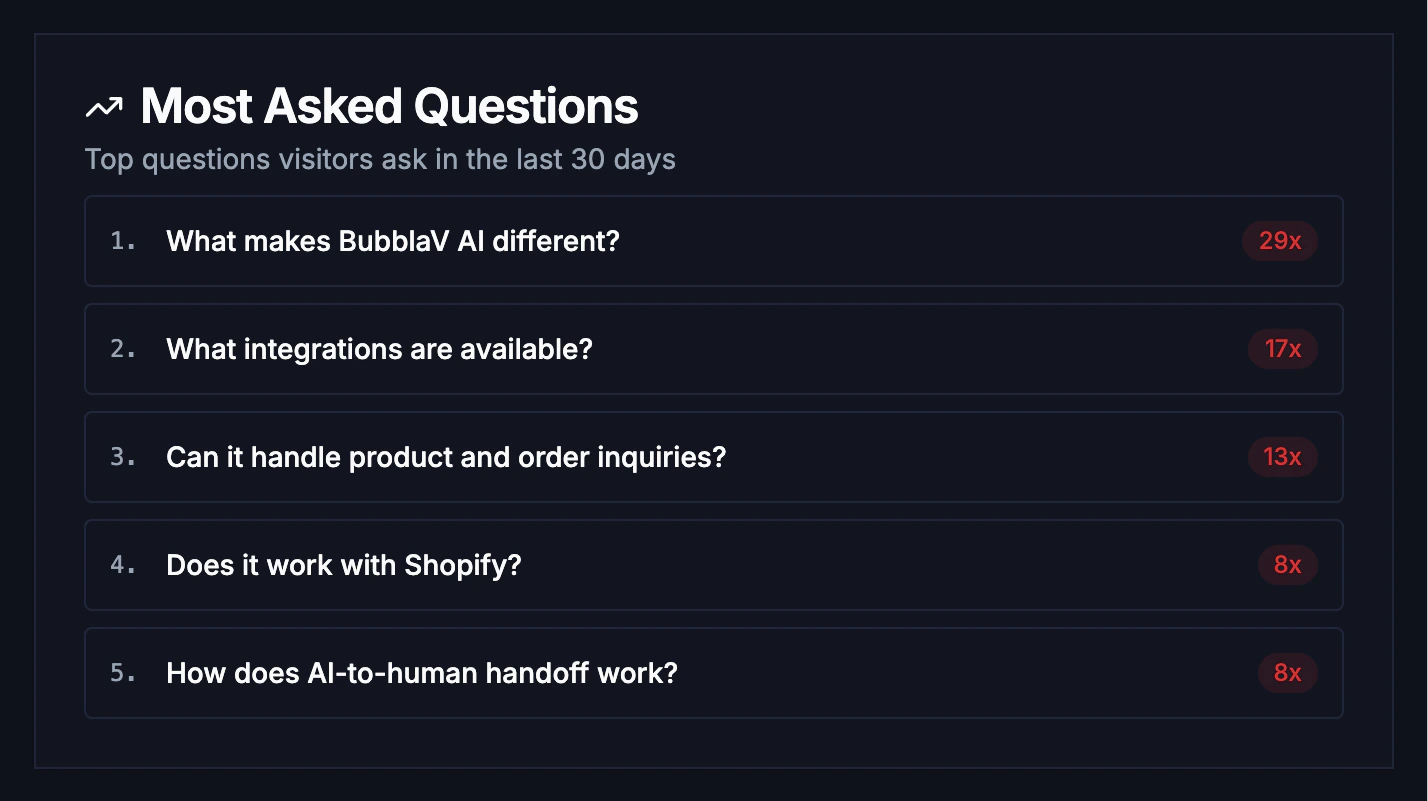
Track what your visitors are actually asking to identify trends and content gaps.
 ### What's Shown
| Column | Description |
| ------------- | -------------------------------------- |
| **Rank** | Question popularity ranking |
| **Question** | The exact question asked by visitors |
| **Frequency** | How many times this question was asked |
### How It Works
Questions are aggregated from all conversations in the selected date range. Similar questions are grouped together, and common greetings (hi, hello, thanks) are filtered out.
Compare **Answerable Questions** with **Most Asked Questions** to identify gaps:
* High-frequency questions that appear in both lists = Great AI coverage
* High-frequency questions missing from Answerable Questions = Add this content!
### Use This To
* **Prioritize content creation**: Add Q\&A entries for frequently asked questions
* **Improve knowledge base**: Update content for topics visitors ask about most
* **Spot trends**: See seasonal changes in customer inquiries
* **Optimize AI prompts**: Tune your AI's responses for common queries
***
## Upgrade to Pro+
Want deeper insights? Pro+ plans unlock advanced analytics:
See estimated savings from AI handling conversations
Monitor AI certainty levels across conversations
Understand where your visitors come from
Identify and fix knowledge gaps
Explore all advanced analytics features available on Pro plans
### What's Shown
| Column | Description |
| ------------- | -------------------------------------- |
| **Rank** | Question popularity ranking |
| **Question** | The exact question asked by visitors |
| **Frequency** | How many times this question was asked |
### How It Works
Questions are aggregated from all conversations in the selected date range. Similar questions are grouped together, and common greetings (hi, hello, thanks) are filtered out.
Compare **Answerable Questions** with **Most Asked Questions** to identify gaps:
* High-frequency questions that appear in both lists = Great AI coverage
* High-frequency questions missing from Answerable Questions = Add this content!
### Use This To
* **Prioritize content creation**: Add Q\&A entries for frequently asked questions
* **Improve knowledge base**: Update content for topics visitors ask about most
* **Spot trends**: See seasonal changes in customer inquiries
* **Optimize AI prompts**: Tune your AI's responses for common queries
***
## Upgrade to Pro+
Want deeper insights? Pro+ plans unlock advanced analytics:
See estimated savings from AI handling conversations
Monitor AI certainty levels across conversations
Understand where your visitors come from
Identify and fix knowledge gaps
Explore all advanced analytics features available on Pro plans