> ## Documentation Index
> Fetch the complete documentation index at: https://docs.bubblav.com/llms.txt
> Use this file to discover all available pages before exploring further.
# Search Widget
> Add an AI-powered search widget to your website
The Search Widget is a standalone AI-powered search feature that helps visitors find information on your website instantly. Unlike the chatbot, the Search Widget focuses on quick, concise answers with direct links to relevant content.
## What is the Search Widget?
The Search Widget provides:
* **Instant search results**: Get answers immediately as users type
* **Direct content links**: Jump straight to relevant pages on your site
* **Multiple display modes**: Icon, compact, or full-width search bar
* **AI-powered**: Uses your knowledge base to understand search intent
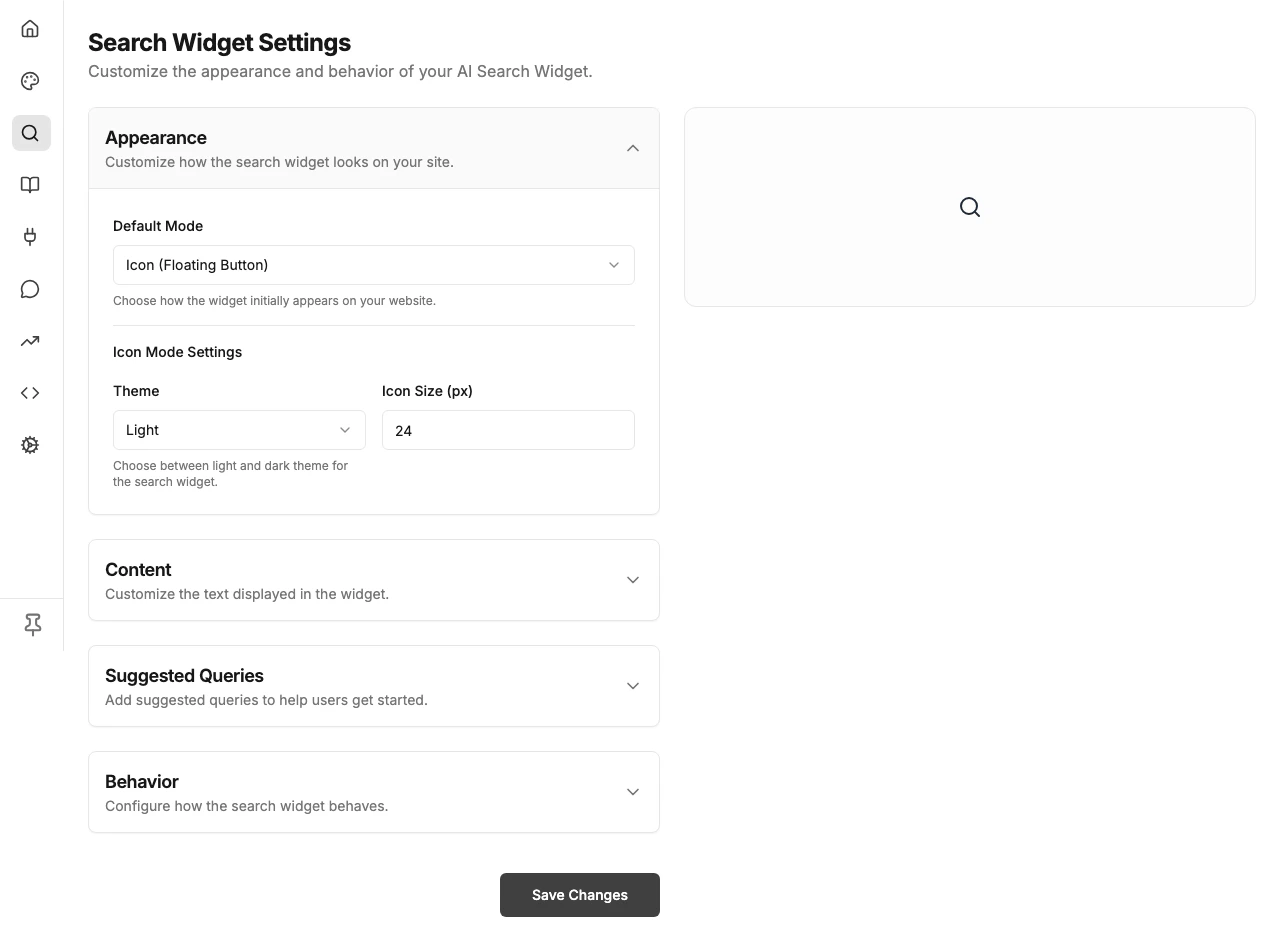
## Accessing Search Widget Settings
Go to [bubblav.com/dashboard](https://www.bubblav.com/dashboard)
Click on the website you want to configure
Click **Search Widget** in the sidebar menu
 ***
## Display Modes
Choose how the search widget appears on your website:
### Icon Mode (Default)
A simple search icon that opens a modal when clicked:
* Minimal footprint on your page
* Opens full search interface in overlay
* Best for: Clean, minimalist designs
### Compact Mode
A small search bar with placeholder text:
* Fixed width search input
* Opens modal on click
* Best for: Header navigation areas
### Full Mode
A full-width search bar integrated into your page:
* Embedded directly in page layout
* No modal needed
* Best for: Dedicated search pages or prominent search areas
***
## Appearance Settings
### Theme
Choose the visual theme for the search widget:
* **Light Theme**: Light background with dark text (default)
* **Dark Theme**: Dark background with light text
The theme applies to the entire search interface, including the modal and results.
### Size
Adjust widget dimensions:
* **Icon Size**: Size of the search icon (Icon mode)
* **Compact Width**: Width of the compact search bar
* **Compact Height**: Height of the search input
### Text
Customize the text shown:
* **Placeholder Text**: Text shown in the search input (default: "Search for answers...")
***
## Behavior Settings
### Search Result Limit
Control how many results to show:
* Default: 5 results
* Adjustable based on your needs
* More results = more content, but may be overwhelming
### Keyboard Shortcut
Enable a keyboard shortcut to open search:
* Default: `Ctrl+K` (or `Cmd+K` on Mac)
* Users can quickly open search from anywhere on your site
* Can be disabled if it conflicts with your site's shortcuts
***
## Installation
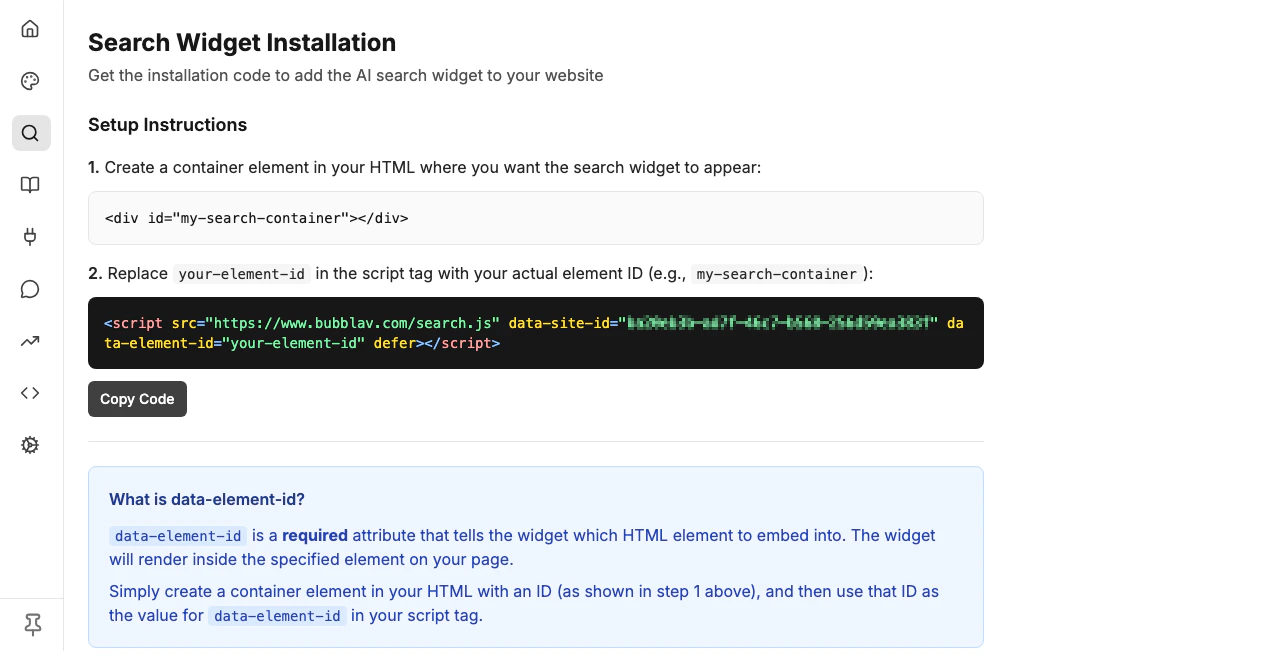
The Search Widget is installed separately from your chatbot widget.
Go to **Search Widget** → **Installation** in the sidebar
Create a container element in your HTML where you want the search widget to appear:
```html theme={null}
```
Add the installation script to your page, replacing `your-element-id` with your container's ID:
```html theme={null}
```
***
## Display Modes
Choose how the search widget appears on your website:
### Icon Mode (Default)
A simple search icon that opens a modal when clicked:
* Minimal footprint on your page
* Opens full search interface in overlay
* Best for: Clean, minimalist designs
### Compact Mode
A small search bar with placeholder text:
* Fixed width search input
* Opens modal on click
* Best for: Header navigation areas
### Full Mode
A full-width search bar integrated into your page:
* Embedded directly in page layout
* No modal needed
* Best for: Dedicated search pages or prominent search areas
***
## Appearance Settings
### Theme
Choose the visual theme for the search widget:
* **Light Theme**: Light background with dark text (default)
* **Dark Theme**: Dark background with light text
The theme applies to the entire search interface, including the modal and results.
### Size
Adjust widget dimensions:
* **Icon Size**: Size of the search icon (Icon mode)
* **Compact Width**: Width of the compact search bar
* **Compact Height**: Height of the search input
### Text
Customize the text shown:
* **Placeholder Text**: Text shown in the search input (default: "Search for answers...")
***
## Behavior Settings
### Search Result Limit
Control how many results to show:
* Default: 5 results
* Adjustable based on your needs
* More results = more content, but may be overwhelming
### Keyboard Shortcut
Enable a keyboard shortcut to open search:
* Default: `Ctrl+K` (or `Cmd+K` on Mac)
* Users can quickly open search from anywhere on your site
* Can be disabled if it conflicts with your site's shortcuts
***
## Installation
The Search Widget is installed separately from your chatbot widget.
Go to **Search Widget** → **Installation** in the sidebar
Create a container element in your HTML where you want the search widget to appear:
```html theme={null}
```
Add the installation script to your page, replacing `your-element-id` with your container's ID:
```html theme={null}
```
 ### What is data-element-id?
The `data-element-id` attribute is **required** and tells the widget which HTML element to embed into. The widget will render inside the specified element on your page.
**How to use it:**
1. Create a container element in your HTML with an ID:
```html theme={null}
```
2. Use that same ID as the value for `data-element-id` in your script tag:
```html theme={null}
```
The widget will automatically find the element with the matching ID and render inside it.
***
## How It Works
1. **User types a query**: Search widget captures the input
2. **AI searches your knowledge base**: Uses semantic search to find relevant content
3. **Results appear instantly**: Shows concise answers with source links
4. **User clicks a result**: Jumps directly to the relevant page
***
## Best Practices
Put the search widget where users expect to find search functionality—typically in the header or navigation.
Icon mode for minimal designs, compact for headers, full mode for search-focused pages.
Choose a theme (light or dark) that matches your website's design.
Try common queries your visitors might ask to ensure good results.
***
## Troubleshooting
* Check the installation script is correct
* Verify the container element with the ID specified in `data-element-id` exists on the page
* Ensure `data-element-id` matches the ID of your container element
* Check browser console for errors
* Ensure your site ID is correct
* Verify your knowledge base has content
* Check that pages are crawled and indexed
* Try different search queries
* Check if your site's CSS is overriding widget styles
* Try using a different display mode
* Contact support for custom styling help
***
## Next Steps
Ensure your content is indexed for good search results
Customize your chatbot appearance
### What is data-element-id?
The `data-element-id` attribute is **required** and tells the widget which HTML element to embed into. The widget will render inside the specified element on your page.
**How to use it:**
1. Create a container element in your HTML with an ID:
```html theme={null}
```
2. Use that same ID as the value for `data-element-id` in your script tag:
```html theme={null}
```
The widget will automatically find the element with the matching ID and render inside it.
***
## How It Works
1. **User types a query**: Search widget captures the input
2. **AI searches your knowledge base**: Uses semantic search to find relevant content
3. **Results appear instantly**: Shows concise answers with source links
4. **User clicks a result**: Jumps directly to the relevant page
***
## Best Practices
Put the search widget where users expect to find search functionality—typically in the header or navigation.
Icon mode for minimal designs, compact for headers, full mode for search-focused pages.
Choose a theme (light or dark) that matches your website's design.
Try common queries your visitors might ask to ensure good results.
***
## Troubleshooting
* Check the installation script is correct
* Verify the container element with the ID specified in `data-element-id` exists on the page
* Ensure `data-element-id` matches the ID of your container element
* Check browser console for errors
* Ensure your site ID is correct
* Verify your knowledge base has content
* Check that pages are crawled and indexed
* Try different search queries
* Check if your site's CSS is overriding widget styles
* Try using a different display mode
* Contact support for custom styling help
***
## Next Steps
Ensure your content is indexed for good search results
Customize your chatbot appearance