
What Are Custom Tools?
A custom tool is a function that your chatbot can call to perform actions or retrieve data. You define:- What it does (description for the AI)
- What parameters it needs (argument schema)
- Where to send requests (your API endpoint)
- How to authenticate (API key, Bearer token, or HMAC)
Common Use Cases
Order Status
Check order status from your backend
Inventory Check
Real-time product availability
Customer Lookup
Retrieve customer info from CRM
Price Calculator
Custom pricing based on quantity/customer type
Step-by-Step Guide: Building a Weather Tool
In this guide, we’ll build a Weather Checker tool that allows your chatbot to answer questions about the weather in any city. We’ll use the free OpenWeatherMap API.Prerequisites
- Sign up at OpenWeatherMap to get a free API key.
1
Navigate to Custom Tools
Go to Dashboard → Integrations → Custom Tools → Create Tool
2
Configure Tool Details
Fill in the following fields:Tool Name: 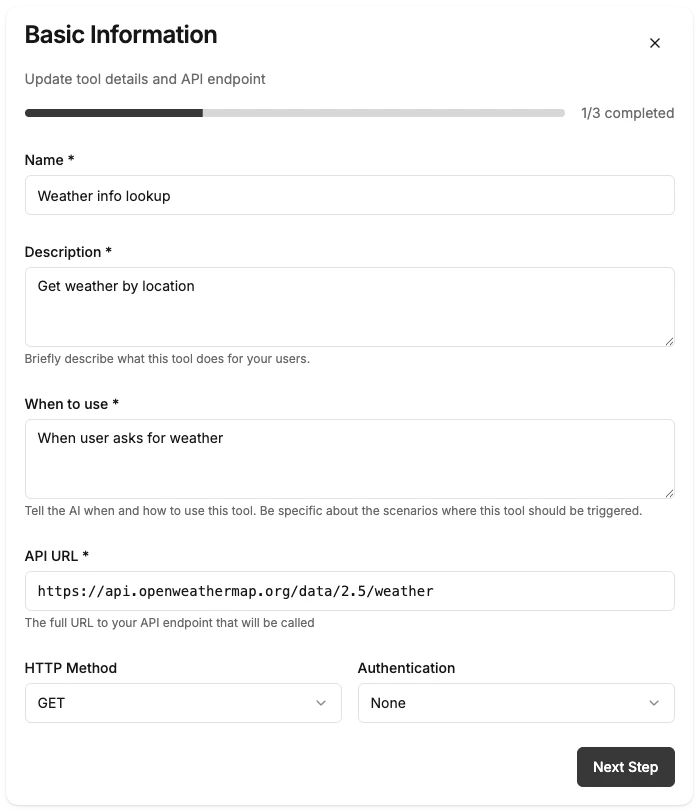
get_weather- Must be unique, lowercase, and use underscores.
Weather Checker- A human-readable name for your internal dashboard.
- Tip: Be specific about when the AI should use this tool.

3
Define Argument Schema
The argument schema tells the AI what variables it needs to extract from the user’s message (like the city name).Paste this JSON schema:Replace 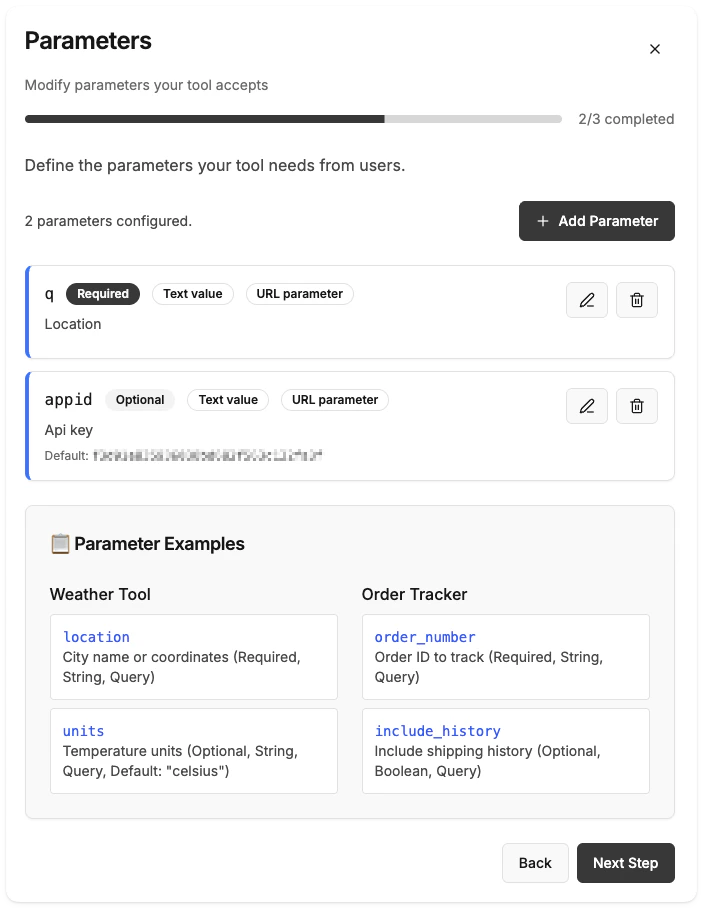
YOUR_OPENWEATHER_API_KEY with the key you got from step 1.
4
Config Parameters
Now map the schema arguments to the API endpoint’s parameters.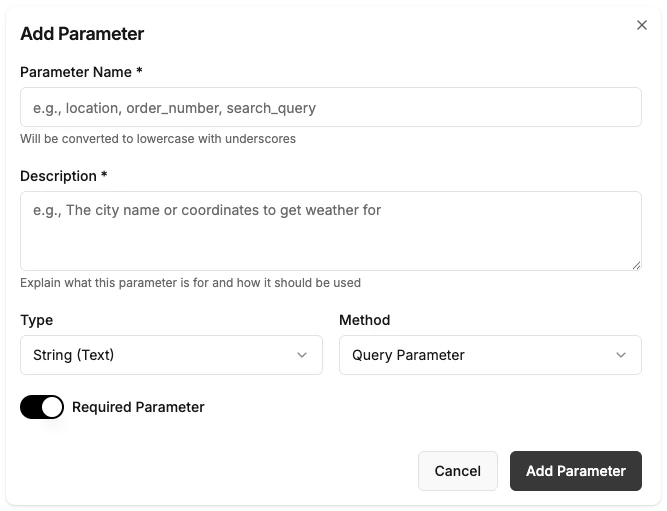
-
City Parameter:
- Name:
q - Method:
Query(URL parameter) - Source:
q(from schema)
- Name:
-
API Key:
- Name:
appid - Method:
Query - Source:
appid(from schema)
- Name:
-
Units (Static Value):
- You can literally type
metricas a default value if your schema allows it, or just handle it in the URL if the API supports it. For this example, we’ll stick to the two dynamic parameters above.
- You can literally type

5
Set Endpoint URL
Enter the OpenWeatherMap API URL: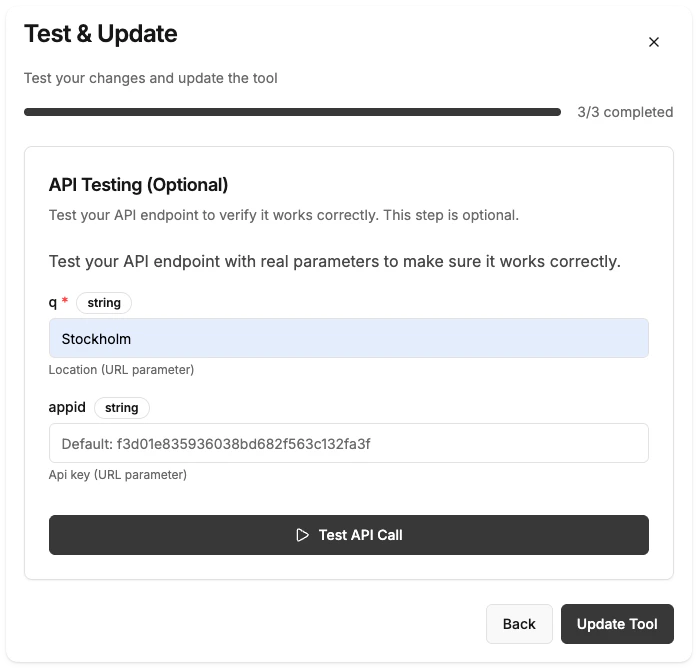
https://api.openweathermap.org/data/2.5/weather- HTTP Method: GET

6
Configure Authentication
Since we are passing the API key as a query parameter (
appid), choose None for the Authentication Method in this specific case.For your own secure APIs, checking Authentication Methods below is recommended.7
Save and Test
- Click Create Tool.
- Click the Test button on your new tool.
- Enter
Londonfor theqparameter. - Click Run Test.
Product Cards Display
When your tool returns product or item data—such as a product search, catalog lookup, or inventory check—you can enable Product Cards to display results as a rich visual UI instead of plain text.How It Works
When enabled, BubblaV automatically extracts product information from your API response (whether it returns JSON, HTML, or any other format) and renders each item as an interactive card with image, name, price, and a link to the product page. No manual field mapping is required. Customers can:- Browse results as cards directly in the chat
- Tap a card to see a full product detail view with image gallery
- Click View Product to open the product page
Enabling Product Cards
- Open your custom tool (create new or edit existing).
- Navigate to the Test & Configure step.
- Toggle Show as Product Cards on.
- Click Create Tool or Update Tool.
The toggle is in the Response Display section at the bottom of the Test & Configure step.
What Gets Extracted
The AI reads your API response and extracts the following fields wherever it finds them:AI Response Behaviour
When product cards are enabled, the chatbot briefly acknowledges the search results in one sentence rather than repeating the products as a text list. The visual cards serve as the primary response.When you secure your custom tool, you share a secret key between BubblaV and your API.
- In Dashboard: You enter or auto-generate a Secret Key (e.g.,
my-secret-token-123). - In Your Backend: You adhere to the environment variable
BUBBLAV_SECRET_KEYwith that exact same value. - The Check: When BubblaV calls your API, your backend checks if the incoming request was signed/authorized with that same key.
None (No Authentication)
Simplest setup—no auth headers sent.Bearer Token
BubblaV sends your secret in theAuthorization header:
In the examples below,
process.env.BUBBLAV_SECRET_KEY represents the secret key you configured in the BubblaV Dashboard for this tool. You must add this key to your backend’s environment variables.- Node.js
- Python (Flask)
HMAC Signature (Recommended)
Most secure option using cryptographic signatures. Prevents replay attacks and ensures request authenticity. Headers sent:In these examples,
process.env.SECRET refers to the HMAC Secret Key you generated in the dashboard. Ensure this environment variable matches the key in your tool configuration.- Node.js
- Python (Flask)
Testing HMAC Signatures
Validating signatures can be tricky. Use our built-in debug tools to help: Dashboard Debug Info: In the Testing step of the Custom Tool Wizard, look for the Request Details (Debug Info) section. It shows you the exact Payload String we used to generate the signature. You can use this to debug your own verification code.Key Requirements & Security
When generating or providing your own keys, follow these security best practices: General Requirements:- Length: Minimum 32 characters (longer is better)
- Complexity: Use a mix of letters (upper/lowercase), numbers, and symbols
- Entropy: Avoid common words, repeated characters (e.g., “aaaaa”), or sequential patterns (e.g., “123456”)
- Bearer Tokens: Must be URL-safe (no spaces or special characters).
- Example:
A4B8C12D16F20G24H28I32J36K40L44M48
- Example:
- HMAC Secrets: Recommended minimum 64 characters for cryptographic security.
- Example:
abcd1234efgh5678ijkl9012mnop3456qrst7890uvwx...
- Example:
Request & Response Format
Request from BubblaV
Your endpoint receives POST requests with this JSON body:Response to BubblaV
Return JSON in this format:- Success
- Error
Example: Discourse Forum Search
Here’s how to connect to a Discourse forum to search for topics.1. Tool Configuration
2. Argument Schema
3. Parameters
- q: Add as a query parameter (Method:
query)
4. Advanced: Two-Step Workflow
For better results, often you want to search first, then fetch the full topic details.- Create
forum_searchtool: Returns a list of topics. - Create
forum_topic_detailtool:- URL:
https://community.yourdomain.com/t/{topic_id}.json?print=true - Params:
topic_id(Path parameter)
- URL:
forum_search to find relevant topics. Then use forum_topic_detail with the best matching topic ID to get the full answer.”
In Dashboard
- Go to Integrations → Custom Tools
- Find your tool and click Test
- Enter sample arguments
- Click Run Test
- Verify the response looks correct
Live Testing
- Open your website with the chatbot
- Ask questions that should trigger your tool:
- “What’s the weather in New York?”
- “How’s the weather in London?”
- “Check weather for Tokyo”
Troubleshooting
Tool not triggering
Tool not triggering
- Make your Description for AI more specific
- Include trigger words customers use
- Verify tool is marked as Active
Authentication errors
Authentication errors
- Verify secret key is correct
- Check endpoint receives expected headers
- For HMAC, verify timestamp and signature calculation
Timeout errors
Timeout errors
- Ensure endpoint responds within 10 seconds
- Optimize database queries
- Check network connectivity
Wrong response format
Wrong response format
- Return valid JSON with
success,data,messagefields - Check for syntax errors in JSON
- Test endpoint with curl or Postman first
Best Practices
Single Purpose
Each tool should do one thing well
Clear Descriptions
Help AI understand when to use each tool
Fast Responses
Aim for sub-second response times
Helpful Messages
Return user-friendly message text
Next Steps
Escalate to Human
Hand off conversations to live agents
Web Search
Enable real-time web search
Integrations Overview
See all available integrations