Understand how your chatbot is performing, what customers are asking, and how your team responds. Make data-driven decisions to improve customer experience.
Reports Overview

Accessing Reports

1

Open Dashboard

2

Select Website

Click on the website you want to analyze
3

Open Reports

Click Reports in the sidebar menu

Overview Dashboard

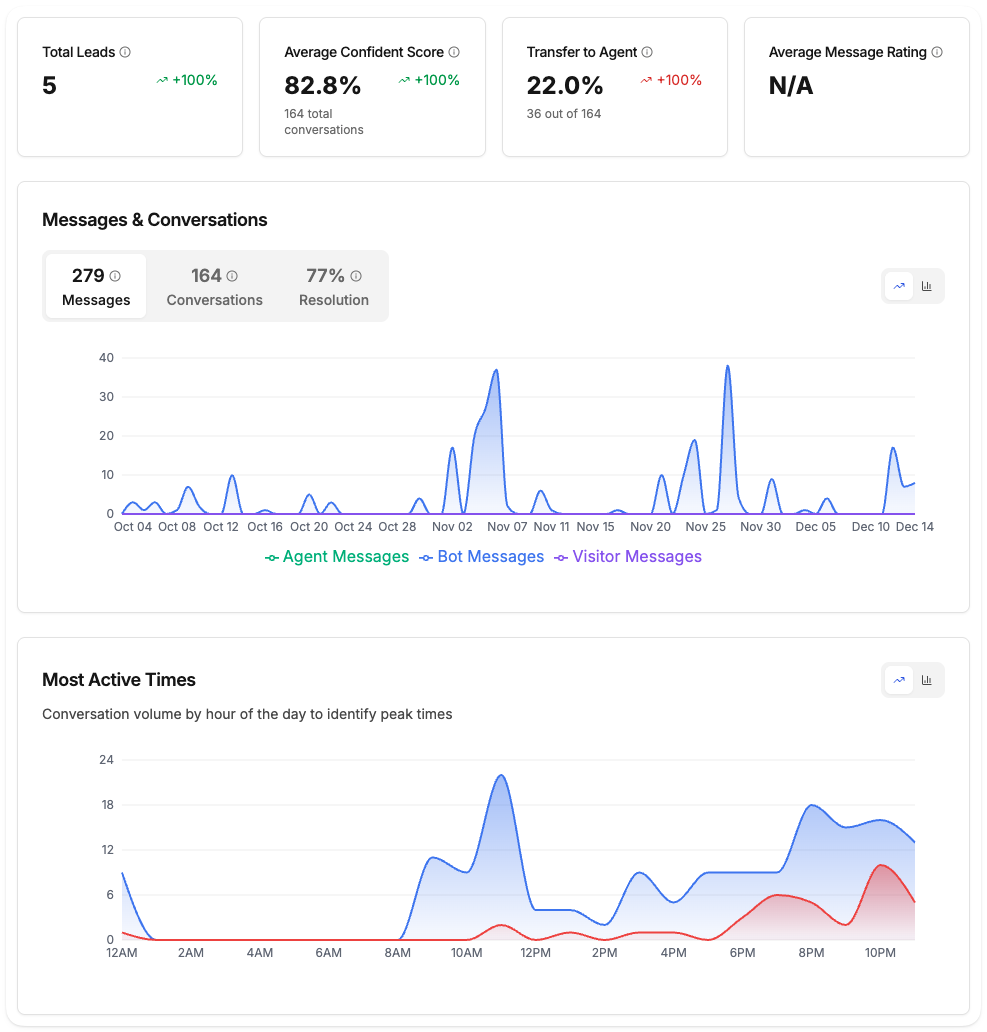
The main dashboard gives you a quick snapshot of performance.

Key Metrics

Total Leads

Number of unique visitors who provided their email address during conversations

Average Confidence Score

Average confidence score of AI responses (0-100%). Higher scores indicate the AI was more certain about its answers

Transfer to Agent

Percentage of conversations escalated to live support agents. Lower percentages indicate better AI self-service performance

Average Message Rating

Average rating of bot messages based on visitor feedback. 100% means all rated messages were positive (thumbs up)

Understanding the Numbers

MetricGoodNeeds Attention
Transfer to Agent< 20%> 40%
Average Confidence Score> 70%< 50%
Average Message Rating> 80%< 60%
A higher transfer rate often means your knowledge base needs more content. Check the “Top Unanswered Questions” section to identify gaps.

Time Range Selection

Filter reports by date range:
RangeBest For
TodayReal-time monitoring
Last 7 daysWeekly trends
Last 30 daysMonthly performance review
Custom rangeSpecific campaigns or periods
Click the date picker in the top-right corner to change the range.

Conversation Analytics

Messages & Conversations Trend

Track conversation and message volume over time:
Messages & Conversations Trend
  • Daily trend: See peaks and valleys throughout the selected period
  • Conversation count: Number of unique chat sessions
  • Message count: Total messages exchanged (bot and visitor)
This chart helps you identify:
  • Busiest days and weeks
  • Seasonal patterns
  • Impact of marketing campaigns

Most Active Times (Pro+)

Visualize conversation volume by hour of the day:
Most Active Times
  • Bar chart: See which hours have the most conversations
  • Line chart: View trends throughout the day
  • Peak identification: Find your busiest support hours
Use this to:
  • Schedule live support coverage during peak hours
  • Plan content updates for high-traffic times
  • Optimize response times

Conversation Flow (Pro+)

Visual representation of how conversations are handled:
Conversation Flow
  • Bot handled: Conversations resolved by AI
  • Agent transfer: Conversations escalated to human agents
  • Resolution paths: See the flow from start to resolution
This helps you understand:
  • Where conversations get stuck
  • How often human intervention is needed
  • Overall system efficiency

User Insights

Understand your customers better.

Visitor Information

Data PointDescription
New vs. ReturningFirst-time or repeat visitors
DeviceDesktop, mobile, or tablet
BrowserChrome, Safari, Firefox, etc.
CountryGeographic distribution

Top Pages

See which pages generate the most conversations:
  1. Identify high-intent pages (pricing, product pages)
  2. Add targeted content for common questions on those pages
  3. Consider page-specific welcome messages

Visitor Geography (Pro+)

See where your visitors are coming from:
Visitor Geography
Available on Pro+ plan
  • Country distribution: Visual map showing conversation volume by country
  • Top countries: List of countries with most conversations
  • Geographic patterns: Identify regional trends
Use this to:
  • Understand your global audience
  • Plan content for different regions
  • Optimize support hours for different time zones
Track which links users click most frequently within the chat:
  • Link text: What the link says
  • URL: Where it points
  • Click count: How many times it was clicked
  • Latest click: Most recent click timestamp
Use this to:
  • Identify popular resources
  • Understand what information visitors find most useful
  • Optimize link placement and descriptions

AI Performance

Top Unanswered Questions (Pro+)

See specific questions that the AI failed to answer:
  • Question text: The exact question asked
  • Frequency: How many times it was asked
  • Action: Add this to your knowledge base or create a Q&A entry
Use this to:
  • Identify knowledge gaps
  • Add missing content to your knowledge base
  • Create Q&A entries for common questions
  • Prioritize content improvements

Bad Feedback Conversations (Pro+)

Review conversations where users gave negative ratings:
  • Conversation details: Full conversation history
  • Rating: The negative feedback received
  • Context: What went wrong
Use this to:
  • Identify patterns in negative feedback
  • Improve responses to similar questions
  • Train your knowledge base with better answers
Review bad feedback conversations weekly to continuously improve your chatbot’s performance.

Leads

Leads List

View all captured leads from conversations:
  • Email address: Contact information provided
  • Date: When the conversation occurred
  • Country: Visitor’s location
  • Conversation: Link to view full conversation history

Exporting Leads

Export leads data:
  1. Select your date range
  2. Click Export Report button
  3. Download CSV file with all lead information
The export includes:
  • Email addresses
  • Conversation dates
  • Visitor countries
  • Full conversation history


Exporting Reports

Download your data for offline analysis.

Export Full Report

Export all report data as CSV:
1

Select Date Range

Choose the time period you want to export
2

Click Export Report

Click the Export Report button in the top-right corner
3

Download CSV

The file will download automatically with all analytics data
The export includes:
  • All conversation data
  • Message details
  • Lead information
  • Analytics metrics
  • Timestamps and metadata

Best Practices

Set aside time each week to review reports. Look for trends, not just individual days.
The “Failed Queries” report is your roadmap for knowledge base improvements.
Schedule live support coverage during your busiest hours.
Compare month-over-month to see improvement trends.
Export and share reports with stakeholders to show chatbot value.

Troubleshooting

  • Select a date range that has data
  • Wait 24 hours for new conversations to appear
  • Refresh the page
  • Check the selected date range
  • Verify timezone settings
  • Note: Real-time data may have slight delays
  • Try a smaller date range
  • Check browser popup blockers
  • Use a different browser

Plan Features

FeatureFreeProTurbo
Basic Analytics
Messages & Conversations Trend
Most Active Times
Conversation Flow
Visitor Geography
Top Unanswered Questions
Bad Feedback Conversations
Export Reports

Next Steps