
BubblaV connects to 30+ tools natively — more than most rivals — and you can extend it without code using Custom Tools (any REST API), Zapier (7,000+ apps), or any MCP server. It is also the only chatbot you can manage from inside ChatGPT, Claude, and Cursor via its built-in MCP server.
Types of Integrations
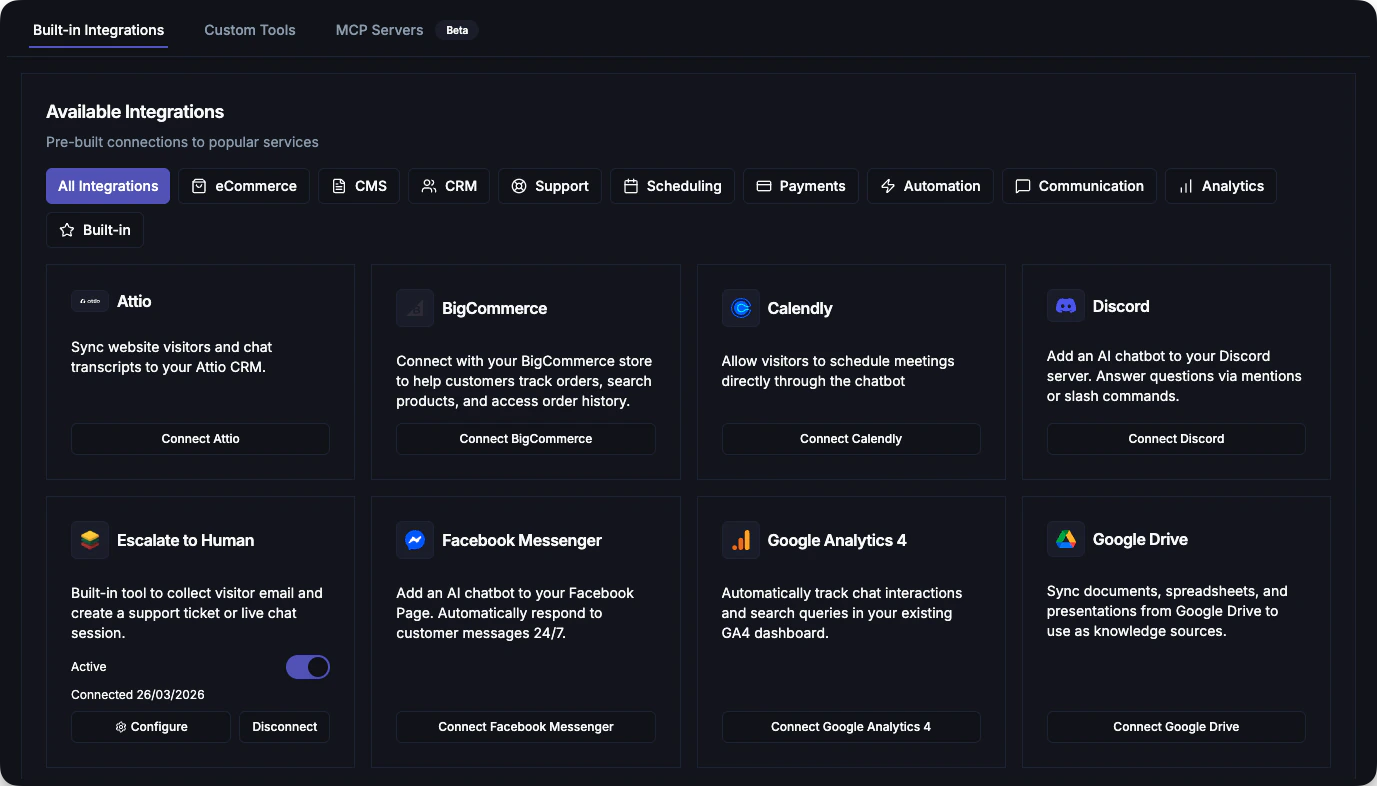
Built-in Integrations
Ready-made connections to popular platforms with OAuth setup and pre-configured tools.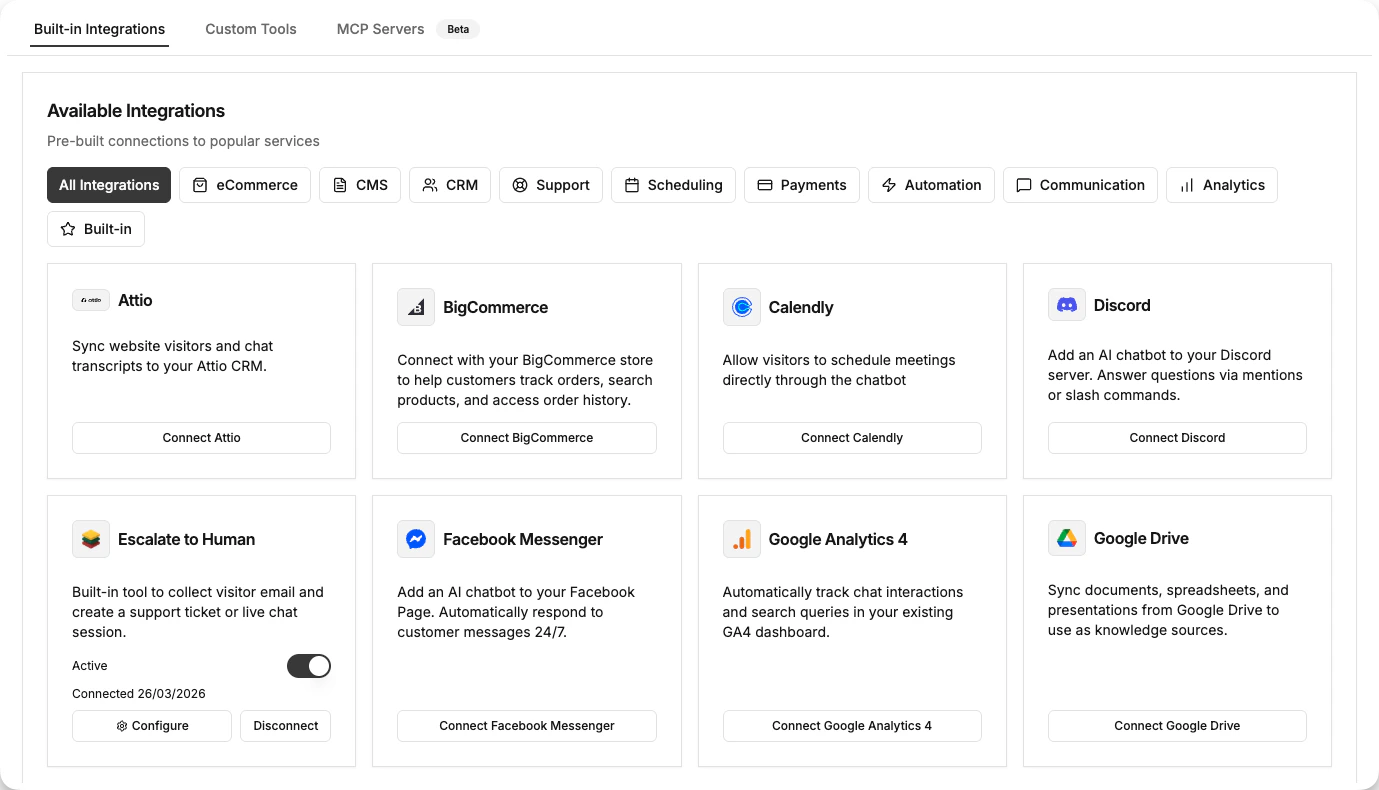
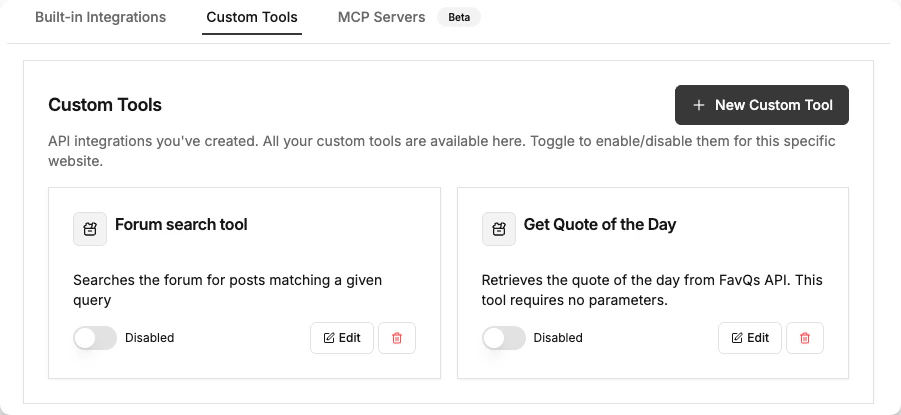
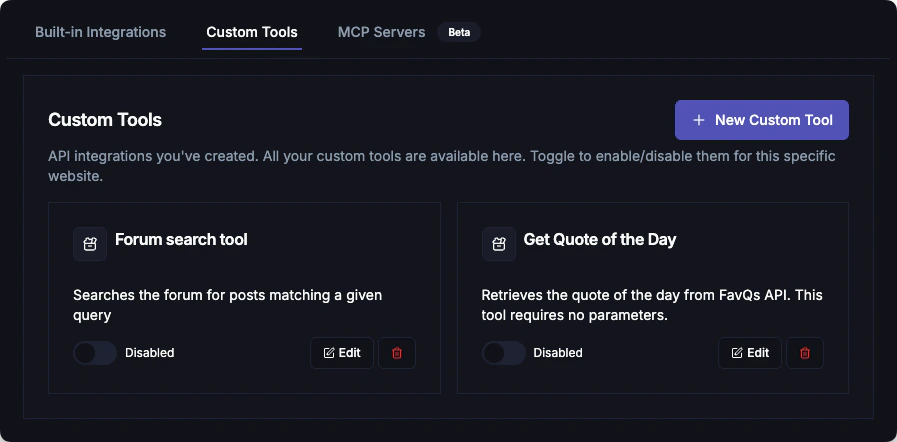
Custom Tools
Create your own actions for the bot to perform by connecting to any REST API.- “Check order status”
- “Reset password”
- “Look up shipping API”
MCP Servers
Connect to Model Context Protocol (MCP) servers to extend capabilities with standardized protocols.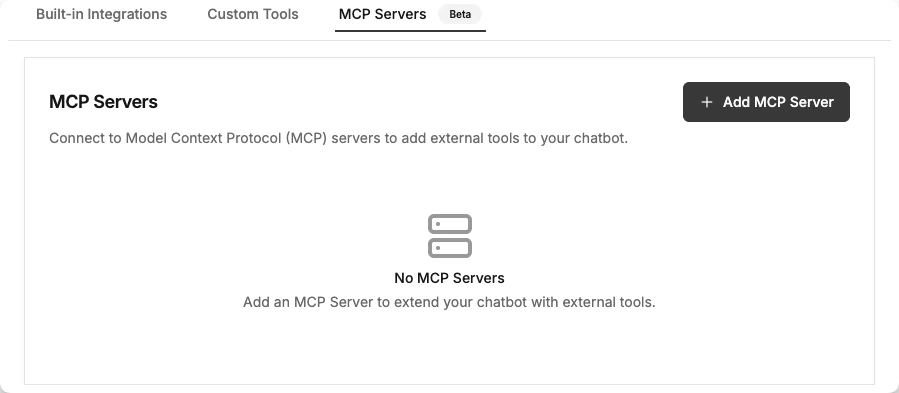
Available Built-in Integrations
E-commerce Platforms
Shopify
Order lookups, product info, customer data
WooCommerce
Product catalog, order status
BigCommerce
Product search, order management
Haravan
Vietnamese e-commerce platform
Quickbutik
Order tracking, product search, and automatic widget installation
Klarna
Payment and checkout options
Content Management Systems
WordPress
Plugin installation, content sync
Optimizely
Content Cloud widget installation
Strapi
Headless CMS content delivery
Sanity
Structured content integration
Framer
Website builder integration
Communication Channels
Messenger
Facebook Messenger conversations
Instagram DM support
Telegram
Telegram bot DM support
Zalo
Zalo Official Account and bot chat support
Discord
Discord server assistance
Slack
Team notifications and alerts
Email (IMAP)
Support emails in your unified inbox
Customer Support & CRM
Zendesk
Ticket sync with AI-drafted replies
HubSpot
CRM context plus ticket sync and AI-drafted replies
Attio
Modern CRM integration
Scheduling & Payments
Calendly
Appointment booking
TidyCal
Meeting booking & lookups
Stripe
Payment processing
Polar
Selling and memberships
Automation & Knowledge
Zapier
Connect 5,000+ apps
Notion
Knowledge base sync
Newsletter
Email subscriber capture
Analytics
Google Analytics
Track chatbot conversations
AI Assistants
ChatGPT
Connect BubblaV to ChatGPT via MCP — search knowledge, view analytics, and tune your chatbot
Special Tools
Escalate to Human
Hand off conversations to live agents when needed
Web Search
Enable real-time web search for up-to-date information
Getting Started with Integrations
Quick Setup (OAuth Integrations)
Most integrations use OAuth for secure, one-click setup:1
Navigate to Integrations
Go to Dashboard → Integrations → Browse All
2
Choose Integration
Find your platform (e.g., Shopify, HubSpot, Slack)
3
Connect Account
Click Connect and sign in to authorize
4
Configure Tools
Enable specific tools you want the AI to use
Custom Setup (API Key or Manual)
Some integrations require manual configuration:1
Get API Credentials
Visit your platform’s developer settings
2
Enter in Dashboard
Paste API key or webhook URL
3
Test Connection
Verify the integration works
Integration Features
What Integrations Enable
When you connect an integration, your chatbot gains new abilities:- Look up information: Check orders, find products, retrieve customer data
- Perform actions: Create tickets, book appointments, send notifications
- Sync data: Keep conversations in your CRM, track in analytics
- Multi-channel: Respond on Messenger, Instagram, Discord, Slack, and Email
Tool Configuration
Each integration exposes specific tools that the AI can use:- Tool Name: Technical identifier (e.g.,
get_order_status) - Description: Tells the AI when to use this tool
- Parameters: What data the tool needs
- Response: What data the tool returns
Tools are powered by your connected integrations. When a customer asks a relevant question, the AI automatically calls the appropriate tool and uses the response to answer.
Security & Privacy
All integrations follow security best practices:- OAuth 2.0: Secure authorization without sharing passwords
- API Key Storage: Encrypted at rest and in transit
- HMAC Signatures: Request verification for custom tools
- Data Minimization: Only access data needed for the conversation
Next Steps
Custom Tools
Build your own API integrations
MCP Servers
Connect to Model Context Protocol servers