
Accessing Design Settings
1
Open Dashboard
Go to bubblav.com/dashboard
2
Select Website
Click on the website you want to customize
3
Open Design
Click Design in the sidebar menu
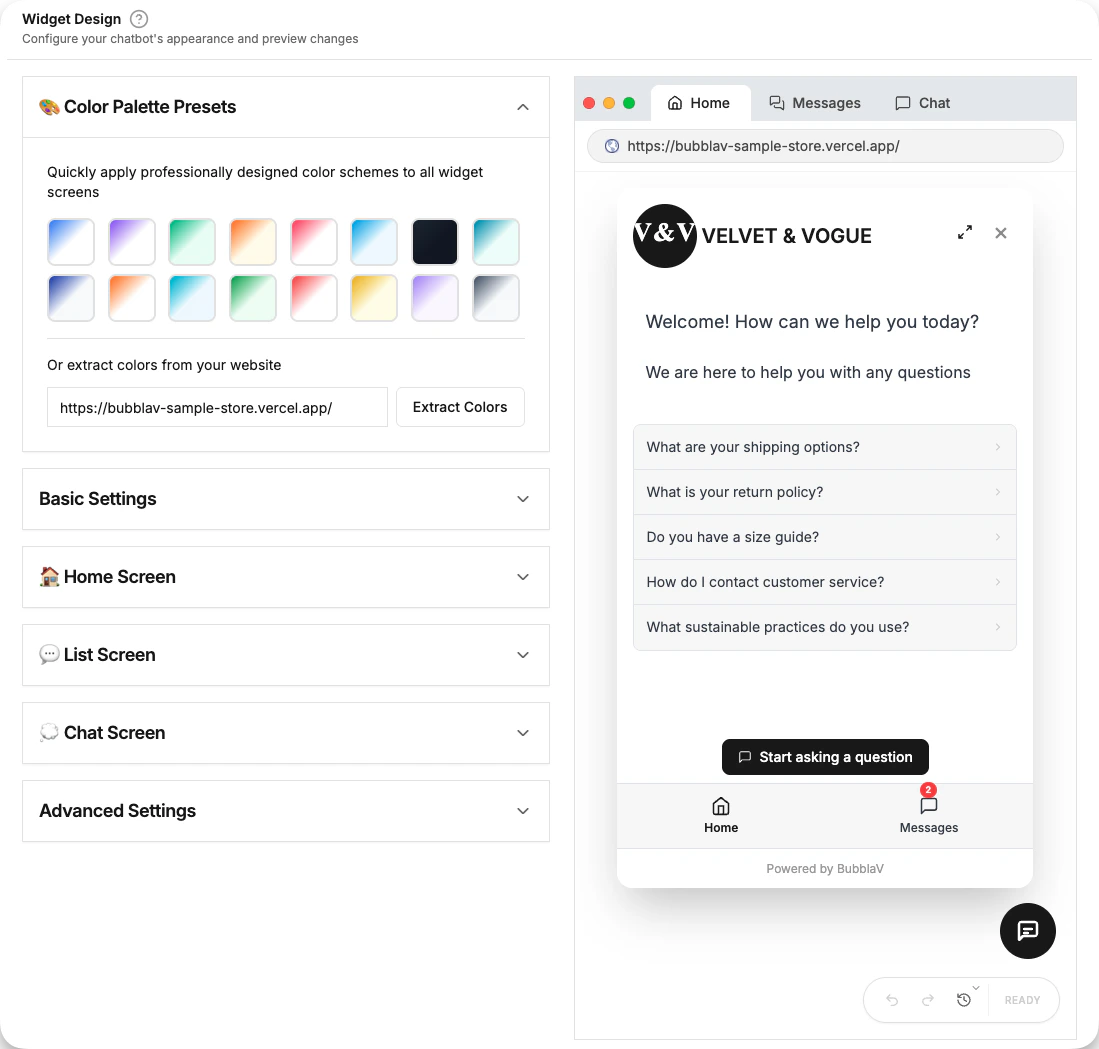
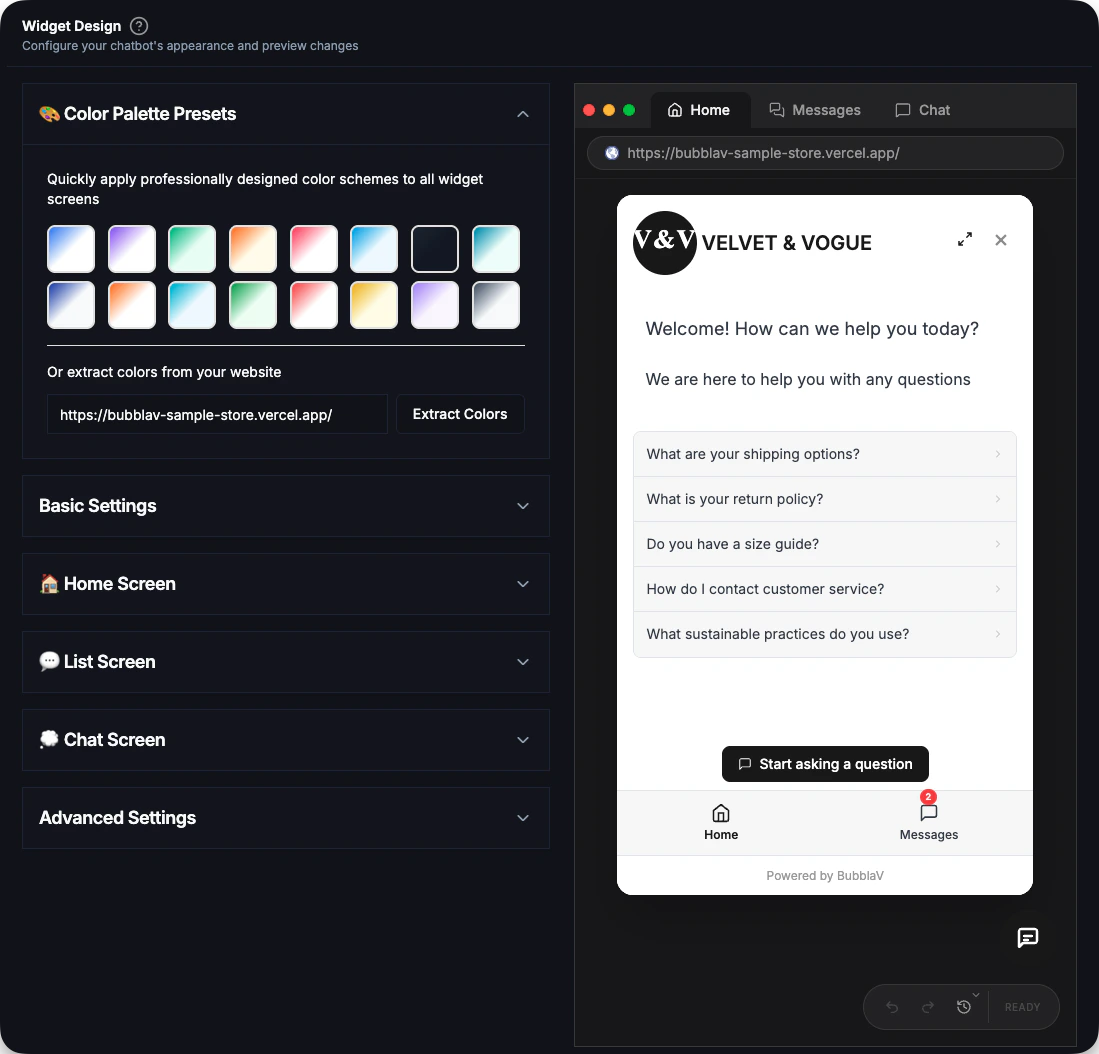
Design Options
The design settings are organized into collapsible sections to help you focus on specific parts of the widget.🎨 Color Palette Presets
Choose from professionally designed color themes if you want a quick start. Automatic Color Detection: When you add a new website, BubblaV automatically analyzes your site’s colors and applies a matching theme to your widget. Manual Color Extraction: You can also extract colors from any website URL:- Expand the Color Palette Presets section
- Enter a website URL in the text field at the bottom
- Click Extract Colors to analyze and apply the color scheme
Basic Settings
Configuration for the widget’s general behavior and appearance.General
- Show Expand Button: Allow users to expand the chat widget to a larger size.
- Show “Powered by” branding: Toggle the BubblaV branding (available on Pro+ plans).
- Greeting Message: A static greeting bubble shown to first-time visitors on the closed widget.
For proactive, AI-personalized greetings — different openers for new vs. returning visitors — build a Flow with a
new_visitor or returning_visitor page-behavior trigger (Pro plan). The static greeting remains the default and takes precedence on a visitor’s very first pageview. See Flows.Dimensions
Customize the size of the widget window:- Widget Width: Default is
400px. - Widget Height: Default is
650px.
Bubble Appearance
Customize the floating chat button:- Bubble Color: The background color of the chat button.
- Bubble Icon Color: The color of the icon inside the button.
Positioning
Choose where the chat button appears on Desktop and Mobile:- Bottom Right: Standard convention.
- Bottom Left: useful if you have other widgets on the right.
Screen Configuration
The widget is divided into three main screens, each with its own customization options.🏠 Home Screen
The first screen users see when they open the widget.- Welcome Message: The greeting text displayed at the top.
- Background Style: Solid color or gradient.
- Chat Suggestions: Quick-start questions to guide users.
💬 List Screen (Messages)
The screen displaying the history of conversations.- Customize the title, background colors, and unread indicator settings.
💭 Chat Screen
The active conversation interface.- Bot Identity: Set the Bot Name and upload a custom Avatar.
- Colors: Customize message bubbles (User vs Bot), text colors, and the input area.
- Placeholder Text: The text shown in the message input field before typing.
Advanced Settings
Exclude URLs
Prevent the widget from appearing on specific pages:- Expand the Advanced Settings section.
- Enter the URLs where you want to hide the widget (one per line).
- You can use specific paths like
/checkoutor full URLs.
Product Card Layout
Control how product cards are displayed in chat responses: Vertical Layout (default):- Product cards stack vertically.
- Each card takes full width.
- Best for detailed product information.
- Product cards display side-by-side (carousel).
- Users can scroll horizontally to see more products.
- Compact view, good for showing multiple options.
Product Card Button Labels
Customize the text on the buttons of every product card shown in chat responses:- “View” Button Label: The text on the main product card button. Default is
View. - “View detail” Button Label: The text on the button that opens the product detail view. Default is
View detail.
Ürünü İncele). The labels apply everywhere product cards appear — custom “Show as Product Cards” responses and Shopify/Haravan product results — on both the vertical and horizontal layouts, and in the product detail view.
Live Preview
The design page includes a real-time preview:- Desktop view: See how it looks on larger screens.
- Mobile view: Toggle to see mobile responsiveness.
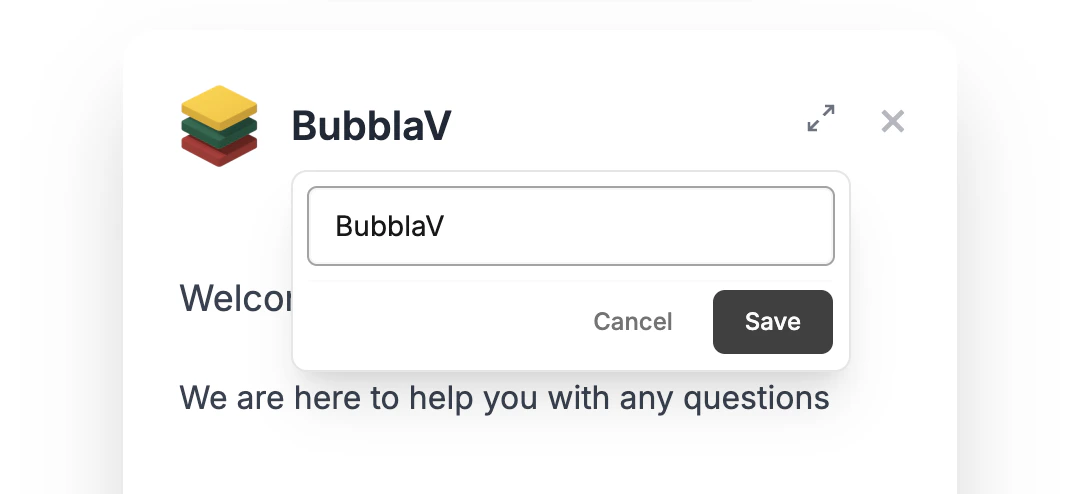
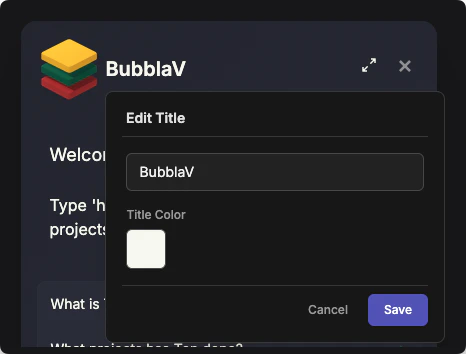
- Inline Editing: Click on any text, button, or color in the preview to edit it directly.
For a full-screen testing experience, use the dedicated Test page available in the dashboard sidebar. This allows you to test the chat behavior without the design tools cluttering the view.
⚡ Inline Editing
The fastest way to customize your widget is by clicking on elements directly in the live preview.- Text Editing: Click on titles, labels, or names to edit them in-place.
- Color Picking: Click on any colored area (like the header or bubble) to open the color picker.
- Images: Click on the bot avatar or logo to update their URLs.
- Layout Toggles: Switch between product card layouts by clicking on the cards.
- Button Labels: Click a product card button in the preview to jump to its label setting under Advanced Settings.
Clicking on an element opens an inline editor. Make your changes and click Save to apply them, or Cancel to revert.
Saving Changes
Inline edits are saved to your history as you confirm them. You can use Undo/Redo to manage changes.
1
Review in Preview
Check your changes in the live preview.
2
Save
Click Save at the bottom of the form.
3
Verify Live
Reload your website to see the updates — changes usually appear within a minute (up to 5 minutes if caching hasn’t cleared).
Changes usually appear on your live site within a minute. In rare cases, caching can delay them by up to 5 minutes — reload the page or open your site in an incognito window to verify the latest version.
Design Best Practices
Match your brand
Match your brand
Your brand colors are automatically extracted when you add a website. You can also manually extract colors from any URL in the Color Palette Presets section, or set your primary brand color for the Bubble and User Messages manually.
Keep it legible
Keep it legible
Ensure high contrast between text and background colors. Dark text on light backgrounds is generally the most readable.
Test expanding
Test expanding
If you enable the Expand Button, check that the larger widget size doesn’t cover important content on your site.
Write welcoming copy
Write welcoming copy
Customize the Welcome Message on the Home Screen to sound friendly and helpful.
Troubleshooting
Changes not appearing?
Changes not appearing?
- Ensure you clicked Save.
- Reload the page — changes usually appear within a minute.
- If still not showing, wait up to 5 minutes for caching to clear, then reload (or open your site in an incognito window).
Widget overlapping content?
Widget overlapping content?
- Try changing the Positioning (Left vs Right).
- Use Advanced Settings > Exclude URLs if it shouldn’t appear on certain pages.
Next Steps
Test Your Bot
Preview your chatbot in action
Installation
Add the widget to your website