
Adding Your Main Website
When you create a new website in your dashboard, you’ll be prompted to enter your main website URL. The crawling process starts automatically after you add the website. To add a main website later:1
Navigate to Knowledge
Go to Knowledge → Websites
2
Enter Your URL
Type your website URL (e.g.,
https://example.com)3
Add Website
Click Add - crawling begins automatically in the background
4
Monitor Progress
Check the Knowledge → Pages section to see crawling progress. No manual start is needed.
5
Review Results
Once crawling completes, check the list of crawled pages and disable any you don’t want
How Crawling Works
When you add a website or sub-website, BubblaV automatically starts crawling:- Checks for llms-full.txt - looks for AI-optimized content first
- Falls back to sitemap if llms-full.txt not available
- Visits your URL and extracts all text content
- Follows links to discover other pages on your domain
- Processes content into searchable chunks with embeddings
- Updates status for each page (Crawled, Pending, Failed)
If your site has an llms-full.txt file, steps 3-4 are skipped - we use the pre-organized content directly.
Crawling respects your
robots.txt file. Pages blocked there won’t be crawled.AI-Optimized Content (llms-full.txt)
BubblaV automatically detects and uses the llms.txt standard when available. This is an emerging standard for providing AI-ready documentation.What is llms-full.txt?
Many modern documentation sites now provide a/llms-full.txt file - a single file containing all their documentation in a structured format. Major companies like Anthropic, Vercel, and Stripe use this format.
How BubblaV Uses It
When you add a website, BubblaV checks for/llms-full.txt first:
- If llms-full.txt exists: Content is extracted directly from this file, no page-by-page crawling needed
- If llms-full.txt doesn’t exist: Falls back to standard sitemap-based crawling
Benefits
Incremental Updates
For sites with llms-full.txt:- We store a fingerprint of the file
- During incremental crawls, we check if the file changed
- Only re-process if content is updated
- This is more efficient than checking each page
You don’t need to configure anything - llms-full.txt detection is automatic.
Checking if Your Site Supports It
Visithttps://yoursite.com/llms-full.txt in your browser. If it loads, your site supports this feature.
Popular documentation platforms that support llms-full.txt:
- Mintlify
- GitBook
- Docusaurus (with plugin)
- ReadMe
Adding More Content Sources
Sub-websites
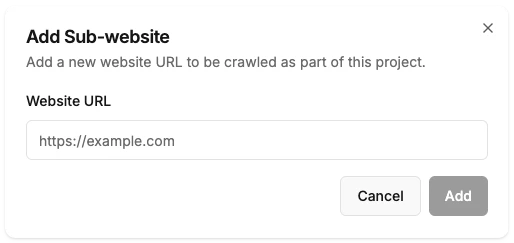
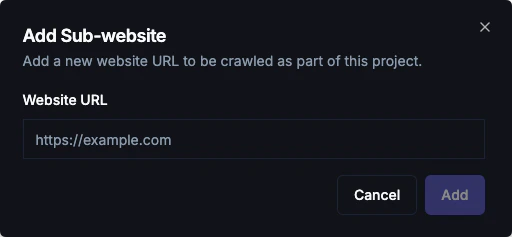
What is a sub-website? A sub-website is an additional website or domain that you want to include in your knowledge base alongside your main website. This allows you to train your chatbot on content from multiple related sites. To add a sub-website:- Go to Knowledge → Websites
- Click Add Website
- Enter the sub-website URL (e.g.,
https://blog.example.com) - Click Add - crawling starts automatically
- Blog on a subdomain (e.g.,
https://blog.example.com) - Help center on a different domain
- Regional or language-specific sites
- Multiple related websites you want to include in one knowledge base
Individual Pages
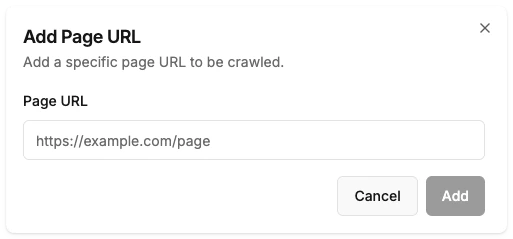
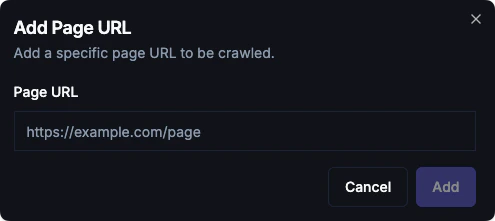
Add specific URLs that aren’t linked from your main site:- Go to Knowledge → Pages
- Click Add Page
- Paste the full URL
- Click Add - the page will be crawled automatically
- Landing pages
- PDF documents hosted online
- Specific product pages
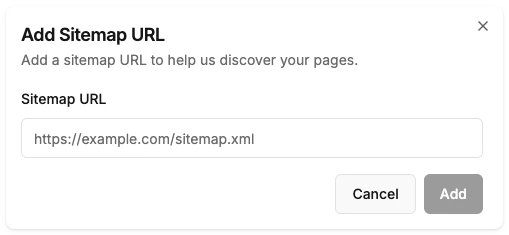
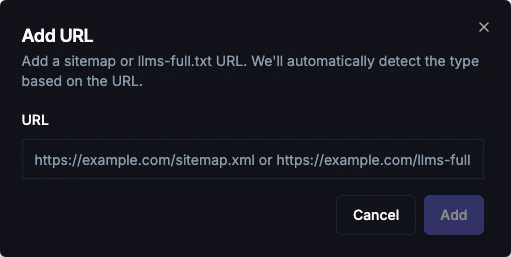
Sitemap Import
Import all URLs from your sitemap at once:- Go to Knowledge → Websites
- Scroll to the Sitemaps & LLMs section
- Click Add URL
- Enter your sitemap URL (e.g.,
https://example.com/sitemap.xml) - Click Add
Managing Crawled Pages
Enable/Disable Pages
Toggle pages on/off to control what the bot knows:- Enabled: Bot can use this content to answer questions
- Disabled: Content is stored but not used
Delete Pages
Permanently remove pages from your knowledge base:- Find the page in the list
- Click the delete icon
- Confirm deletion
Automatic Incremental Crawling
BubblaV automatically performs incremental crawls to keep your knowledge base up to date. The system detects changes on your website and only crawls new or updated pages, making the process efficient and fast. How it works:- The system monitors your websites for changes
- New pages are automatically discovered and crawled
- Updated pages are re-indexed when changes are detected
- No manual action is required
Incremental crawls run automatically in the background. You don’t need to manually trigger re-crawls.
Plan Page Limits
“Total Pages” includes:
- Crawled Web Pages
- Uploaded Files (1 file = 1 page)
- Q&A Entries (1 entry = 1 page)
Best Practices
Start with your most important pages
Start with your most important pages
Crawl product pages, FAQs, and support content first. These have the highest impact on customer satisfaction.
Disable irrelevant pages
Disable irrelevant pages
Login, registration, cart, and checkout pages don’t help answer customer questions.
Keep content up to date
Keep content up to date
The system automatically performs incremental crawls to detect and index new or updated content. For major updates, the automatic sync will pick up changes based on your plan’s frequency.
Check failed pages
Check failed pages
Review failed pages to ensure important content isn’t missing. Fix issues on your website if needed.
Provide llms-full.txt for faster crawling
Provide llms-full.txt for faster crawling
If you control the website being crawled, consider adding an llms-full.txt file. This provides:
- Faster initial crawling
- Better organized content
- More efficient incremental updates
Troubleshooting
Pages not being discovered
Pages not being discovered
- Ensure pages are linked from your main site
- Check your sitemap includes all pages
- Add pages manually via the Pages tab
Content not extracted correctly
Content not extracted correctly
- Verify page has visible text (not just images)
- Check JavaScript-rendered content is server-side rendered
- Contact support for complex pages
Crawl taking too long
Crawl taking too long
- Large sites may take hours to fully crawl
- Check progress in the dashboard
- Pages are usable as soon as they’re crawled
My site has llms-full.txt but BubblaV didn't use it
My site has llms-full.txt but BubblaV didn't use it
- Verify the file is accessible at
https://yoursite.com/llms-full.txt - Check that it returns a 200 status (not redirect or error)
- Ensure the file has valid markdown content
- If recently added, trigger a re-crawl to detect it
Next Steps
Q&A
Add question and answer pairs
Content Gaps
Identify unanswered customer questions