
How It Works
1
Ingestion
You provide content via website crawling, file uploads, Q&A entries, or sitemaps
2
Processing
Content is broken into chunks, analyzed, and converted to embeddings for semantic search
3
Retrieval
When a customer asks a question, the AI finds the most relevant knowledge chunks
4
Generation
The AI uses those chunks to formulate natural, accurate, contextual answers
Knowledge Sources
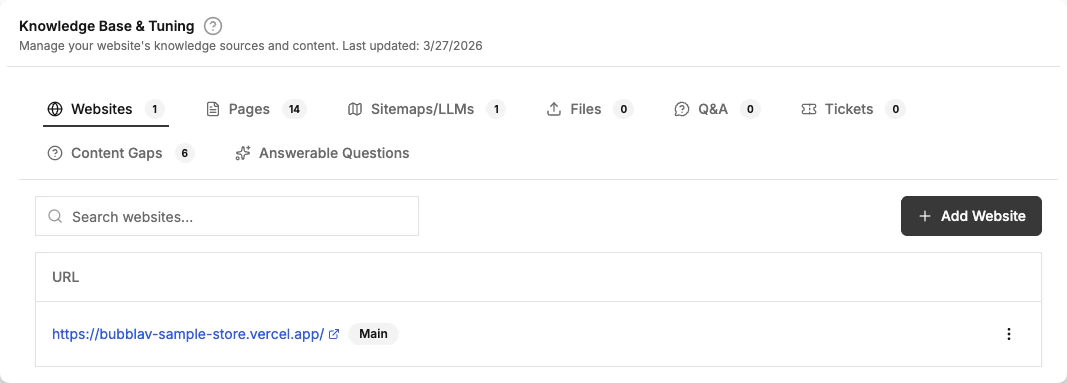
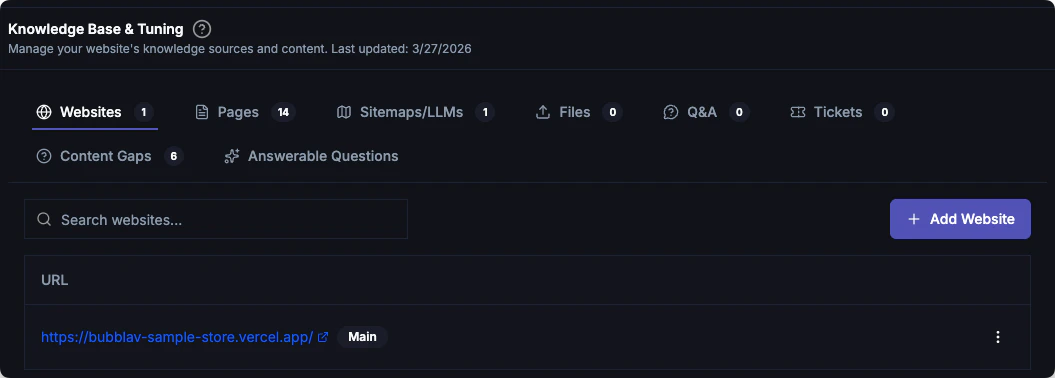
BubblaV supports six types of knowledge sources:Websites
Manage your main website, sub-domains, sitemaps, and llms-full.txt files
Pages
Add specific URLs to crawl
Files
Upload PDFs, Word docs, text files, and Markdown
Q&A
Manually add specific question and answer pairs
Insights
Identify content gaps and review answerable questions
Resolved ticket search
The AI searches resolved tickets from your connected help desk at answer time — configure visibility per integration under Tools.
Source visibility: AI Agent vs Copilot
Not every source is meant for your customers. You can mark a source as Copilot only so it stays internal: your team’s Copilot can still use it to draft replies, but your visitor-facing AI Agent never sees it, so customers never receive an answer drawn from it.Copilot only is a one-way filter: it hides a source from the AI Agent. It never hides a
source from Copilot. Use it for internal playbooks, discount codes, or staff guidelines
that should inform your team’s replies without ever reaching customers.
Plan Limits
Your subscription plan determines how much knowledge you can add:Page count includes all sources: crawled pages, uploaded files, and Q&A entries.
Quick Start
The fastest way to train your chatbot:1
Add Your Main Website
When you create a new website in your dashboard, you’ll be prompted to enter your main website URL. The crawling process starts automatically after you add the website.To add a main website later:
- Go to Knowledge → Websites
- Enter your website URL (e.g.,
https://example.com) - Click Add - crawling begins automatically
2
Add Sub-websites & Sitemaps (Optional)
The Websites tab also lets you manage sitemaps and llms-full.txt files alongside your websites.Sub-websites are additional domains to include in your knowledge base (e.g.,
https://blog.example.com).Sitemaps & LLMs lets you add sitemap.xml or llms-full.txt URLs for faster crawling.To add either:- Go to Knowledge → Websites
- Use the Add Website or Add URL button in the appropriate section
3
Wait for Crawling
The crawling process runs automatically in the background. You can monitor progress in the Knowledge → Pages section. No manual start button is needed.
4
Review Pages
Once crawling completes, check the crawled pages list and disable any you don’t want included in your knowledge base
5
Test Your Bot
Ask questions to verify the bot answers correctly using your newly added content
Best Practices
Keep knowledge updated
Keep knowledge updated
Re-crawl your website after making content changes. Pro plans have automatic weekly syncs.
Be specific and factual
Be specific and factual
Clear, concise content works best. Avoid vague language or marketing fluff.
Remove irrelevant pages
Remove irrelevant pages
Disable login pages, privacy policies, or other pages that shouldn’t influence answers.
Add custom Q&As
Add custom Q&As
Use the Q&A section for frequently asked questions that aren’t on your website.
Close content gaps
Close content gaps
The AI identifies what it can’t answer. Add Q&A for unanswered questions to improve accuracy.
What Makes Good Knowledge?
✅ Good for chatbots:- Product descriptions and specifications
- FAQ pages with clear answers
- How-to guides and tutorials
- Shipping and return policies
- Contact and support information
- Login/registration pages
- Cart and checkout pages
- Dynamic content that changes frequently
- Image-only pages without text
- Duplicate content across multiple pages
Next Steps
Website Crawling
Learn how to crawl your website
Q&A
Manually add question and answer pairs
Content Gaps
Identify and fix missing knowledge
Test Your Bot
Verify your chatbot works correctly