
Viewing conversations is available on all plans. Support tickets, joining live conversations, and AI Copilot require Pro plans.
Omni-Channel Support
Manage customer conversations from multiple channels in a unified inbox:
Each conversation shows a platform badge, so you always know where the customer is messaging from. When you reply, your message is automatically routed back to the customer’s original platform. On any channel — email included — AI Copilot can draft the reply for you: one click produces a grounded, source-cited draft that you review, personalize, and send.
Why Live Support?
Handle Complex Issues
Some problems need human judgment and empathy
Close Sales
High-value customers often need personal attention
Recover Bot Failures
Step in when the AI can’t answer
Build Relationships
Personal touch creates loyal customers
How It Works
1
Monitor Conversations
View all active chats in your Live Support dashboard
2
Get Alerts
Receive notifications when customers ask for human help or the bot struggles
3
Join Conversation
Click to join a conversation and start chatting directly with the customer
4
Use Copilot
Get AI-suggested responses based on your knowledge base
5
Resolve & Hand Back
Mark the issue resolved and let the AI resume for future questions
Dashboard Overview
Access Live Support at Dashboard → Messages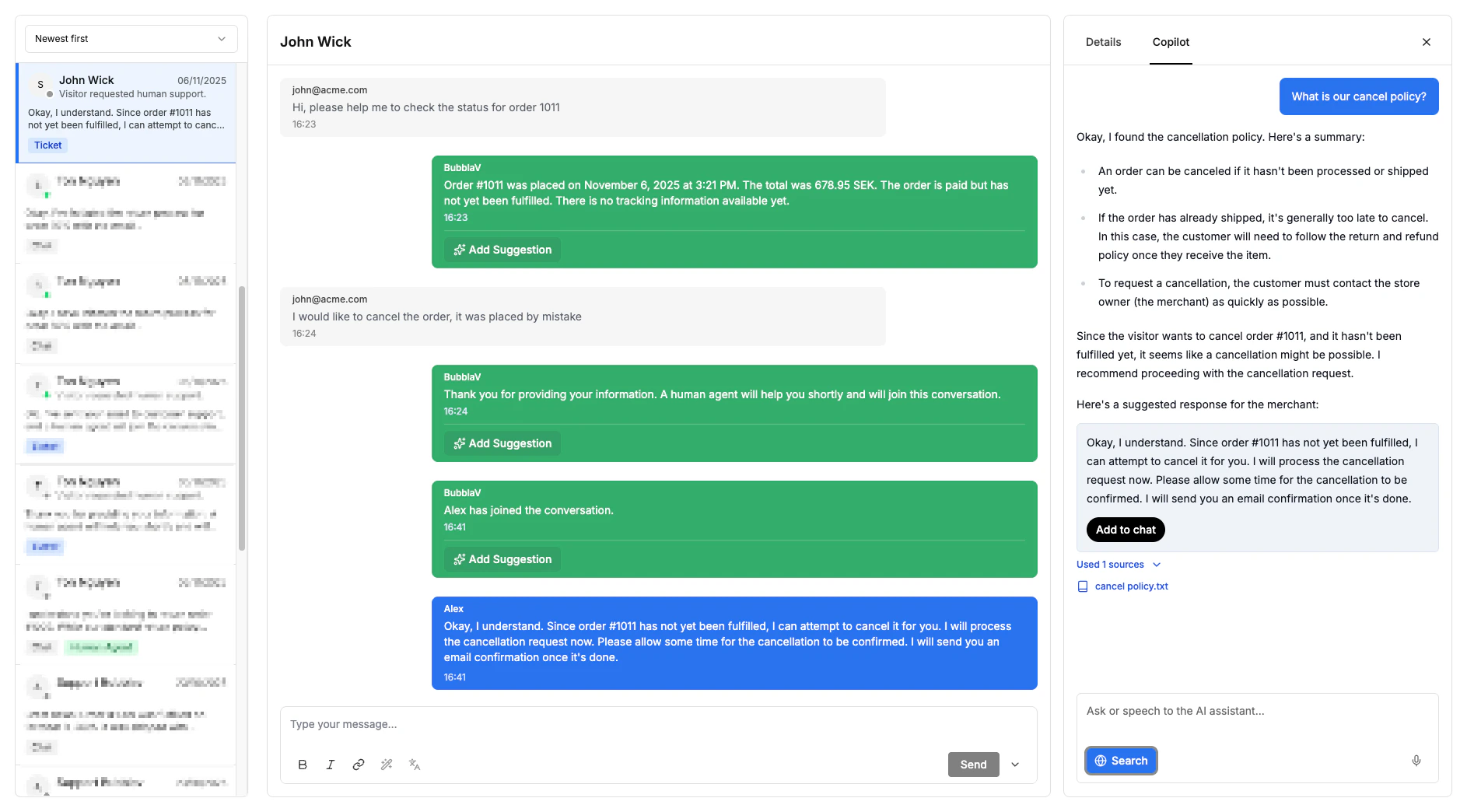
Conversation Views
Conversation Filters
Conversation Status
Use the segmented control above the conversation list to switch between the Open, Waiting, and Archived views.
Message Tags
When viewing conversations, you’ll see various tags on messages:When to Take Over
The dashboard alerts you when:- Customer asks for human: “I want to talk to a real person”
- Bot says “I don’t know” multiple times
- Conversation is long: Customer hasn’t gotten resolution
- Keywords detected: Custom trigger words you define
Key Features
Real-time Messaging
- Instant message delivery
- Typing indicators
- Read receipts
- Message history
One-click Triage
Reply and file the conversation in one click with Send & Archive / Send & Wait, or use theE / W shortcuts. Archived conversations reopen automatically when the customer replies.
Learn more about Send & Archive →
Customer Context Panel
See everything about your customer:- Name and email (if provided)
- Current page they’re viewing
- Previous conversations
- Integration data (Shopify orders, etc.)
- Platform source (Widget, Messenger, Instagram, Discord, Slack, or Email)
AI Copilot
Get AI-powered suggestions while you chat:- Suggested responses
- Knowledge base lookups
- One-click “Draft reply” on chats, email conversations, and CRM tickets
- Quick reply templates
Notifications
Stay informed about new messages and activity even when you’re not in the dashboard. BubblaV delivers notifications through three channels you control — an in-app bell inbox, browser push (Pro+), and email:- Bell inbox: A persistent inbox in the sidebar shows everything that needs your attention — messages, support requests, form submissions, and quota alerts — in real time.
- Browser push: Get desktop and mobile push the moment a visitor messages you.
- Email: Visitors and agents receive email notifications for new messages, with a 5-minute delay to prevent spam if users return quickly.
Plan Features
Getting Started
1
Access Live Support
Go to Dashboard → Messages to view all conversations
2
Upgrade for Advanced Features (Optional)
To create support tickets, join live conversations, or use AI Copilot, upgrade to Pro
3
Set Up Notifications
Enable browser push and pick which channels each notification type uses in Account Settings → Notifications
4
Monitor & Respond
Watch for waiting customers and start chatting!
Best Practices
Respond quickly
Respond quickly
Customers expect fast responses in live chat. Aim for under 30 seconds.
Use Copilot suggestions
Use Copilot suggestions
Don’t reinvent the wheel. AI suggestions ensure accuracy and speed.
Check customer context
Check customer context
Review their history and current page before responding.
Resolve completely
Resolve completely
Make sure the issue is fully handled before marking resolved.
Hand back to AI
Hand back to AI
When done, resume AI so future questions are handled automatically.
Next Steps
Online Visitors
Monitor visitors in real-time
Chat with Customers
Learn the chat interface
AI Copilot
Use AI to respond faster
Push & Message Notifications
Browser push and the bell inbox
Email Notifications
Stay notified via email
Discord Setup
Connect Discord server
Slack Setup
Connect Slack workspace