
What is the Search Widget?
The Search Widget provides:- Instant search results: Get answers immediately as users type
- Direct content links: Jump straight to relevant pages on your site
- Multiple display modes: Icon, compact, or full-width search bar
- AI-powered: Uses your knowledge base to understand search intent
Accessing Search Widget Settings
1
Open Dashboard
Go to bubblav.com/dashboard
2
Select Website
Click on the website you want to configure
3
Open Search Widget
Click Search Widget in the sidebar menu
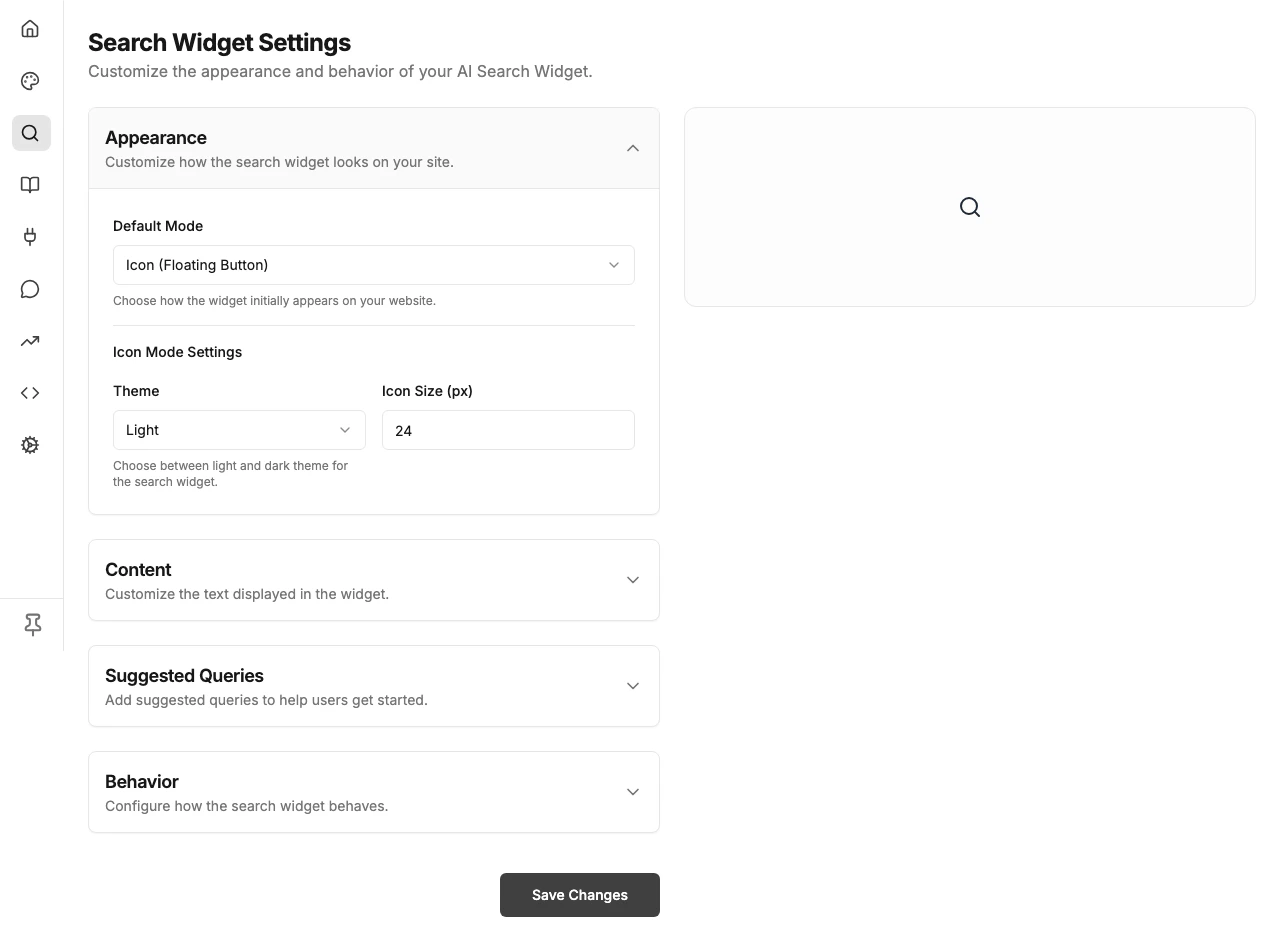
Display Modes
Choose how the search widget appears on your website:Icon Mode (Default)
A simple search icon that opens a modal when clicked:- Minimal footprint on your page
- Opens full search interface in overlay
- Best for: Clean, minimalist designs
Compact Mode
A small search bar with placeholder text:- Fixed width search input
- Opens modal on click
- Best for: Header navigation areas
Full Mode
A full-width search bar integrated into your page:- Embedded directly in page layout
- No modal needed
- Best for: Dedicated search pages or prominent search areas
Appearance Settings
Theme
Choose the visual theme for the search widget:- Light Theme: Light background with dark text (default)
- Dark Theme: Dark background with light text
Size
Adjust widget dimensions:- Icon Size: Size of the search icon (Icon mode)
- Compact Width: Width of the compact search bar
- Compact Height: Height of the search input
Text
Customize the text shown:- Placeholder Text: Text shown in the search input (default: “Search for answers…”)
Behavior Settings
Search Result Limit
Control how many results to show:- Default: 5 results
- Adjustable based on your needs
- More results = more content, but may be overwhelming
Keyboard Shortcut
Enable a keyboard shortcut to open search:- Default:
Ctrl+K(orCmd+Kon Mac) - Users can quickly open search from anywhere on your site
- Can be disabled if it conflicts with your site’s shortcuts
Installation
The Search Widget is installed separately from your chatbot widget.1
Get Installation Code
Go to Search Widget → Installation in the sidebar
2
Create Container Element
Create a container element in your HTML where you want the search widget to appear:
3
Add Script Tag
Add the installation script to your page, replacing
your-element-id with your container’s ID: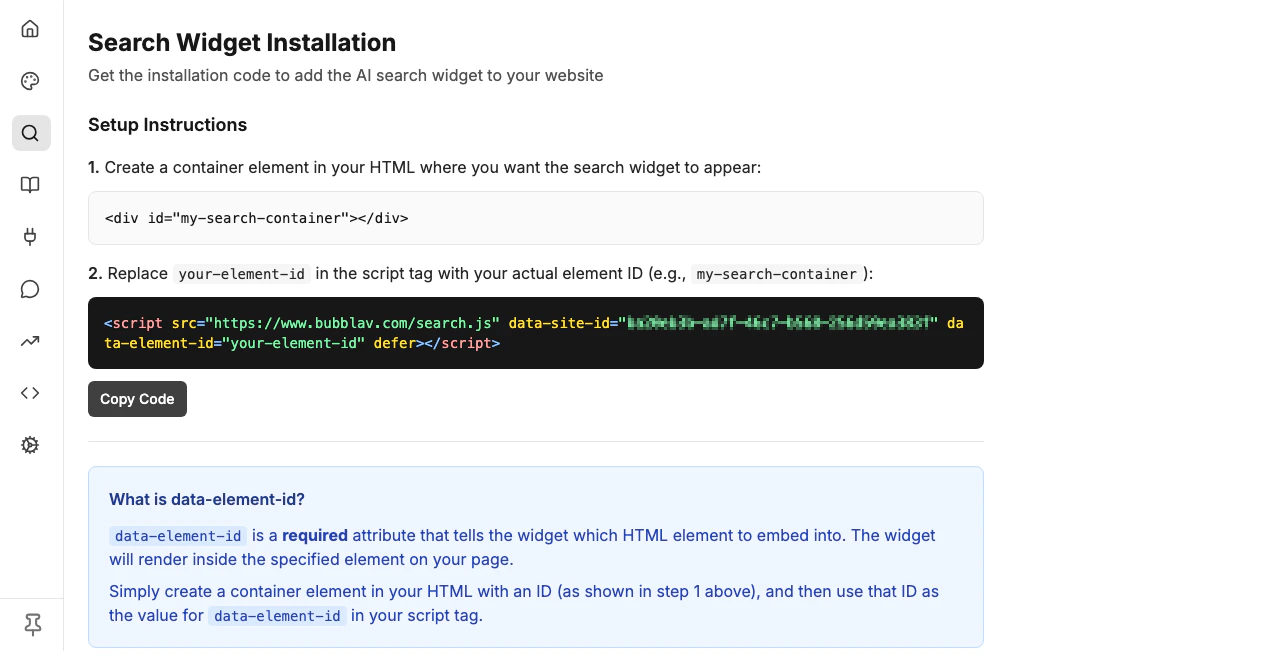
What is data-element-id?
Thedata-element-id attribute is required and tells the widget which HTML element to embed into. The widget will render inside the specified element on your page.
How to use it:
-
Create a container element in your HTML with an ID:
-
Use that same ID as the value for
data-element-idin your script tag:
How It Works
- User types a query: Search widget captures the input
- AI searches your knowledge base: Uses semantic search to find relevant content
- Results appear instantly: Shows concise answers with source links
- User clicks a result: Jumps directly to the relevant page
Best Practices
Place prominently
Place prominently
Put the search widget where users expect to find search functionality—typically in the header or navigation.
Choose the right mode
Choose the right mode
Icon mode for minimal designs, compact for headers, full mode for search-focused pages.
Match your brand
Match your brand
Choose a theme (light or dark) that matches your website’s design.
Test search quality
Test search quality
Try common queries your visitors might ask to ensure good results.
Troubleshooting
Widget not appearing
Widget not appearing
- Check the installation script is correct
- Verify the container element with the ID specified in
data-element-idexists on the page - Ensure
data-element-idmatches the ID of your container element - Check browser console for errors
- Ensure your site ID is correct
No search results
No search results
- Verify your knowledge base has content
- Check that pages are crawled and indexed
- Try different search queries
Styling conflicts
Styling conflicts
- Check if your site’s CSS is overriding widget styles
- Try using a different display mode
- Contact support for custom styling help
Next Steps
Knowledge Base
Ensure your content is indexed for good search results
Widget Design
Customize your chatbot appearance