
Bot behavior and custom instructions are now configured in the Behavior page in the sidebar. See Human Handoff for details.
Accessing Settings
1
Open Dashboard
Go to bubblav.com/dashboard
2
Select Website
Click on the website you want to configure
3
Open Settings
Click Settings in the sidebar menu
General Settings
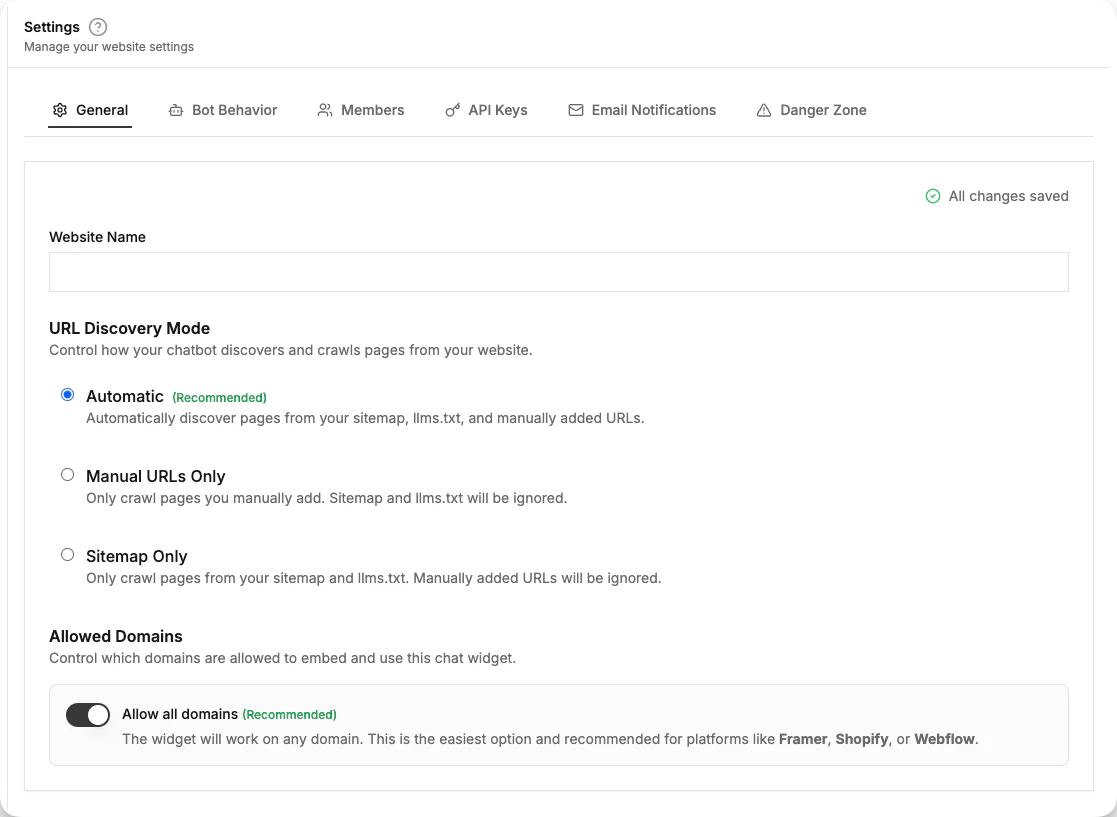
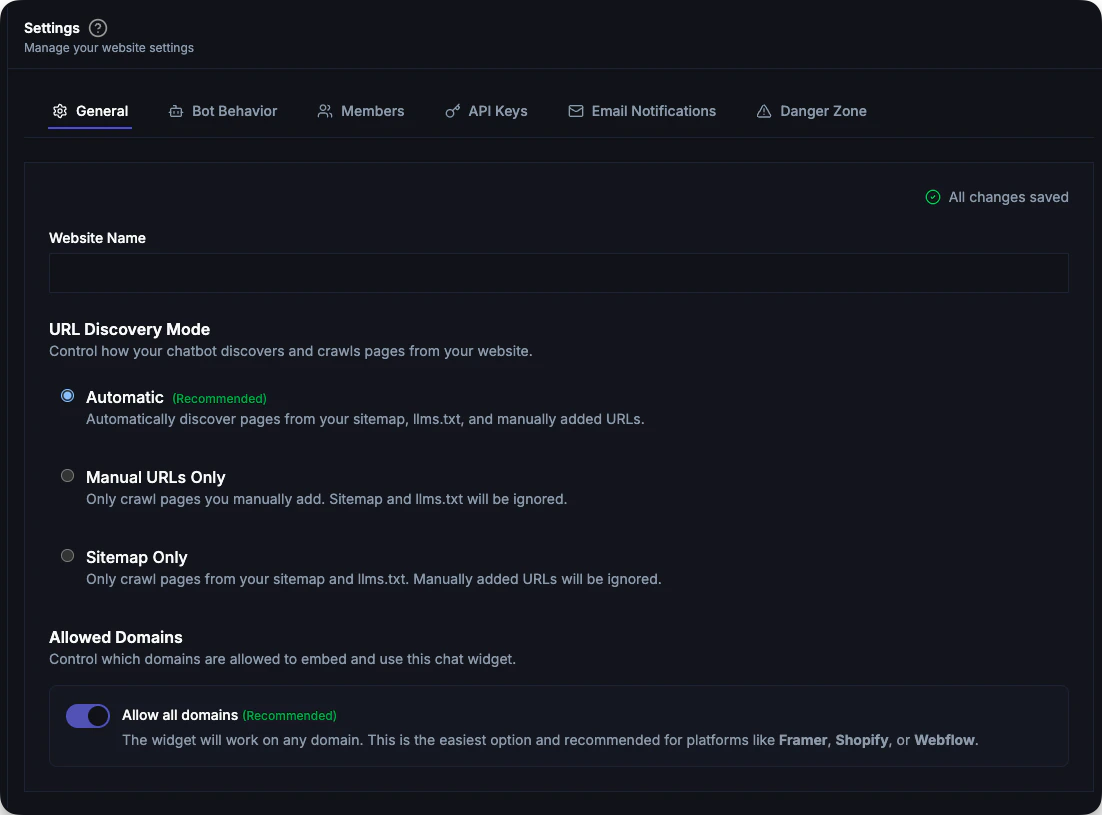
Basic configuration for your website.Website Name
The display name shown in your dashboard. This is for your reference only—customers don’t see this.Website URL
The primary domain where your chatbot is installed. Used for:- Crawling your website content
- CORS security (widget only loads on this domain)
- Analytics tracking
Allowed Domains
Control which domains can embed and use this chat widget.Allow All Domains (Recommended)
By default, Allow all domains is enabled. This means your widget will work on any domain without restrictions. This is the best option if you:- Use Framer, Shopify, Webflow, or similar platforms that may add preview or custom domains over time
- Have multiple domains or subdomains pointing to the same site
- Are unsure which domains will serve your widget in the future
Restrict to Specific Domains
If you want tighter control, disable Allow all domains to restrict the widget to specific domains only. Once disabled, you can add allowed domains:- Enter the domain in the input field (e.g.,
stage.example.com) - Supports wildcards like
*.example.comfor all subdomains - Click Add to add it to the list
- Click Save Changes to apply
When restricted mode is on, the primary domain (website URL) and your dashboard domain are always allowed automatically.
YOLO Mode (Unrestricted Knowledge)
By default, your chatbot and Copilot answer only from your website’s knowledge base. YOLO Mode is an optional toggle (off by default) that lets them answer beyond your content. When ON, your chatbot and Copilot may answer using their own general knowledge and live web search — not just your website’s knowledge base. They can still use your site’s tools for site-specific facts.Auto-Apply Learned Answers
BubblaV can draft new Q&A entries from your real conversations — agent replies on resolved chats, bot recoveries, and thumbs-down threads. Drafts always wait for your review in Knowledge → Q&A. Auto-apply learned answers (off by default, Pro plan) publishes strong-evidence drafts immediately — typically answers written by a human agent on a resolved chat — while weak drafts still queue for review. See Self-Learning.Danger Zone
Irreversible actions that affect your website.Delete Website
Permanently removes:- All conversations
- Knowledge base content
- Settings and integrations
- Team member access
1
Scroll to Danger Zone
At the bottom of Settings
2
Click Delete Website
Opens confirmation dialog
3
Type Website Name
Type the exact website name to confirm
4
Confirm Deletion
Click Delete Permanently
Troubleshooting
Changes not saving
Changes not saving
- Check your internet connection
- Ensure you clicked “Save Changes”
- Refresh the page and try again
- Check browser console for errors
Team invites not received
Team invites not received
- Check spam/junk folder
- Verify email address is correct
- Resend the invitation
- Ask them to add notifications@bubblav.com to contacts
Notifications not working
Notifications not working
- Verify email address is correct
- Check spam folder
- Enable browser notifications in Account Settings → Notifications (push is per browser)
- Check notification toggles are enabled for the relevant type and channel
Next Steps
Behavior
Configure bot instructions and human handoff
Widget Design
Customize appearance
View Reports
Track performance