
How Copilot Works
While you’re chatting with a customer, Copilot:- Analyzes the conversation in real-time
- Searches your knowledge base for relevant information
- Considers customer context (integration data, history)
- Suggests response options you can use or edit
Using Copilot
Copilot is a chat interface in the Copilot tab of the right sidebar. It helps you by:- Answering your questions about products, policies, or customer information
- Searching your knowledge base for relevant information
- Looking up customer data from integrations
- Providing context about the conversation
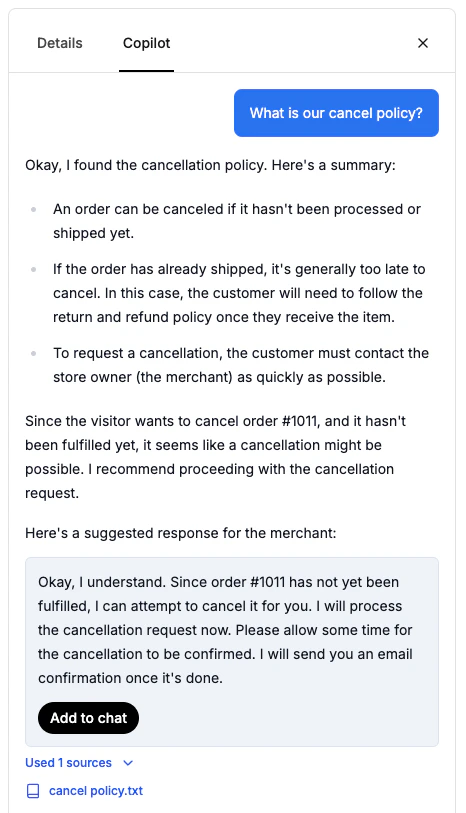
How to Use Copilot
1
Open Copilot Tab
Click the Copilot tab in the right sidebar to open the chat interface. You’ll see a chat interface where you can ask questions.
2
Ask Questions
Type your question in the input box at the bottom. For example:
- “What’s our return policy?”
- “What products does this customer have?”
- “What did the customer ask about earlier?”
3
Review the Response
Copilot displays its response in the chat. You can see sources it used (like knowledge base pages or integration data) below the response.
4
Copy to Chat (Optional)
Click the copy button on any response to copy it to your chat message box, then edit and personalize it before sending to the customer.
What Copilot Uses
Copilot draws from multiple sources to create relevant suggestions:Knowledge Base
- Website content
- Uploaded files
- Q&A entries
Customer Context
Integration Data
If you have integrations connected: Shopify:- Order status and tracking
- Product details
- Customer purchase history
- Available appointments
- Scheduled meetings
- Ticket history and support context
- Contact lifecycle stage and owner
- Any data your tools return
The more data sources you connect, the smarter Copilot becomes.
Copilot Features
Draft a Reply
Turn any customer message into a ready-to-send reply with one click. Hover a message and click Draft reply — Copilot writes a complete draft straight into your composer, using the conversation, your knowledge base, and the customer’s context. Tweak it and send. Draft reply works across channels:- Live chat: hover any visitor message and draft a reply grounded in your knowledge base.
- Email (IMAP): on any email conversation in the unified inbox, click Draft reply with Copilot to draft a response to the customer’s email. Send it and it goes out from your connected mailbox, threaded under their original email.
- CRM tickets: draft responses for HubSpot and Zendesk tickets right from the unified inbox, then send them back into the original ticket thread.
- Reads visitor attachments: when a visitor shares a PDF, document, or image, Copilot reads it so the draft can reference what they sent.
- Drafts persist: your draft is saved as you switch between tickets, so you never lose work mid-reply.
Knowledge Base Search
Copilot searches your knowledge base to answer questions:Integration Data Lookup
Copilot can access data from your connected integrations:Web Search (Optional)
Enable web search to get real-time information from the internet:- Toggle the Web Search switch in the Copilot interface
- Ask questions about external topics
- Copilot will search the web and provide current information
Web search is disabled by default. Enable it when you need information not in your knowledge base.
Best Practices
Always review before sending
Always review before sending
Copilot is smart but not perfect. Read suggestions before sending.
Add personal touches
Add personal touches
Insert the customer’s name or reference specific details they mentioned.
Use for complex topics
Use for complex topics
Copilot shines when you need accurate policy info or product details.
Regenerate if needed
Regenerate if needed
If the first suggestion isn’t quite right, click Regenerate for alternatives.
Train your knowledge base
Train your knowledge base
Better knowledge base = better Copilot suggestions. Keep content updated.
When to Use Copilot
Great For
✅ Looking up policy details ✅ Finding product information ✅ Checking customer order history ✅ Getting technical specifications ✅ Understanding conversation contextRemember
- Always personalize drafts and suggestions before sending to customers
- Use your judgment for emotional or sensitive situations
Copilot Tips
Best Practices
- Be specific: Ask clear, specific questions for better answers
- Use for lookups: Great for finding policy details, product information, or customer data
- Copy and edit: Copy Copilot responses to your chat, then personalize them before sending
- Enable web search: Turn on web search when you need information not in your knowledge base
Team Benefits
Copilot helps your entire team:For New Agents
- Learn correct answers quickly
- Consistent information from day one
- Reduced training time
For Experienced Agents
- Handle more chats simultaneously
- Never forget policy details
- Focus on relationship building
For Managers
- Ensure consistent quality
- Reduce errors across team
- Track which suggestions work best
Improving Copilot
Make Copilot more helpful:1
Update Knowledge Base
Add missing information to your knowledge base so Copilot can find it
2
Add Q&A Pairs
Create Q&A entries for frequently asked questions
3
Connect Integrations
Connect more integrations (Shopify, Zendesk, etc.) for richer customer context
4
Keep Content Updated
Regularly update your knowledge base with current information
Troubleshooting
Copilot not responding
Copilot not responding
- Check your internet connection
- Verify you have knowledge base content
- Try refreshing the page
Answers are inaccurate
Answers are inaccurate
- Update your knowledge base content
- Add specific Q&A pairs for common questions
- Check for outdated information
Missing information
Missing information
- Add more detailed content to knowledge base
- Connect integrations for customer context
- Enable web search for external information
Next Steps
Chat with Customers
Master the chat interface
Knowledge Setup
Improve Copilot with better content