
Accessing Reports
1
Open Dashboard
Go to bubblav.com/dashboard
2
Select Website
Click on the website you want to analyze
3
Open Reports
Click Reports in the sidebar menu
Report Categories
BubblaV Reports are organized into two tiers based on your subscription plan.Free Reports
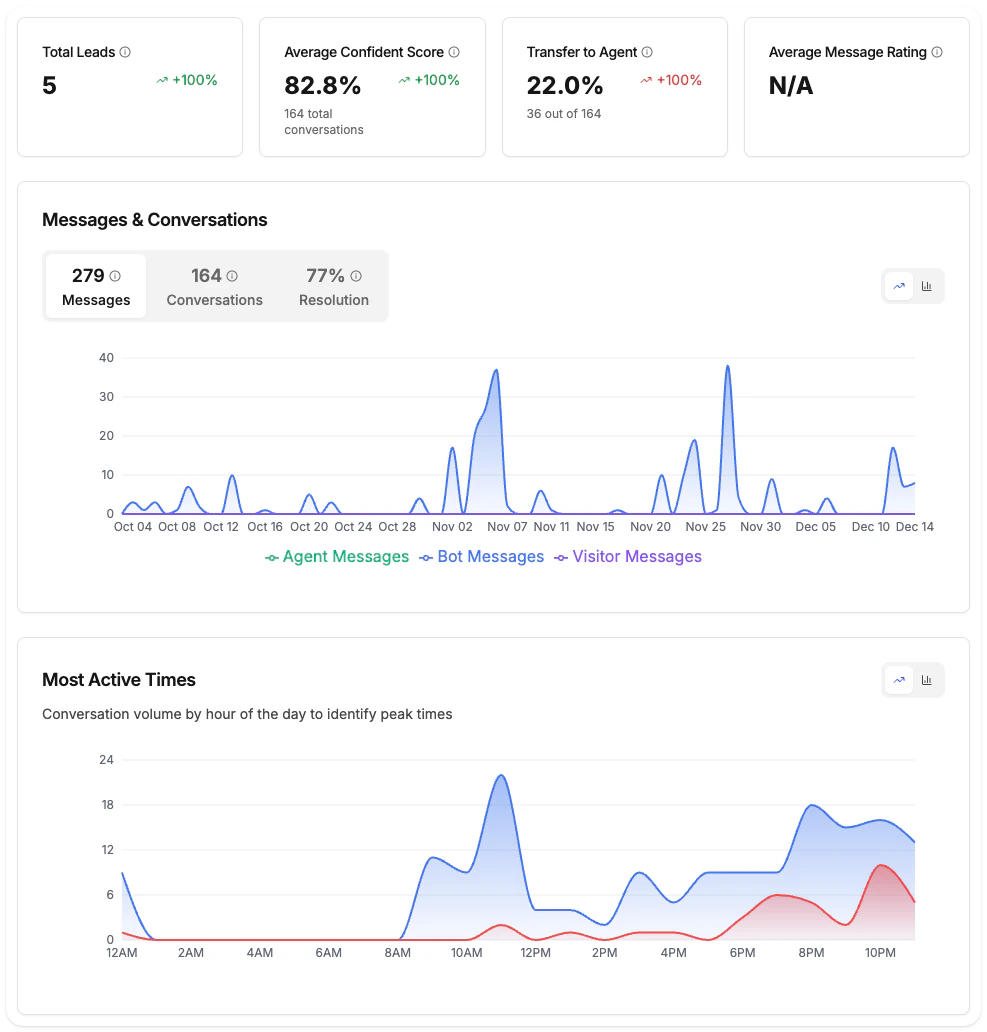
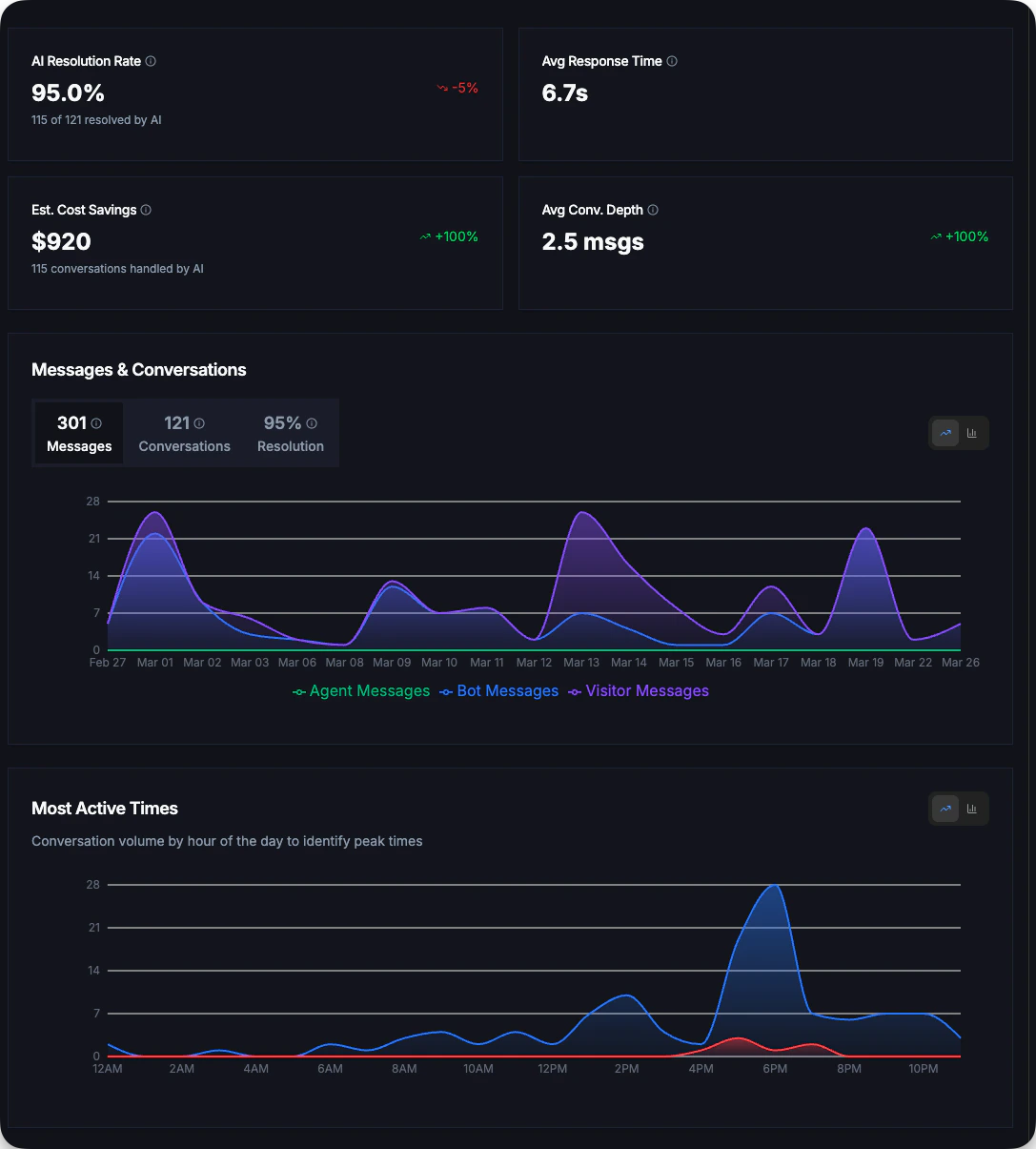
Essential metrics available to all users including AI Resolution Rate, Response Time, and Messages.
Pro+ Reports
Advanced analytics for Pro plans including Cost Savings, Confidence Scores, Geographic insights, and AI performance analysis.
Time Range Selection
Filter reports by date range:
Click the date picker in the top-right corner to change the range.
Data Updates
Charts on the Reports page update live; headline metrics refresh daily at 2 PM UTC.
Exporting Reports
Download your data for offline analysis.Export Full Report
Export all report data as CSV:1
Select Date Range
Choose the time period you want to export
2
Click Export Report
Click the Export Report button in the top-right corner
3
Download CSV
The file will download automatically with all analytics data
- All conversation data
- Message details
- Lead information
- Analytics metrics
- Timestamps and metadata
Plan Comparison
Best Practices
Review weekly
Review weekly
Set aside time each week to review reports. Look for trends, not just individual days.
Act on unanswered questions
Act on unanswered questions
The “Top Unanswered Questions” report is your roadmap for knowledge base improvements.
Monitor peak hours
Monitor peak hours
Schedule live support coverage during your busiest hours using the Most Active Times chart.
Track over time
Track over time
Compare month-over-month to see improvement trends. Use the comparison indicators on each metric.
Troubleshooting
Data not showing
Data not showing
- Select a date range that has data
- Wait 24 hours for new conversations to appear
- Refresh the page
Numbers seem wrong
Numbers seem wrong
- Check the selected date range
- Verify timezone settings
- Note: Real-time data may have slight delays
Export not working
Export not working
- Try a smaller date range
- Check browser popup blockers
- Use a different browser
Next Steps
Free Reports
View metrics available on all plans
Pro+ Reports
Explore advanced analytics features