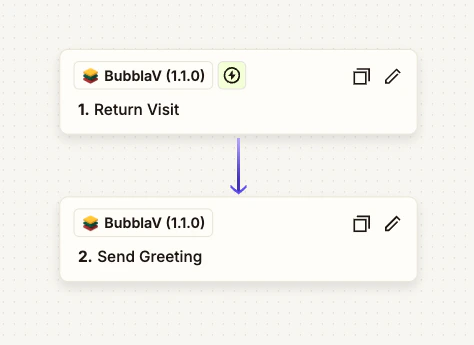
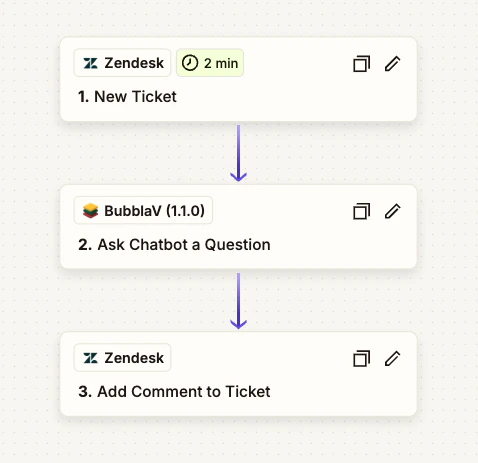
Overview

The Zapier integration allows you to connect BubblaV conversations to thousands of apps like Slack, HubSpot, Google Sheets, and more. Automate your support workflows without writing code.
Zapier integration requires a Pro plan or higher.

What You Can Do

14 Triggers

Start Zaps when conversations begin, messages arrive, handoffs occur, meetings are booked, payments complete, and more.

4 Actions

Send messages, create tickets, update customer data, and tag conversations from any app.

3 Searches

Look up conversations, customers, and analytics data to use in your workflows.

7000+ Apps

Connect to Slack, HubSpot, Salesforce, Gmail, Google Sheets, and thousands more.

Prerequisites

Before setting up Zapier integration:
  1. BubblaV Account: Pro plan or higher
  2. Zapier Account: Free or paid (Zapier task limits apply)
  3. Website: At least one website configured in BubblaV

Setup Guide

1

Create a Zap in Zapier

Go to zapier.com and click Create Zap.
2

Search for BubblaV

In the trigger app search, type BubblaV and select it.
3

Choose a Trigger

Select the trigger event you want to use (e.g., New Conversation, New Message).
4

Connect Your Account

Click Sign in and you’ll be redirected to BubblaV for OAuth authorization.
5

Authorize Access

Sign in to your BubblaV account and authorize Zapier to access your data.
6

Select Website

Choose which BubblaV website to connect (if you have multiple).
7

Complete Your Zap

Add actions from other apps and turn on your Zap.

Available Triggers

BubblaV provides 14 triggers across 4 categories:

Conversation Triggers

TriggerDescription
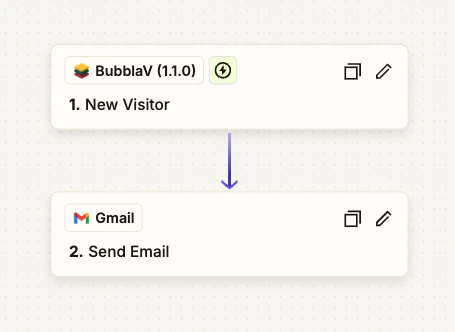
New ConversationFires when a visitor starts a new chat
New MessageFires when any message is received
Handoff RequestedFires when AI escalates or visitor requests human
Conversation ClosedFires when a conversation ends
Conversation RatedFires when customer provides feedback rating
Lead CapturedFires when visitor submits contact information

Event Triggers

TriggerDescription
Link ClickedFires when visitor clicks a link in conversation
Tool ExecutedFires when AI executes a tool (search, lookup, etc.)

Calendly Triggers

TriggerDescription
Meeting BookedFires when visitor books a Calendly meeting
Meeting CancelledFires when a scheduled meeting is cancelled
Meeting RescheduledFires when meeting time is changed

Payment Triggers

TriggerDescription
Payment CompletedFires when a payment is processed
Subscription CreatedFires when a new subscription starts
Subscription CancelledFires when a subscription is cancelled
All triggers fire instantly via webhooks (no polling delay).

Available Actions

ActionDescription
Send MessagePost a message to an active conversation
Create TicketCreate a support ticket via Zendesk integration
Update CustomerUpdate visitor metadata with external data
Tag ConversationAdd tags for categorization and reporting

Available Searches

SearchDescription
Find ConversationLook up by ID or visitor email
Find CustomerSearch customers by email
Get AnalyticsRetrieve website analytics summary

Example Workflows

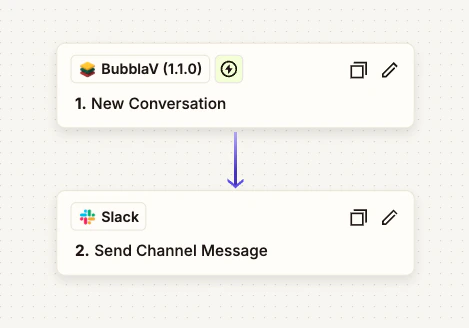
Example 1: Slack Notifications for New Conversations

Get instant Slack alerts when visitors start chatting.
1

Create New Zap

In Zapier, click Create Zap.
2

Choose Trigger

Select BubblaV as the trigger app, then choose New Conversation.
3

Connect Account

Select your connected BubblaV account and choose the website.
4

Add Slack Action

Add a Slack action: Send Channel Message.
5

Configure Message

Set the channel and format the message:
New chat from {{visitor_email}}
Page: {{page_url}}
Started: {{started_at}}
6

Test and Enable

Test the Zap and turn it on.

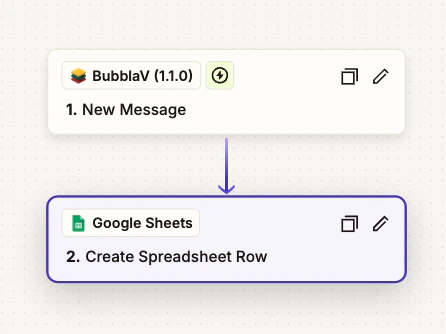
Example 2: Log Conversations to Google Sheets

Track all conversations in a spreadsheet for analysis.
1

Create New Zap

In Zapier, click Create Zap.
2

Choose Trigger

Select BubblaV > New Message as the trigger.
3

Connect Account

Select your BubblaV account and website.
4

Add Google Sheets Action

Add action: Google Sheets > Create Spreadsheet Row.
5

Map Fields

Map BubblaV fields to spreadsheet columns:
  • Column A: {{conversation_id}}
  • Column B: {{message_content}}
  • Column C: {{sender_type}}
  • Column D: {{created_at}}
6

Test and Enable

Test the Zap and turn it on.

Troubleshooting

Zapier integration requires Pro plan or higher. Upgrade your BubblaV plan in Dashboard > Billing.
  1. Verify your Zap is turned ON in Zapier
  2. Check that the website is correct
  3. Test the trigger manually in Zapier
  4. Review Zapier task history for errors
Ensure the conversation ID is valid and the conversation is still active. Closed conversations cannot receive new messages.
Go to Dashboard > Integrations, find Zapier, and click Disconnect. This will revoke access and stop all Zaps.

FAQ

No, BubblaV does not limit Zapier tasks. Your Zapier plan determines task limits.
Yes, you can connect Zapier to each website separately. Each connection is independent.
BubblaV uses instant webhooks (REST Hooks). Triggers fire immediately when events occur.
Conversation data, message content, visitor metadata, and timestamps. No payment or password data is ever sent.