
- Multi-source answer — a visitor asks a question → the flow searches your Discourse forum and your CRM via Custom Tools → the AI aggregates the results into one answer.
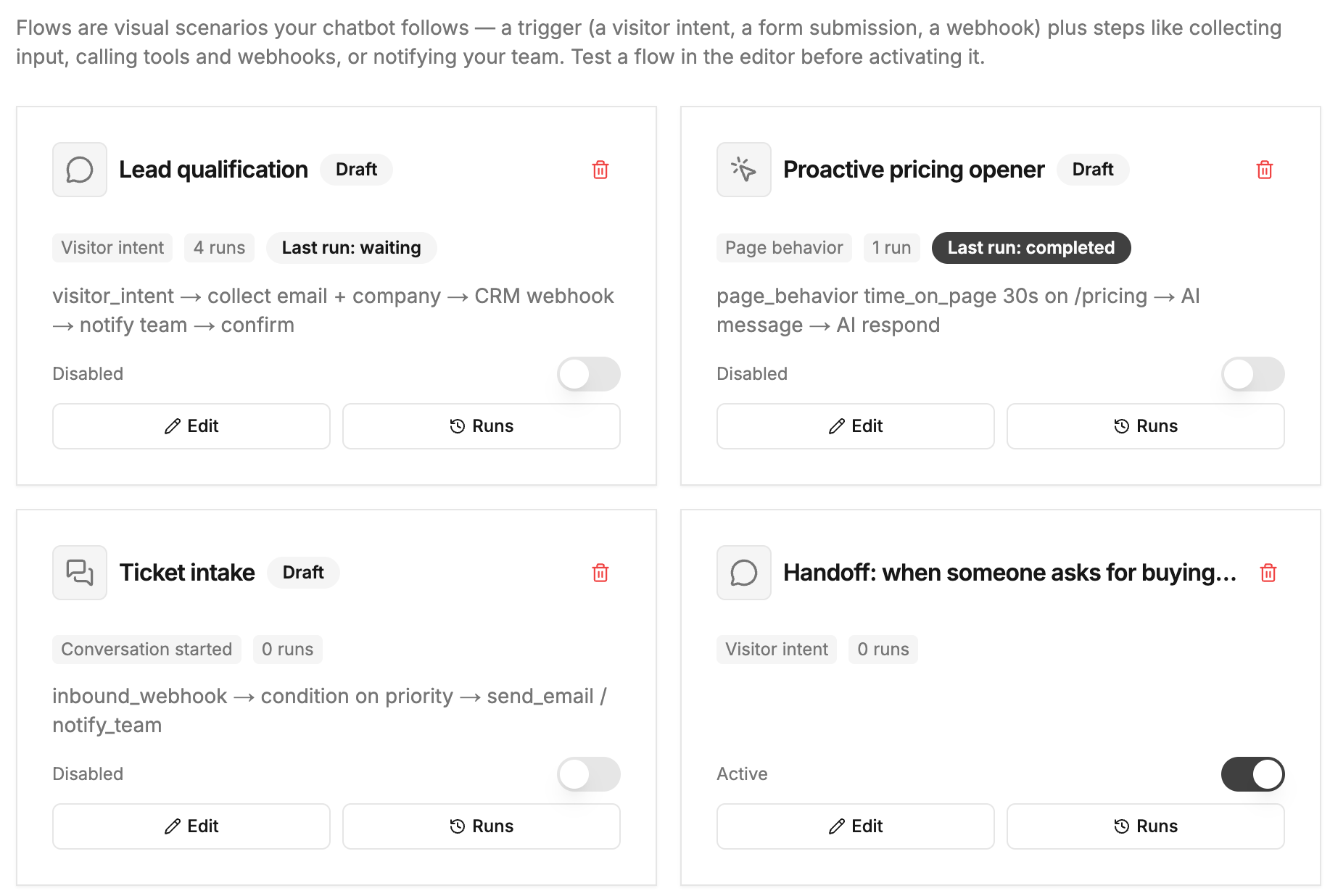
- Ticket intake — the flow asks for email, company, and the problem → submits everything to your webhook → notifies your team.
- Smart Triggers → a
page_behaviortrigger +send_messagenode - Human handoff scenarios → a
visitor_intenttrigger +request_humannode - Forms → embedded in a flow with a
show_formnode. Lead forms that BubblaV finds on your website become ready-made flows automatically — see Flows created from forms on your website. - Cart Recovery → a
cart_abandonedtrigger +delay+cart_recovery_touchnodes
Flows require a Pro plan. Messages a flow sends don’t consume your monthly message
quota.
How Flows work
- A trigger starts a run — either a visitor message that matches your intent description, or an event like a form submission.
- The flow walks the graph node by node: asking questions, branching on conditions, calling tools and webhooks, sending messages.
- While a flow is running or waiting for the visitor’s answer, it owns the conversation — the visitor’s replies resume the flow instead of going to the AI.
- The run ends when the graph ends, when an AI respond node hands the collected results to the chatbot for a final answer, or when the visitor cancels (“cancel”, “stop”, “never mind”).
Triggers
Every flow has exactly one trigger — the first node on the canvas.visitor_intent and page_behavior are the chat triggers: the flow runs inside the
conversation and can talk to the visitor. The others are event triggers that run in the
background. Event triggers that carry a conversation (form_submitted,
conversation_started, handoff_requested) can still message the visitor;
conversation_rated, lead_captured, cart_abandoned, and inbound_webhook have no
conversation, so chat nodes aren’t allowed under them — the editor enforces this.
Page behavior triggers
Apage_behavior trigger turns the flow into a proactive opener: the widget watches the
visitor’s page behavior and, when it matches, the flow starts a conversation with an
AI-personalized message.
Config:
subtype, urlMatchType (exact/contains/prefix/regex), urlPatterns,
dwellSeconds, cooldownMinutes, sortOrder, plus config.cart_threshold for e-commerce
subtypes (threshold_cents, min_cart_cents, currency). new_visitor and returning_visitor
fire on page load and ignore dwellSeconds. When the static greeting message is
enabled it owns the first pageview — a new_visitor flow then fires on the next
page view or SPA navigation once the greeting is dismissed or no longer showing.
Pair it with a send_message node for the opener — or generate_text → send_message
when you want the AI to write the opener from instructions.
Node catalog
Nodes are the steps of your flow. Drag them from the palette onto the canvas and connect them.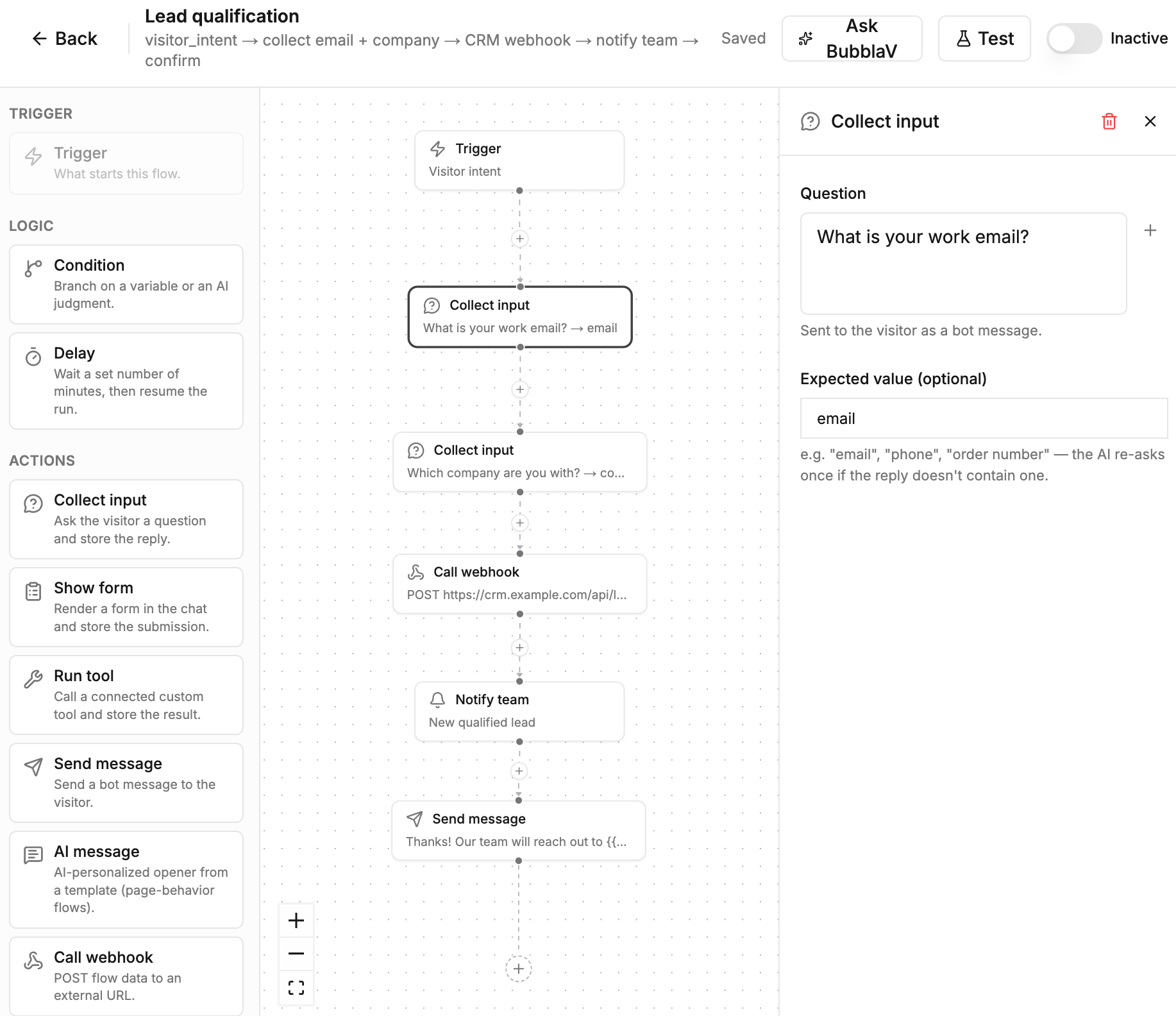
Variables and {{var}} interpolation
Every value a flow collects — visitor replies, form submissions, tool results, webhook
responses — is stored in a named variable. Use {{variable}} (or a nested path like
{{order.status}}) inside any message, question, webhook body, or email to insert the value.
The trigger’s payload is available as {{trigger}}. Missing variables resolve to an empty
string.
Build a flow
1
Open Flows
In the dashboard, open your website and go to Flows, then click
New Flow.
2
Name it and pick a trigger
Give the flow a name and choose what starts it — a visitor intent or an event.
3
Compose the canvas
Drag nodes from the palette and connect them. Click a node to configure it in the side
panel — pick forms and tools from your website’s existing ones, or create a new one from
the panel without leaving the editor.
4
Test it
The editor autosaves as you work (watch for “Saving…”/“Saved” in the header). Open the
Test panel to run the flow — chat with it like a visitor, or fire a test event for
event triggers.
5
Activate
When the test run looks right, switch the flow to active. New flows are saved inactive
— they never run until you turn them on.
Flows created from forms on your website
You don’t always start from an empty canvas. When BubblaV crawls your website — when you add the website, and again on each re-crawl — it looks for lead forms on your pages: contact, quote request, price request, service booking, and appointment booking forms. For each lead form, BubblaV creates a chat flow that collects the same information in chat. Each flow has this shape:visitor_intent → one collect_input per form question → notify_team → send_message
- Trigger — a
visitor_intentthat names one goal, for example “Use when a visitor wants to request a quote for a custom order.” - Questions — one short chat question per important field. First and last name become one
“full name” question, and address parts become one address question. Required fields come
first. Optional fields get a Skip chip. Email, phone, date, and number fields set
expected, so the flow asks again once if the answer has the wrong shape. Select and radio fields with 6 or fewer choices become quick-reply chips. - Notify team — sends your team a bell, push, and email notification with the visitor’s answers.
- Confirmation — a short message that tells the visitor your team will follow up.
1
Find the flows
Open Flows. Detected flows have names that start with Form: and the description
“Created from a form detected on your site.” When the first crawl finishes, the
website-ready email also lists them, with the page where each form was found.
2
Review the questions
Open the flow and check each question, the intent, and the confirmation. Edit them like
any other flow — for example, add a
call_webhook node to send the answers to your CRM.3
Test and activate
Run the flow in the Test panel, then switch it to active. Detected flows are
created inactive and never run until you turn them on.
A website has at most 10 detected forms that wait for review or became flows. A flow
that you delete is not created again on the next crawl. Activating a flow requires a Pro
plan.
Test before activating
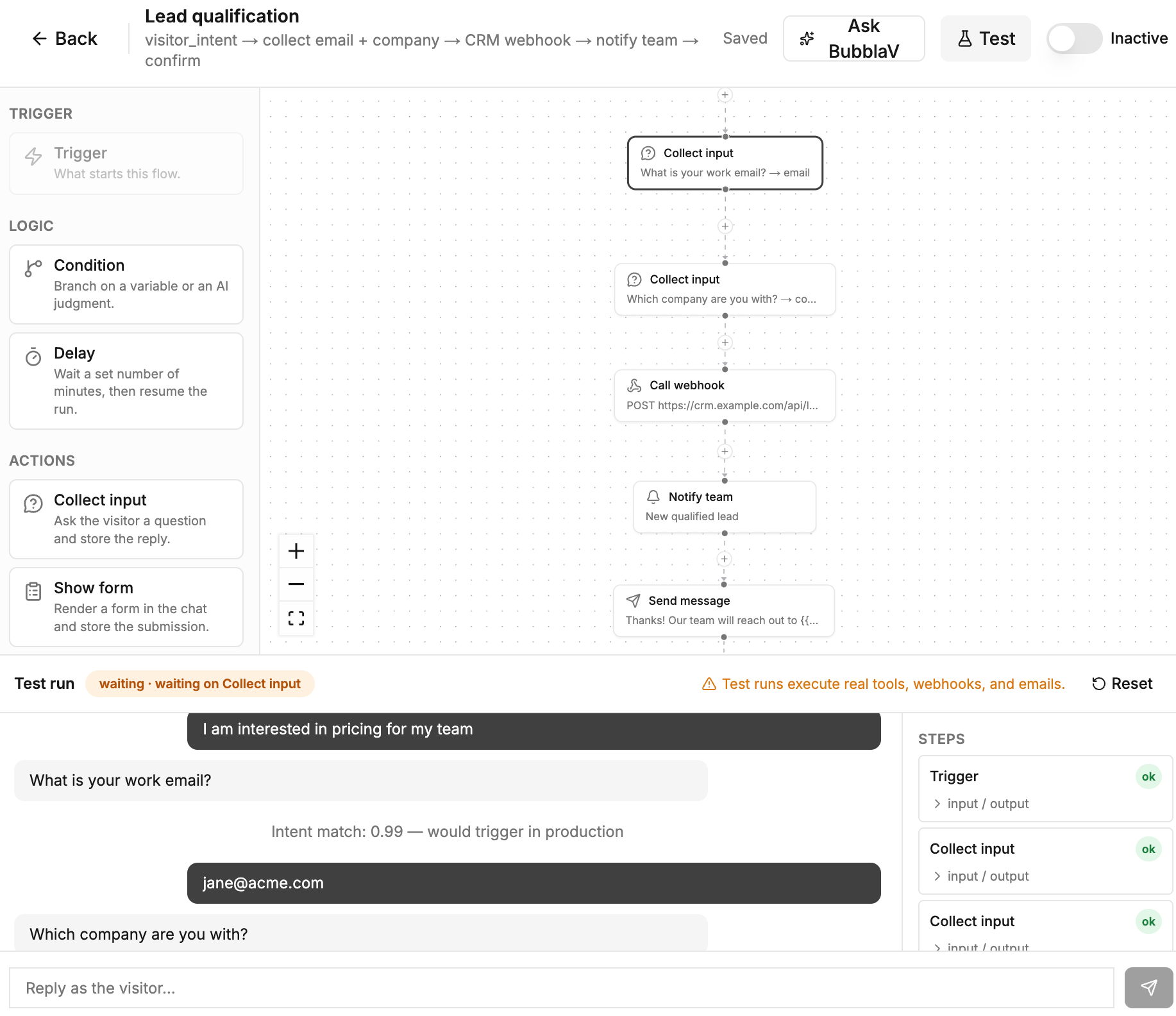
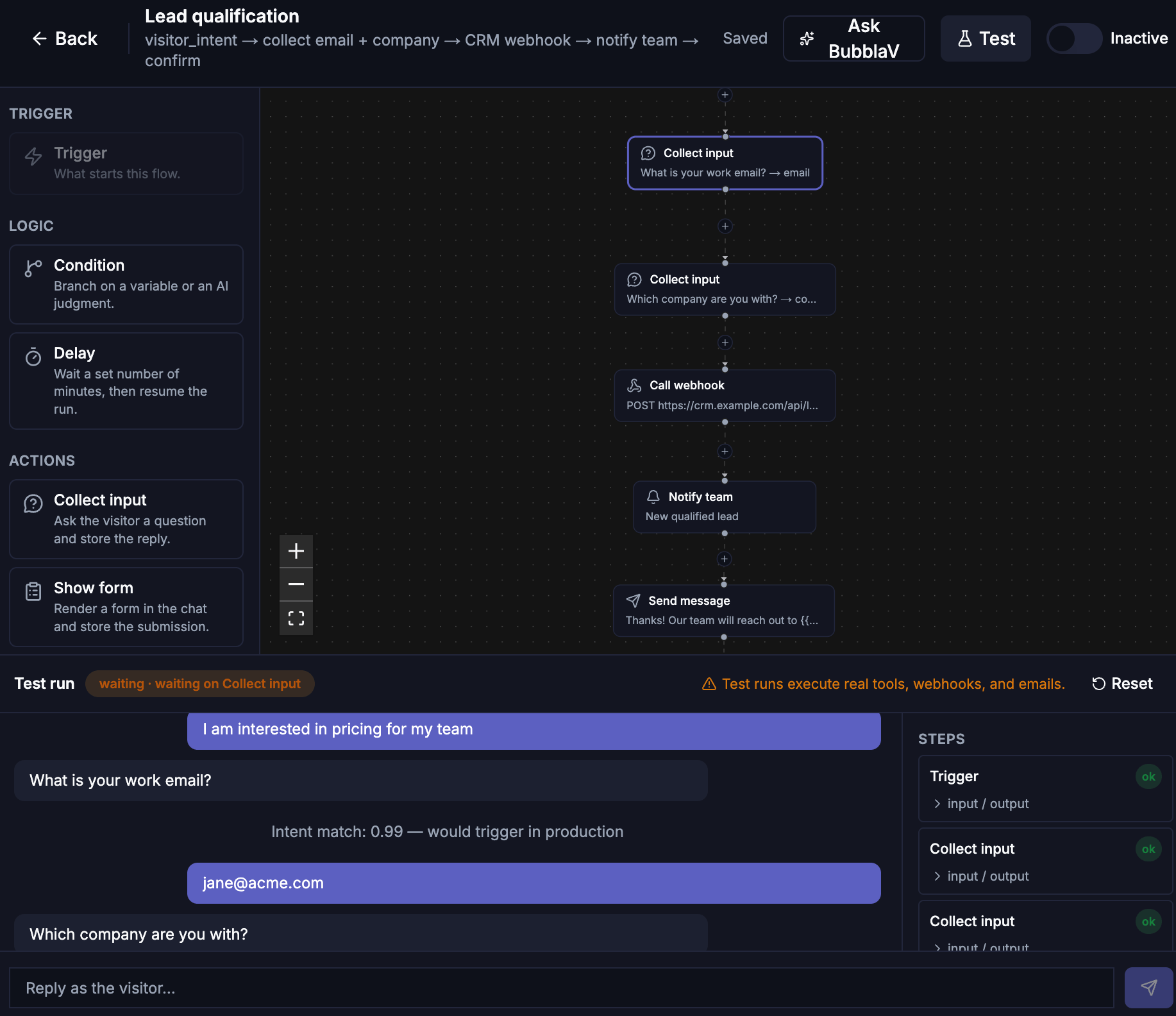
The editor’s Test panel runs the flow without touching real conversations. Clicking Test saves any pending canvas edits first, so the run always exercises what you see.- For
visitor_intentflows, a chat-style transcript lets you play the visitor — send messages, answer the flow’s questions, and watch each step’s status. The panel reports the intent-match score your message would get in production, and typing “cancel” or “stop” exercises the same escape hatch visitors have.show_formnodes render the real form inline — submitting it resumes the run, and anai_respondnode previews the actual AI reply. - For event triggers, fire a test event with a JSON payload preview. If the run then waits on a
chat node (
collect_input,show_form), the input row switches to a chat box so you can continue the run like a visitor. - While a test runs, the canvas highlights the executed path — green for completed nodes, red for failures, and a pulsing amber ring on the node the run is waiting on.
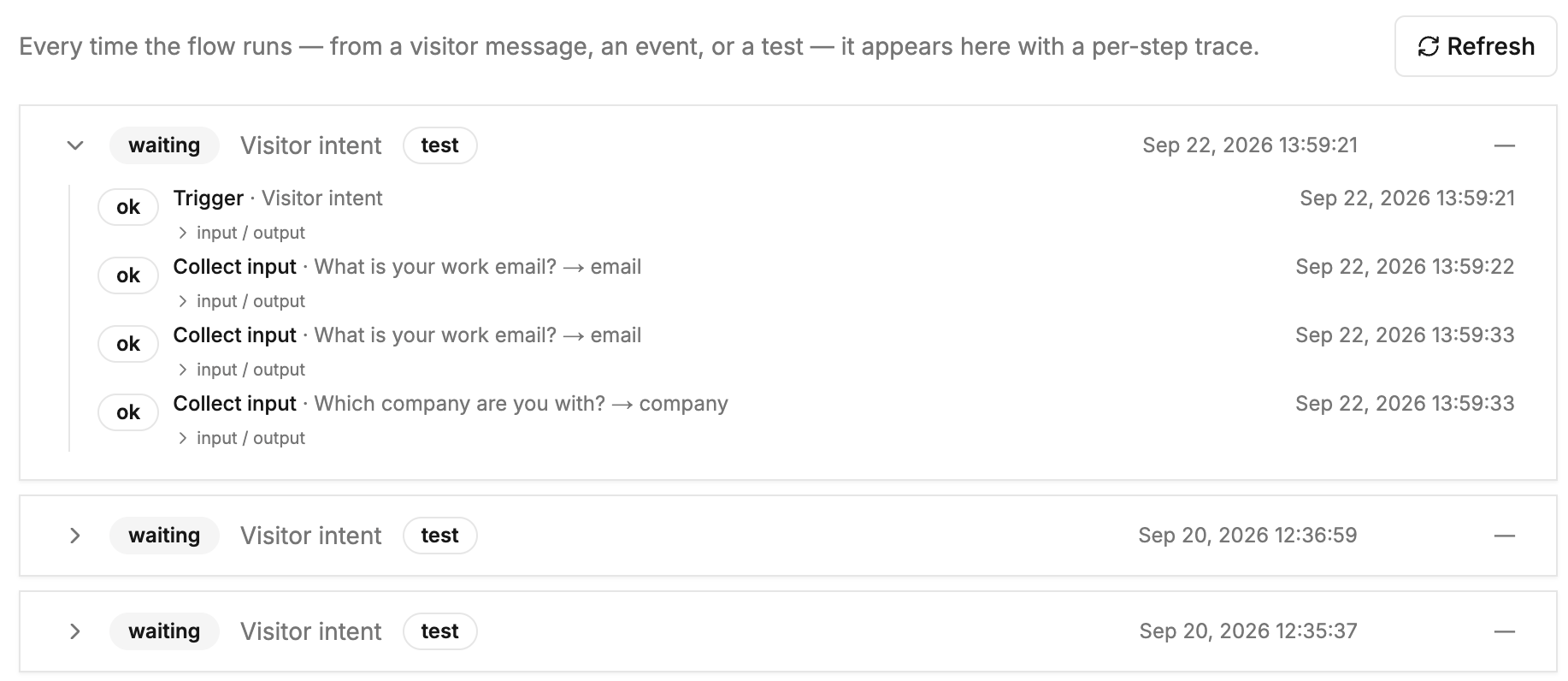
- Each step in the trace expands to show its exact input and output JSON, so you can see what
data flowed between nodes. Steps that touch the outside world (
run_tool,call_webhook,send_email,notify_team,request_human,cart_recovery_touch) carry alivebadge.
Runs and history
Every execution is recorded as a run. Open a flow’s Runs page to see each run’s status (running, waiting, completed, failed, cancelled), when it started, and a per-step
trace showing every node’s input, output, or error — the fastest way to debug a flow that
didn’t behave as expected.
delay node are exempt and resume when the timer fires. A visitor can always
escape a waiting flow by saying “cancel” or “stop” — the conversation then goes back to the
normal AI.
Debug and troubleshoot
When a flow misbehaves, work through it in this order:- Reproduce in the Test panel. The transcript, intent-match score, and canvas highlight show exactly which path executed. Expand each step’s input/output to see the data it received and produced.
- Check the Runs page. Every real and test execution is recorded. A
failedstep shows its error inline; awaitingrun means the flow is parked on acollect_inputorshow_formnode expecting a visitor reply. - Common causes:
- Flow never triggers — the visitor’s phrasing doesn’t match the intent closely enough. Test the exact message in the panel; if the score is below the 0.6 threshold, broaden the intent description.
- Flow stops mid-run — a
waitingstatus means it’s waiting for input, not broken. Check whether the visitor escaped with “cancel”/“stop” (statuscancelled) or the run timed out after 24h. - Webhook/tool step failed — expand the step output for the HTTP status or error. Test webhooks against a service like webhook.site first.
- AI reply looks wrong —
ai_respondcomposes from the collected variables; check the step inputs to confirm the right values were captured, and tighten the node’sinstructions.
Example flows
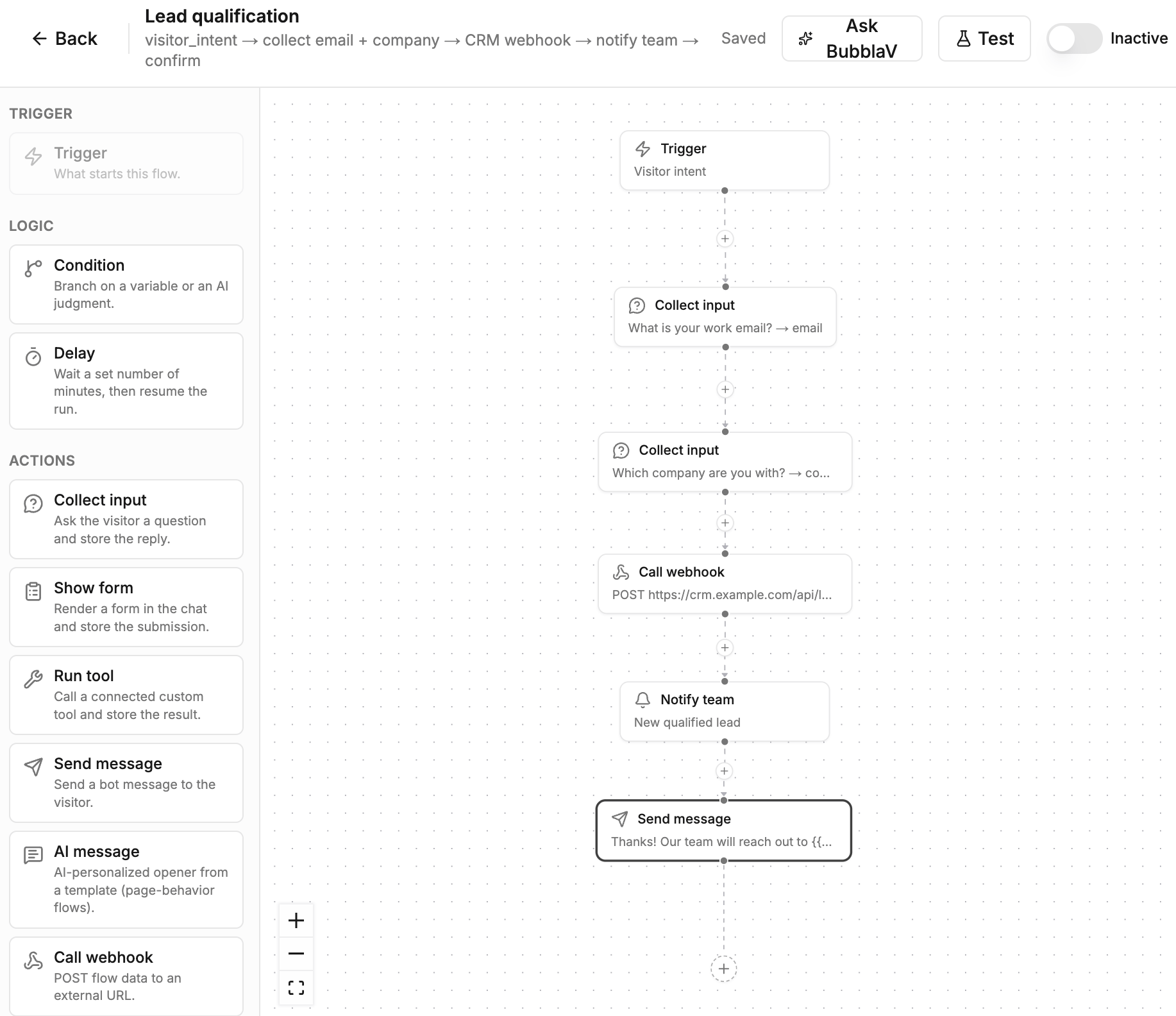
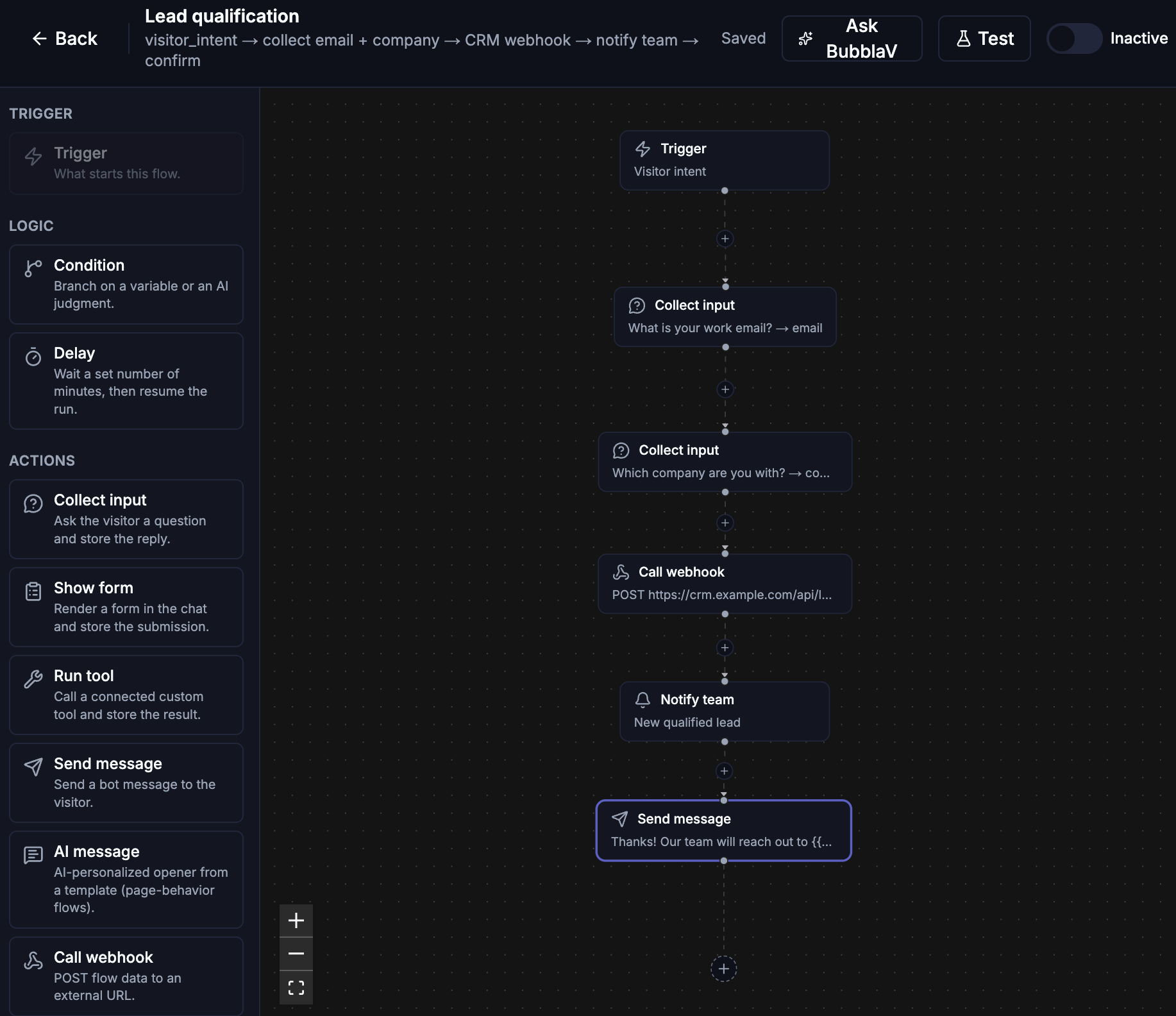
Six recipes to copy — each is a chain of nodes you can build in a few minutes.Lead qualification
visitor_intent (“interested in pricing / wants a quote”) → collect_input email
(expected: email) → collect_input company → call_webhook to your CRM → notify_team →
send_message confirmation.
The visitor asks about pricing, the flow collects their email and company, posts the lead to
your CRM, pings your team, and confirms to the visitor — all inside one conversation.
Proactive opener (Smart Trigger)
page_behavior (time_on_page, 30s on /pricing*) → generate_text → send_message → ai_respond.
The widget watches visitors dwell on your pricing page, opens the chat with an
AI-written opener, then lets the chatbot answer follow-ups. This is the old Smart
Triggers pattern as a flow.
Human handoff
visitor_intent (“wants to speak to a human / asks for sales”) → collect_input email →
request_human.
The old handoff-scenario pattern: the flow matches the visitor’s intent, optionally collects
contact details first, then creates a live-support ticket so a teammate can take over with
the full transcript attached. See Human handoff.
Form in a flow
visitor_intent (“wants a demo / wants to sign up”) → show_form (your signup form) →
send_message confirmation.
Instead of the AI deciding when to surface a form, the flow controls it: the form renders
in chat at exactly the step you place it, and the submission lands in a variable you can
pass to a webhook or email downstream.
Ticket intake (event)
inbound_webhook → condition on {{trigger.priority}} → send_email to support /
notify_team.
Your backend POSTs a ticket payload to the flow’s webhook URL; the flow routes high-priority
tickets to the support inbox and notifies the team about the rest. Event triggers have no
visitor conversation, so only non-chat nodes are used.
Cart recovery (Shopify)
cart_abandoned → delay 60m → cart_recovery_touch → delay 24h → cart_recovery_touch.
Every synced abandoned checkout starts a run: the flow waits an hour, sends an AI-written
recovery message (chat widget if the visitor is still around, email otherwise), waits a day,
then sends one follow-up. A completed purchase cancels the run mid-wait. See
Shopify.
Best practices
- Write intents like a visitor would phrase them — “wants to speak to sales”, not “sales intent trigger”.
- Collect one thing per
collect_input— short questions get better answers, and each answer lands in its own variable. - Set
expectedwhen the answer has a shape —email,phone,order number— so the flow explains and asks again instead of storing “I don’t know”. - End chat flows with
ai_respondorsend_message— don’t leave the visitor hanging on a silent last step. - Test with real-looking data —
run_toolandcall_webhookhit your real endpoints even in test runs.
Plans & limits
Flows require a Pro plan or higher. There’s no limit on the number of flows per website. Messages a flow sends don’t consume your plan’s message quota. See Billing & Plans for details.Related
Custom Tools
The webhook tools a flow can call with
run_tool.Forms
Build the forms a
show_form node embeds in chat.Human handoff
What happens after a
request_human node creates a ticket.Widget design
How the chat widget looks when a flow opens with your message.