
Why Connect Stripe?
- Instant Billing Answers: Customers get subscription status, billing dates, and invoice history immediately
- Self-Service Links: Generate secure Stripe Billing Portal links for payment method updates
- Visitor Insights: Provide support agents with real-time billing data directly in the conversation view
- Reduced Support Tickets: Deflect 80%+ of common billing questions automatically
- Secure by Default: Read-only access with email verification and masked card numbers
Visitor Insights for Support Agents
When your support agents are chatting with customers in the BubblaV dashboard, the Stripe integration provides a dedicated Visitor Insight panel. This gives your team instant access to: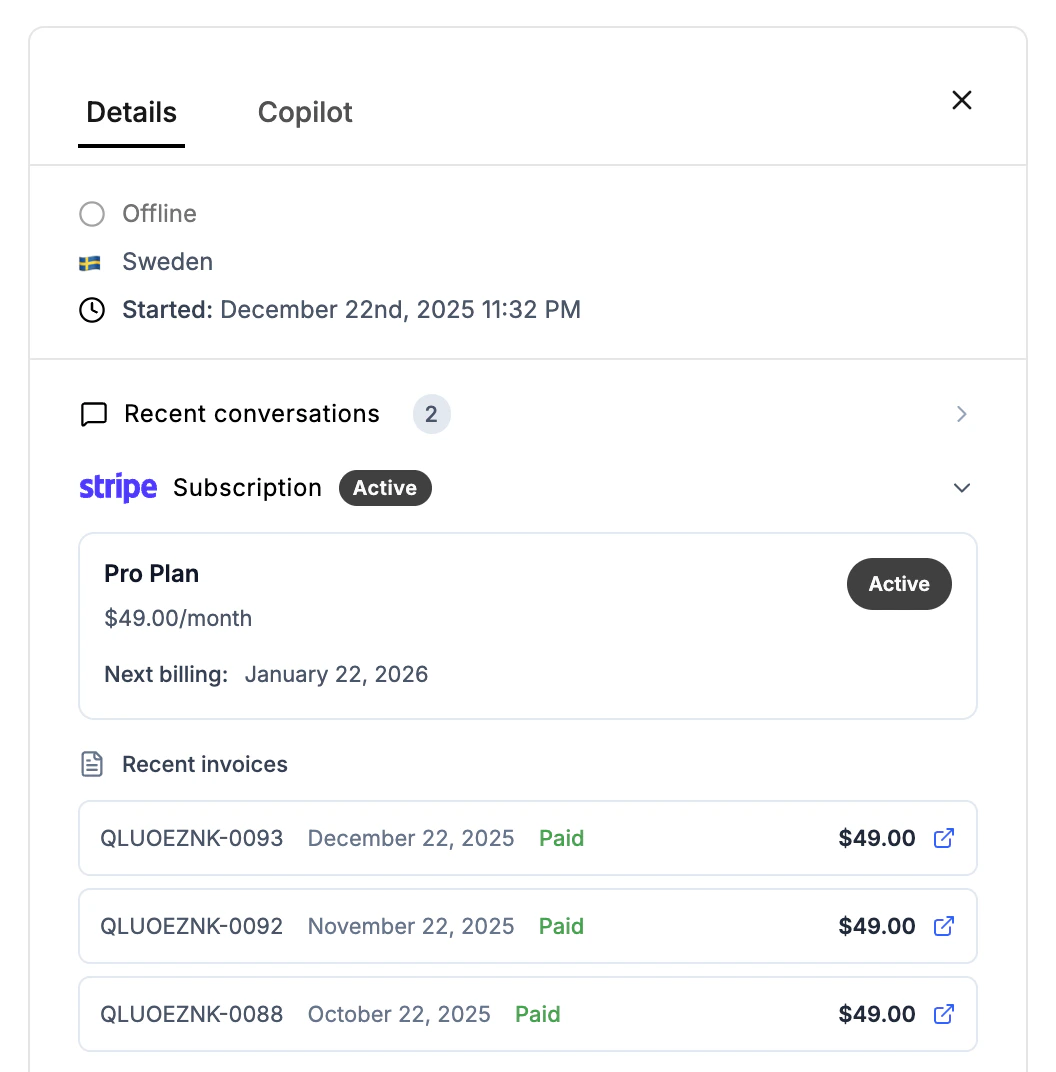
- Subscription Status: See if the customer is on an active, trialing, or past-due plan.
- Billing History: View the last 5 invoices, including payment status and PDF download links.
- Payment Method: See the customer’s current payment method (e.g., Visa ****4242) at a glance.
- Next Billing Date: Know exactly when the customer’s next payment is scheduled.
Prerequisites
Before connecting, you’ll need:- A Stripe account with customers and subscriptions
- Admin access to your Stripe account (to approve the app install)
Setup Steps
BubblaV on Stripe Marketplace
Install the BubblaV app directly from the Stripe Marketplace
1
Open the listing
Go to the BubblaV listing on the Stripe Marketplace and click Install app
2
Approve permissions
Stripe shows the read access BubblaV requests — approve to continue
3
Pick your website
After redirecting back to BubblaV, choose the site to connect. Signed-out users are asked to log in or create an account first.
Configuration Settings
After connecting, configure how the chatbot handles billing operations.Billing Portal Return URL
The URL where customers are redirected after visiting the Stripe Billing Portal.- Default: Your website’s homepage
- Recommended: Your account or billing page (e.g.,
https://yoursite.com/account) - Location: Dashboard → Integrations → Stripe → Configure → Settings
Available Tools
Once connected, these tools become available to your chatbot:How It Works
- Customer asks a billing question (e.g., “When is my next payment?”)
- AI verifies customer by looking up their email in Stripe
- Data is retrieved securely from Stripe’s API
- Formatted response is provided with relevant links
Customer verification uses email matching. The chatbot only provides billing information to verified users whose email matches a customer record in your Stripe account.
Security
- Read-only by default: No changes to subscriptions - all changes go through Stripe’s Billing Portal
- Email verification: Customers must be verified before accessing billing data
- Masked card numbers: Only last 4 digits are ever shown (e.g.,
•••• 4242) - Encrypted credentials: OAuth tokens are encrypted at rest
- PCI compliant: We never store full card numbers or sensitive payment data
FAQs
What Stripe permissions are required?
What Stripe permissions are required?
Installing from the Stripe Marketplace grants the right permissions automatically — nothing to configure. BubblaV gets read access to Customers, Subscriptions, Invoices, Charges, Payment Methods, and Products, plus Billing Portal links.
How are customers verified?
How are customers verified?
Customers are verified by their email address. When a customer asks a billing question, the chatbot looks up their email in your Stripe customer records. Only matching customers receive billing information.
Can customers update their payment method through the chatbot?
Can customers update their payment method through the chatbot?
The chatbot generates a secure Stripe Billing Portal link where customers can update payment methods, view invoices, and manage subscriptions. The chatbot cannot directly modify payment methods for security.
Why can't I find customers in India?
Why can't I find customers in India?
Stripe’s customer search API is not available in the India region due to regulatory requirements. Customers on India-based Stripe accounts may need to contact support directly or provide additional verification.
Is my Stripe data secure?
Is my Stripe data secure?
Yes. We use Stripe’s official OAuth flow with encrypted tokens. Your Stripe credentials are never exposed, card numbers are always masked, and we comply with PCI DSS, GDPR, and SOC 2 standards.
What happens if the connection expires or is revoked?
What happens if the connection expires or is revoked?
Reconnect from Dashboard → Integrations → Stripe → Connect — the marketplace install re-authorizes the connection.
Troubleshooting
”Customer not found” Response
- The customer’s email must match exactly in Stripe
- Check if the customer exists in your Stripe account
- For India-region accounts, customer search is not available
Tools Not Appearing
- Verify the integration status is “Connected”
- Check that tools are enabled in Configure → Tools
- Refresh your integrations page
Billing Portal Link Not Working
- Ensure your Stripe account has the Billing Portal configured
- Reconnect via Dashboard → Integrations → Stripe → Connect to re-grant Billing Portal access
- Verify the return URL is a valid, accessible URL
Marketplace install didn’t complete
- Restart the install from Dashboard → Integrations → Stripe → Connect. Install links expire after 1 hour.
Example Conversations
Here are examples of how customers can interact with your chatbot: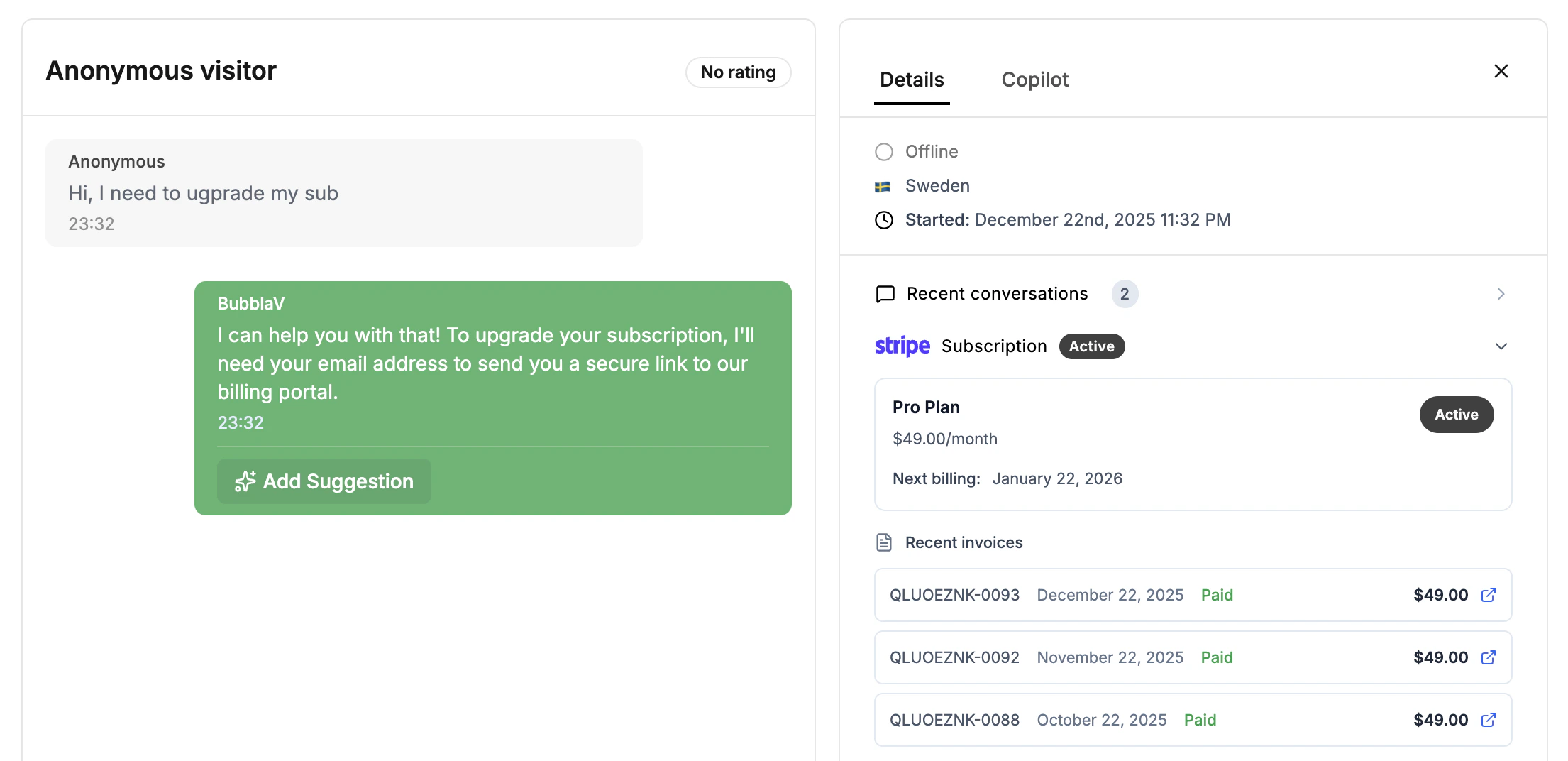
Customer: “When is my next payment due?” Bot: “Your Pro subscription renews on January 15 for $49/month. Would you like to see your recent invoices?”Viewing invoices:
Customer: “Can I see my last invoice?” Bot: “Here’s your most recent invoice: Invoice #INV-0042 - $49.00 (Paid). [Download PDF] [View Online]”Self-service:
Customer: “I need to update my credit card” Bot: “You can update your payment method securely through our billing portal: [Manage Billing →]. This link expires in 5 minutes.”