
Why Connect Shopify?
Order Tracking
Customers check order status using order numbers
Product Search
Interactive product discovery with filters and pricing
Product Recommendations
Curated suggestions blending bestsellers, new arrivals, and visitor context
Visitor Insights
Support agents see order history and customer value in real-time
Abandoned Cart Recovery
AI-written chat and email messages bring shoppers back to finish checkout
24/7 Automation
Reduce support workload with accurate, instant info
Visitor Insights for Support Agents
The Shopify integration enriches the Visitor Insight panel in your BubblaV dashboard, providing support agents with critical customer context during live chats: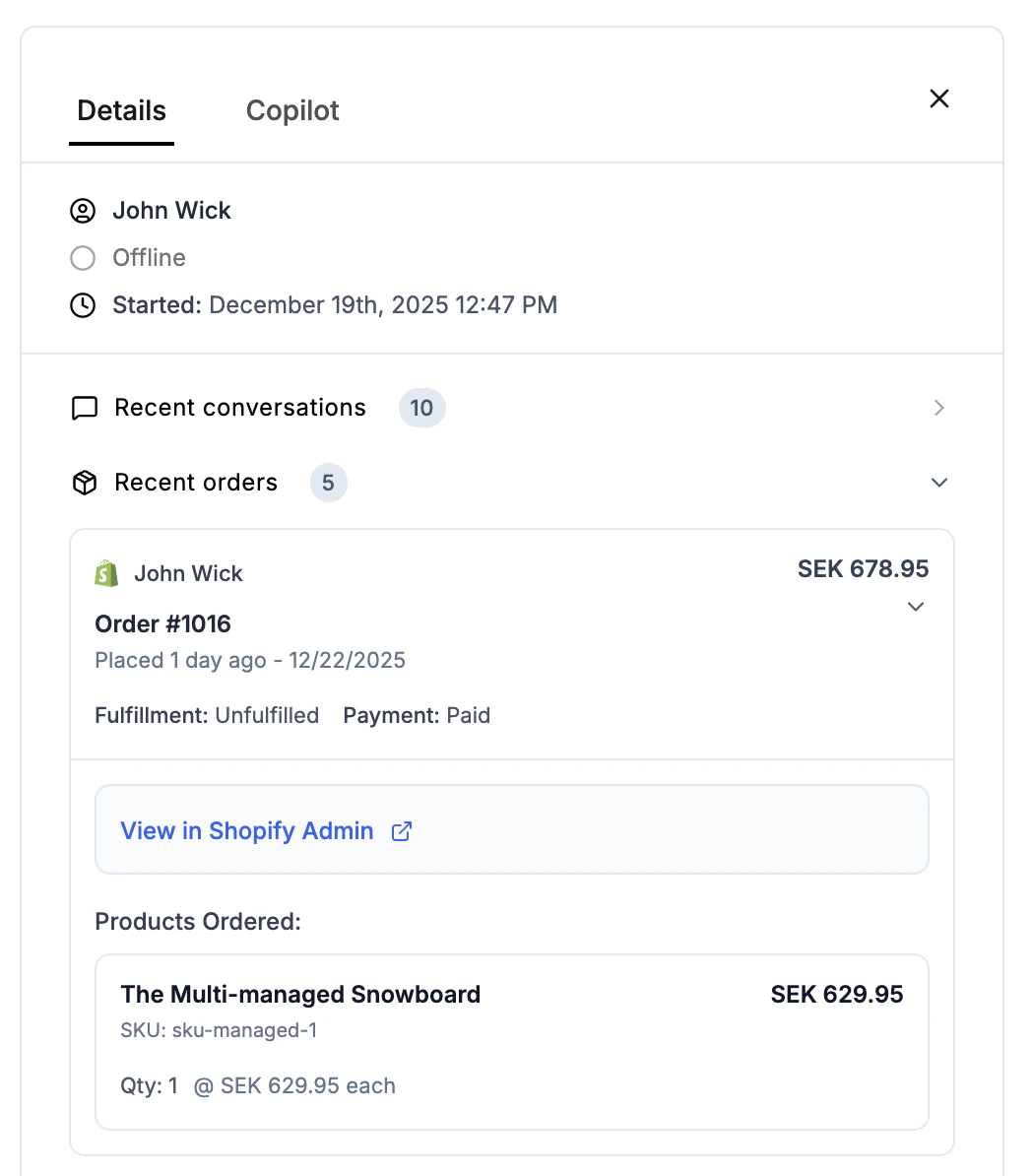
- Order History: A detailed list of current and past orders with fulfillment and payment status.
- Order Tracking: Real-time tracking information including carrier, tracking numbers, and delivery status.
- Product Details: View exactly which products were ordered, including images and itemized prices.
- Admin Access: Direct links to view orders in your Shopify Admin for quick management.
- Refunds & Returns: View refunded amounts and the status of any active return requests.
Prerequisites
- Active Shopify store
- Store owner or staff permissions
Setup Steps
1
Install from Shopify App Store
Go to the BubblaV Shopify App listing and click Install app.
2
Select Your Store
If you have multiple stores, select the store where you want to install BubblaV.
3
Authorize
Review the permissions and click Install app to authorize BubblaV.
4
Verify Connection
You’ll be redirected to your dashboard. The Shopify card should now show Connected.
AI Abandoned Cart Recovery
When shoppers add items, enter their email, but don’t complete checkout, BubblaV can bring them back — automatically.Abandoned Cart Recovery requires a connected Shopify store and a Pro plan or higher. It’s configured as a Flow — there is no separate Cart Recovery page.
How it works
- BubblaV syncs your store’s abandoned checkouts every 15 minutes.
- Each new cart starts a run of your
cart_abandonedflow. - A Delay node waits, then a Cart recovery touch node sends an AI-written recovery message — in the chat widget if the visitor is still around (first touch only), otherwise by email with a one-click “Complete your checkout” link.
- Repeat Delay + Cart recovery touch pairs for follow-ups.
- When the customer completes the purchase, the cart is marked recovered and the run is cancelled.
Configuring recovery
- Go to Dashboard → your website → Flows → New Flow.
- Pick the Cart abandoned trigger. Optionally set quiet hours (UTC) during which no messages are sent, and max cart age — how old a cart may be before it’s ignored (default 72 hours).
- Add a Delay node (e.g. 60 minutes), then a Cart recovery touch node. Optionally add AI instructions (e.g. “Friendly and casual, mention free shipping over $50”) and a discount code the AI may offer — the code itself is created in Shopify.
- Add more Delay + Cart recovery touch pairs for follow-ups.
- Use the Test panel to preview the flow, then switch it to active.
I got a 'Shopify sync problem' notification
I got a 'Shopify sync problem' notification
Cart sync errors surface as a dashboard notification. The BubblaV app needs the
read_checkouts permission to see abandoned carts — reconnect your Shopify store from Dashboard → Integrations → Shopify to grant the updated permissions.A customer unsubscribed by mistake
A customer unsubscribed by mistake
Remove their email from the suppression list by contacting support — unsubscribes are honored until manually cleared.
In-Chat Shopping: Add to Cart & Order Cards
When your Shopify store is connected, the AI Agent can close the sale inside the chat widget — visitors no longer need to leave the conversation to buy.Add to cart
Product cards shown in chat include an Add button and a View button that opens the full product detail:- On your Shopify store: the item is added to the visitor’s real storefront cart instantly (no page reload) — the button shows a spinner while adding, then flips to a checkmark and View cart so they can jump to their cart page whenever they’re ready.
- On any other website where your widget is embedded: clicking opens your store’s cart with the item pre-loaded in a new tab.
Sales-agent product search
The AI Agent searches your catalog like a knowledgeable salesperson. For broad, needs-based questions — “I need gear to stay warm on the mountain” — it runs several targeted searches at once (base layers, jackets, gloves…) and answers with one labeled product-card group per need, then recommends the best combination. Each group’s cards have Add and View buttons, so visitors can act on the recommendation immediately.Order status cards
When a visitor asks “where is my order?” (with their order number and email, or just their email), the answer renders as a rich order card: payment and fulfillment status badges, the items with thumbnails, a Track shipment button, and a Buy again button that re-adds the entire order to the cart in one tap.AI Product Recommendations
Beyond answering “what do you have?”, your chatbot can proactively recommend products as one curated, ranked product-card group — powered by theshopify_recommend_products tool.
What goes into a recommendation
The AI blends every available signal into a single group (default up to 6 products, max 12):- Sales data from your store: products that pair naturally with what the visitor is viewing (related), accessories and add-ons (complementary), and close alternatives (similar).
- Bestsellers and new arrivals: your proven performers and fresh drops.
- The visitor’s live context: the page they’re on, products they’ve recently viewed, and what’s already in their open cart.
- What the visitor asks for: need-matching in their own words (“waterproof jacket under 1000 SEK”) plus stated budgets via price ranges.
Merchant controls
Go to Dashboard → your website → Integrations → Shopify and find the Product Recommendations section:- Enable or disable recommendations per website.
- Group size: cap how many products appear in a recommendation group (1–12, default 6).
- Ranking signals: toggle whether bestsellers and new arrivals influence suggestions.
- Pinned products: add product handles that should always be featured in recommendations.
- Excluded products: add product handles that should never be recommended.
Performance stats
The same section shows rolling 7-day stats for recommendation clicks: impressions, clicks, click-through rate (CTR), and your top clicked products — so you can see which recommendations actually convert.Return Policy Configuration
After connecting Shopify, you can configure the return policy settings for the Initiate Return tool. These settings control when customers can request returns.Return Window
The Return Window specifies the maximum number of days after order placement that customers can request a return.- Default: 30 days
- Range: 1-365 days
- Location: In the Shopify integration settings, find the Return Policy Configuration section
Minimum Order Age
The Minimum Order Age specifies how many hours must pass after an order is placed before a return can be requested. This prevents immediate returns right after purchase.- Default: 0 hours (immediate returns allowed)
- Range: 0-168 hours (0-7 days)
- Location: In the Shopify integration settings, find the Return Policy Configuration section
- 0 hours: Returns can be requested immediately after order placement
- 24 hours: Customers must wait 24 hours after placing an order before requesting a return
- 48 hours: Customers must wait 2 days before requesting a return
How to Configure
- Go to Dashboard → Integrations → Shopify
- Scroll to the Return Policy Configuration section
- Set Return Window (days) - Maximum days after order placement to allow returns
- Set Minimum Order Age (hours) - Minimum hours after order before returns allowed (0 = immediate)
- Click Save Return Configuration
Available Tools After Connection
Test Your Integration
Try these queries on your website: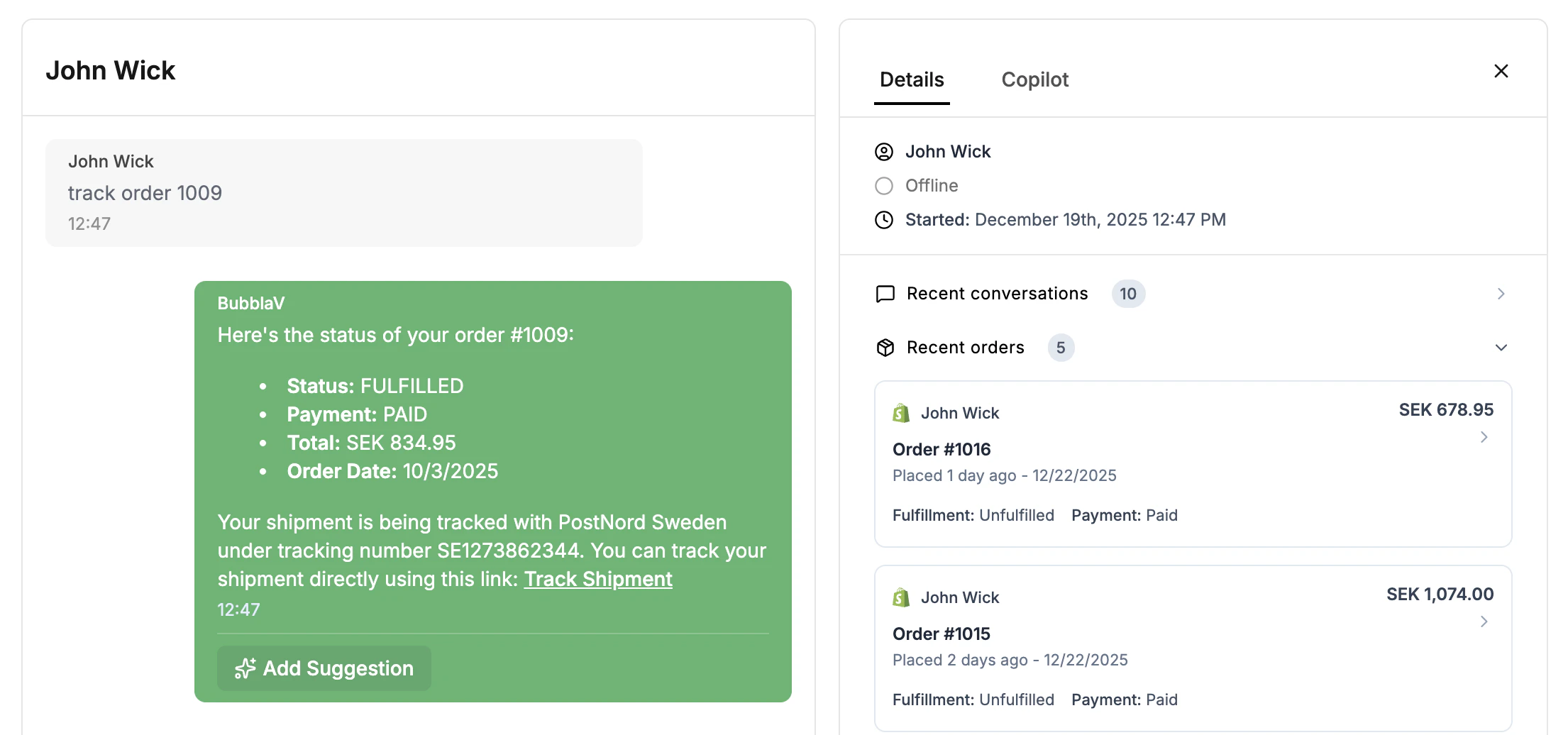
- “Track order #1001” (use a real order number)
- “Show me your products”
- “What running shoes do you have?”
- “I need a gift under $50 — any suggestions?”
Troubleshooting
Store domain not found
Store domain not found
- Verify you’re using
.myshopify.comformat - Check store is active at
https://your-store.myshopify.com
Tools not working
Tools not working
- Wait a few minutes for activation
- Verify store has orders/products data
Recommendations don't appear in chat
Recommendations don't appear in chat
- Check that Product Recommendations are enabled under Dashboard → Integrations → Shopify
- Verify the products aren’t on your excluded list and your store has sales or catalog data to draw from
Security: We only request read-only permissions. Your store data remains secure.