
Why Use the Framer Plugin?
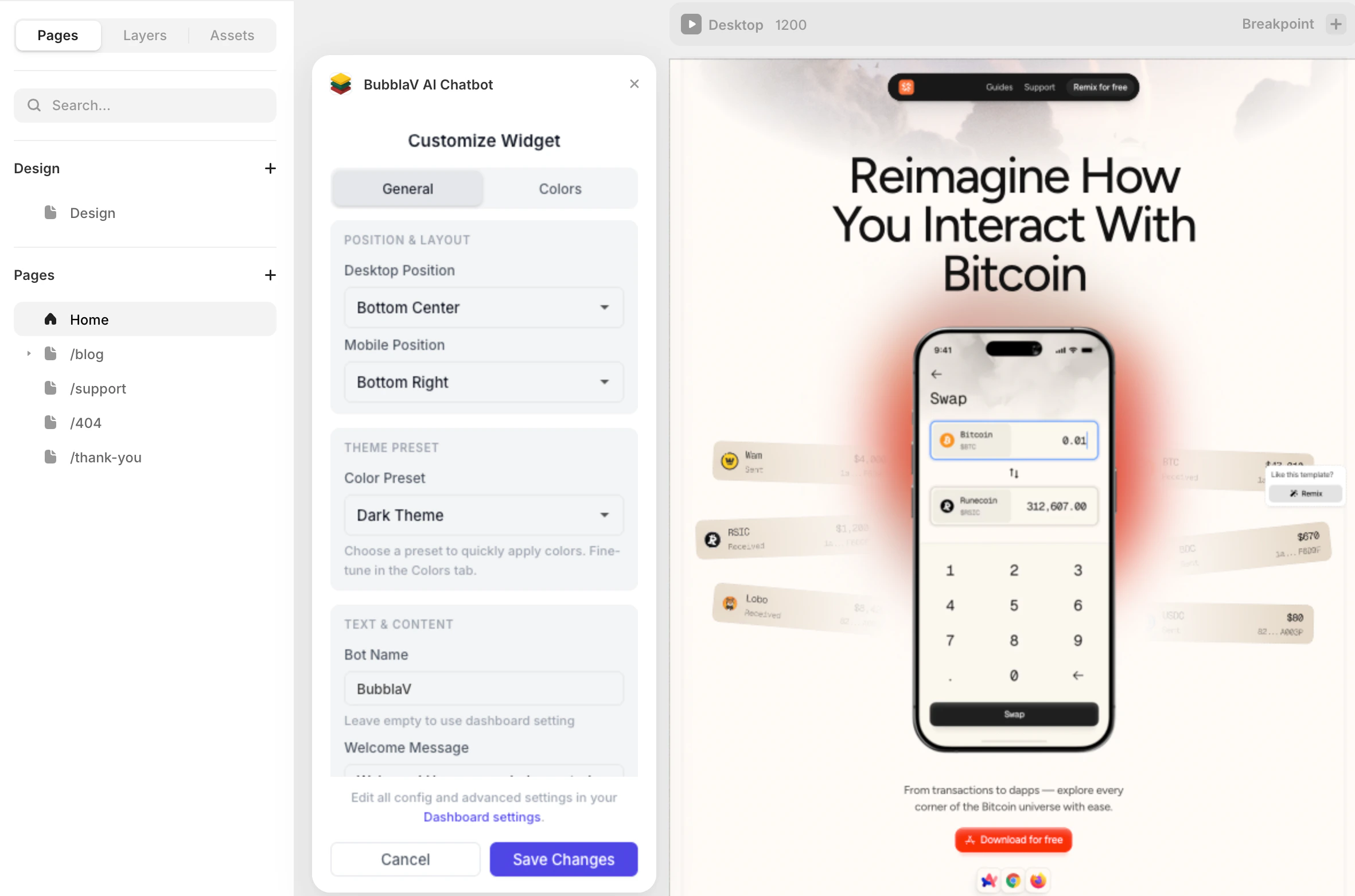
One-Click Setup
Install the plugin, sign in, and select your website. The widget is automatically added to your canvas.
Visual Controls
Customize widget appearance directly in Framer’s property panel—position, theme, bot name.
OAuth Login
Secure authentication with your BubblaV account. No need to copy-paste Website IDs.
Installation
Option 1: Using the Framer Plugin (Recommended)
The easiest way to add BubblaV to your Framer site. The plugin is available on the Framer Marketplace:BubblaV AI Chatbot on Framer Marketplace
Install the BubblaV plugin directly from the Framer Marketplace
1
Install Plugin
In Framer, go to Plugins → Store and search for “BubblaV”, or open the plugin page directly
2
Click Install
Click Install to add the plugin to your project
3
Login & Select Website
Click Login & Select Website to sign in to your BubblaV account and choose your website
4
Customize (Optional)
Adjust the widget appearance in the plugin panel—position, theme, bot name
5
Publish
Publish your Framer site and the chatbot will appear automatically
Option 2: Manual Installation
If you prefer manual setup:1
Open Site Settings
Open your Framer project and go to Site Settings
2
General Tab
Click on the General tab
3
Custom Code
Scroll down to the End of
<body> tag section4
Paste Code
Paste your BubblaV embed code from the dashboard
5
Save and Publish
Click Save and then Publish your site
The plugin method is recommended because it automatically creates the component in your code and adds it to your canvas with pre-configured settings.
OAuth Login Flow
The plugin uses a secure OAuth flow for authentication:- Click “Login & Select Website” button in the plugin
- Browser opens to BubblaV login page
- Complete login (or sign up if new)
- Plugin automatically detects successful login
- Select your website from the dropdown
- Widget is configured and added to your site
Plugin Features
Property Controls (Sidebar)
- Site ID - Your website ID (auto-filled when using OAuth)
- Bot Name - Custom display name for your chatbot
- Position - Choose widget placement: bottom-right, bottom-left, or bottom-center
- Theme - Light or dark mode to match your site
Visual Preview
The plugin shows a live preview on your canvas:- BubblaV branding for easy identification
- Status indicator (Ready/Missing Site ID)
- Position preview shows where the widget will appear
When Published
The widget script is automatically injected and renders as a floating chat button on your published site.Available Tools After Connection
When you connect your Framer website to BubblaV, the chatbot gains access to your crawled website content and knowledge base.Troubleshooting
Widget not appearing on published site
Widget not appearing on published site
- Verify you’ve published your site (not just preview)
- Check your Website ID is correct
- Wait 1-2 minutes for caching to clear
- Try clearing your browser cache
OAuth login not working
OAuth login not working
- Make sure popups are allowed in your browser
- Check that you’re not using an ad blocker
- Try refreshing the page and clicking Login again
Website dropdown is empty
Website dropdown is empty
- Make sure you have created a website in your BubblaV dashboard
- Check that you’re logged in to the correct account
- Try logging out and back in
Widget appears but doesn't respond
Widget appears but doesn't respond
- Check your message limits (may be exceeded)
- Verify crawl completed successfully in dashboard
- Ensure knowledge base has content
Next Steps
Design Your Widget
Customize colors, position, and behavior
Setup Knowledge
Add your content for better responses