
Why Connect HubSpot?
- Lead Capture: Automatically create contacts as soon as email is collected.
- Conversation Logging: Save chat transcripts to the contact’s timeline.
- Visitor Insights: Support agents see CRM properties and contact history in real-time.
- Page View Tracking: See which pages visitors viewed before chatting.
- Ticket Sync to the Unified Inbox: HubSpot conversations and tickets sync into BubblaV’s Live Support inbox, and agent replies go straight back into the HubSpot thread.
Visitor Insights for Support Agents
The HubSpot integration enriches the Visitor Insight panel in your BubblaV dashboard, giving support and sales agents critical context from your CRM: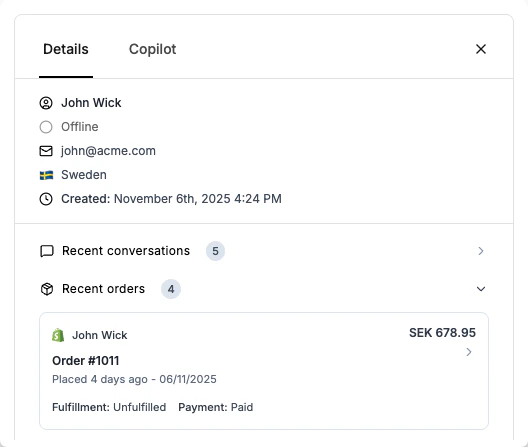
- Contact Properties: View HubSpot contact properties like Lifecycle Stage, Lead Status, and Owner directly in the chat.
- Activity Timeline: See recent events such as emails, notes, and meetings to understand the customer’s history.
- Page View Tracking: Review a history of the specific pages and URLs the visitor has viewed on your site.
- Deal Status: Monitor any active or closed deals associated with the contact to prioritize high-value interactions.
Setup Steps
1
Navigate to Integrations
Go to Dashboard → Integrations → HubSpot
2
Connect Account
Click Connect HubSpot. You will be redirected to HubSpot’s OAuth page.
3
Select Account
Choose the HubSpot account you want to link and grant permissions.
4
Verify
Once redirected back, you’ll see your HubSpot Portal ID and connection status.
Configuration After Connection
After successfully connecting HubSpot, you can configure how contacts are synced, which workflows are triggered, and how conversations are logged.Lead & Contact Sync
Configure how new contacts are created and managed in HubSpot: Sync Lead- Automatically create a contact in HubSpot as soon as the visitor provides their email address in the chat.
- Default: Enabled
- Location: In HubSpot integration settings → Sync Lead
- The HubSpot lifecycle stage applied when a visitor first shares their email
- Default:
lead - Examples:
lead,subscriber,opportunity,customer - Location: In HubSpot integration settings → Contact sync defaults
- The lifecycle stage applied when a live-support escalation is created
- Default:
opportunity - Purpose: Helps sales teams pick up escalated conversations immediately
- Location: In HubSpot integration settings → Contact sync defaults
- Optional HubSpot owner ID to assign new contacts
- Default: Unassigned (leave blank)
- How to find: Use the HubSpot Owners API (
GET https://api.hubapi.com/crm/v3/owners) to look up owner IDs - Location: In HubSpot integration settings → Contact sync defaults
Workflow Triggers
Automatically enroll contacts into HubSpot workflows when specific intents or tags are detected in chat transcripts. To configure workflow triggers:- Go to Dashboard → Integrations → HubSpot
- Navigate to the Workflow Triggers section
- Add rules with:
- Match Type: Choose
tag(conversation tag) orintent(detected intent) - Value: The tag or intent value to match (e.g.,
sales-qualified,support-request) - Workflow ID: The internal HubSpot workflow ID to trigger
- Match Type: Choose
- Click Add rule for each workflow you want to configure
- Click Save HubSpot settings
- Match Type:
tag - Value:
sales-qualified - Workflow ID:
12345678 - Result: When a conversation is tagged with
sales-qualified, the contact is automatically enrolled in workflow12345678
Timeline Logging
Control whether chat transcripts are logged as notes in HubSpot. Log Transcripts as HubSpot Notes- Default: Enabled
- What it does: Attaches the latest conversation snippet to the contact record in HubSpot
- Additional: Notes are also associated with HubSpot tickets when available
- Location: In HubSpot integration settings → Timeline logging
Save Configuration
After configuring all settings:- Review your Contact Sync, Workflow Triggers, and Timeline Logging settings
- Click Save HubSpot settings to apply the configuration
- Test by having a conversation that should trigger your configured workflows
Features
- New Contact Creation: When a visitor provides their email in chat, a contact is created in HubSpot.
- Timeline Events: Chat sessions are logged as custom timeline events.
- Property Sync: Basic info (Name, Email) is synced automatically.
Ticket Sync to the Unified Inbox
HubSpot conversations and tickets sync directly into BubblaV’s unified Live Support inbox:- Tickets and their conversation threads created in HubSpot appear in the inbox within ~2 minutes — no forwarding or copy-pasting.
- Each HubSpot conversation thread becomes its own ticket, with the HubSpot channel chip so agents can see at a glance where the customer is writing from.
- New customer replies in the thread update the same ticket automatically; agent-side notes in HubSpot stay private and are not mirrored.
- Ticket sync is on by default. You can pause it any time in HubSpot integration settings → Ticket sync.
Meeting Scheduling
Visitors can book a meeting right in the chat using your HubSpot Meetings scheduling pages. When someone asks to book a call, the chatbot shares your HubSpot meeting links as booking cards; picking one opens HubSpot’s own scheduler inside the chat — availability, form fields, and legal consent are all handled by HubSpot, and the booked meeting appears in your HubSpot CRM like any other meeting.
Rescheduling and cancelling stay in HubSpot — the Meetings API doesn’t support rescheduling. Visitors can change or cancel via their HubSpot confirmation email or their meeting link.
Reply & Draft with AI
Manage HubSpot conversations without leaving BubblaV:- Reply from the inbox: An agent reply in BubblaV is posted into the HubSpot conversation thread as a customer-visible message — the customer sees it in HubSpot, exactly where they started the conversation.
- One-click Draft reply: The Draft reply button uses your knowledge base to draft a grounded response for any HubSpot ticket. Review, edit, and send it into the thread.
- If a ticket has no conversation thread yet (e.g. created via API without one), the reply is saved to the ticket and flagged as not delivered so you can retry.