
Why Connect Litium?
- Order Status: Customers can check the status of their orders instantly.
- Product Discovery: Search and browse your Litium product catalog.
- Return Management: Streamline returns for your customers.
- Visitor Insights: Support agents see customer orders and information in real-time.
Visitor Insights for Support Agents
The Litium integration enriches the Visitor Insight panel in the BubblaV dashboard, providing support agents with:
- Order Overviews: A real-time view of the customer’s current and past Litium orders.
- Order Status: Instant visibility into fulfillment and payment status for every order.
- Admin Access: Direct links to view the order details within the Litium Admin interface.
- Product Context: Detailed lists of items in each order to resolve specific product queries.
Prerequisites
- Active Litium installation (version 8.0 or higher recommended)
- Litium API endpoint and credentials
Setup Steps
1
Navigate to Integrations
Go to Dashboard → Integrations → Litium
2
Configure Connection
Enter your Litium GraphQL endpoint and authentication details.
3
Connect
Click Connect to verify the integration.
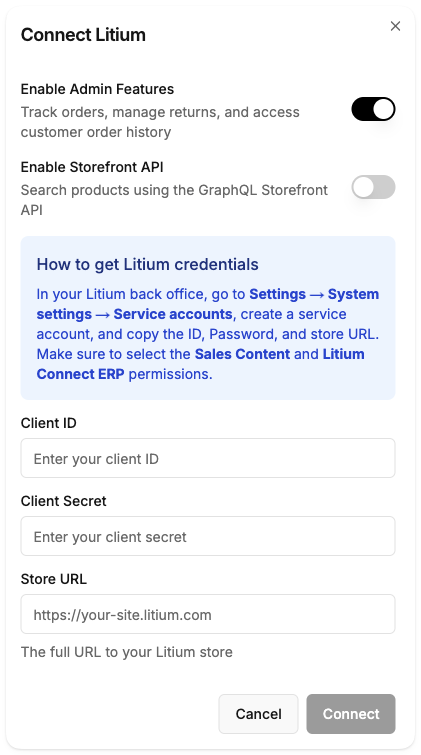
Configuration After Connection
After successfully connecting your Litium integration, you need to configure the Storefront API settings to enable real-time product search and optimize search results.Storefront API Search Configuration
The Storefront API allows your chatbot to perform real-time searches against your Litium storefront, combining results with your knowledge base for hybrid search.1
Enable Storefront API
In the Litium integration settings, enable Storefront API if your Litium installation supports it.
2
Set Context URL
Configure the Storefront Context URL - this is sent with every Storefront API request as the
X-Litium-Storefront-Context-Url header. This should match your storefront’s base URL (e.g., https://your-store.com).Facet Filters
Facet filters allow customers to filter products by various attributes like price, category, brand, color, size, etc. Configure which facet filters the AI assistant should use when searching for products. To configure facet filters:- Go to the Facet Filters section in your Litium integration settings
- Enable the facets that match the filters available on your store’s product search
- Common facets include:
- Price (
#price) - Filter by price range - Category - Filter by product category
- Brand - Filter by brand name
- Color - Filter by color options
- Size - Filter by size options
- Custom attributes specific to your products
- Price (
Product Search Types
Product Search Types determine which fields are returned when the AI assistant searches for products. These fields help the assistant validate search results and provide more accurate answers. To configure Product Search Types:- Navigate to the Product Search Types section
- Select the dynamic fields you want to include in product search results
- Common fields to include:
- Custom product attributes
- Product variants
- Additional pricing information
- Stock status details
- Product specifications
- Custom attributes (e.g., material, warranty, dimensions)
- Variant information (e.g., sizes, colors, SKUs)
- Extended pricing (e.g., bulk pricing, sale prices)
- Inventory details (e.g., stock levels, availability)
Page Search Types
Page Search Types configure which fields are returned when searching for pages (content articles, blog posts, etc.). These fields enrich knowledge articles pulled from search. To configure Page Search Types:- Navigate to the Page Search Types section
- Select the fields that should be included for page search results
- Common fields to include:
- SEO metadata (title, description, keywords)
- Content metadata (author, publish date, categories)
- Custom page attributes
- Related content links
- SEO title and description
- Content categories and tags
- Author and publication date
- Custom metadata fields
Category Search Types
Category Search Types determine which fields are returned when searching for categories. These fields help enrich category information in search results. To configure Category Search Types:- Navigate to the Category Search Types section
- Select the fields to include for category search results
- Common fields to include:
- Category metadata
- SEO information
- Custom category attributes
- Related category links
- Category description and metadata
- SEO title and description
- Custom category attributes
- Parent/child category relationships
Return Policy Configuration
Configure the return policy settings for the Initiate Return tool. These settings control when customers can request returns.Return Window
The Return Window specifies the maximum number of days after order placement that customers can request a return.- Default: 30 days
- Range: 1-365 days
- Location: In the Litium integration settings, find the Return Policy Configuration section
Minimum Order Age
The Minimum Order Age specifies how many hours must pass after an order is placed before a return can be requested. This prevents immediate returns right after purchase.- Default: 0 hours (immediate returns allowed)
- Range: 0-168 hours (0-7 days)
- Location: In the Litium integration settings, find the Return Policy Configuration section
- 0 hours: Returns can be requested immediately after order placement
- 24 hours: Customers must wait 24 hours after placing an order before requesting a return
- 48 hours: Customers must wait 2 days before requesting a return
How to Configure
- Go to Dashboard → Integrations → Litium
- Scroll to the Return Policy Configuration section
- Set Return Window (days) - Maximum days after order placement to allow returns
- Set Minimum Order Age (hours) - Minimum hours after order before returns allowed (0 = immediate)
- Click Save Return Configuration
Save Configuration
After configuring all settings:- Review your Storefront API, Facet Filters, Search Types, and Return Policy settings
- Click Save Changes to apply the configuration
- Test the integration by asking product-related questions in your chatbot
Available Tools After Connection
| Tool | What It Does | Example Query |
|---|---|---|
litium_track_order | Track orders by number/ID | ”Where is my order #12345?” |
litium_search_products | Search for products | ”Do you have any red sneakers?” |
litium_get_return | Check return status | ”Status of return #RET-999” |
litium_create_return | Initiate a return | ”I want to return this item” |
Test Your Integration
Try these queries:- “Track order #12345”
- “Search for laptops”
- “I need to return an item”
Troubleshooting
Connection Failed
Connection Failed
- Verify your GraphQL endpoint URL.
- Check that your API credentials have the necessary permissions.
- Ensure your Litium server is accessible from the internet.
Products Not Found
Products Not Found
- Check if your product catalog is indexed.
- Verify that the API user has read access to the catalog.