
Why Connect Haravan?
One-Click Install
No coding required. Simply authorize and the chatbot is automatically added to your store.
Instant Setup
Go from zero to live chatbot in under 2 minutes
Automatic Updates
Chatbot updates automatically whenever you change your settings in the dashboard
24/7 Support
Provide instant answers to your customers around the clock
Prerequisites
- Active Haravan store
- Store owner or admin permissions
Setup Steps
Installing BubblaV on your Haravan store is quick and simple with OAuth authorization.1
Install from Haravan App Store
Go to the BubblaV Haravan App listing and click Install app.
2
Authorize Access
You’ll be redirected to the Haravan authorization page. Review the permissions requested and click Yes to approve the installation.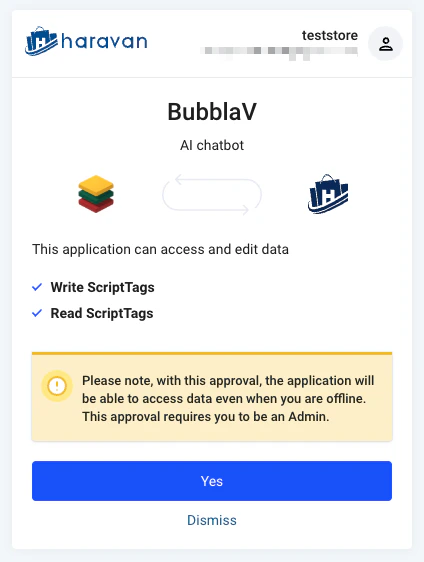
3
Verify Connection
After clicking Yes, you’ll be redirected back to your BubblaV dashboard. The Haravan card should now show Connected, and your chatbot is live on your store.
No Code Changes Needed: The integration automatically injects the chatbot script into your Haravan store. You don’t need to edit any theme files or add code manually.
What the Chatbot Can Do
Once connected, the chatbot can answer customer questions using your live store data:Smart Product Search
Customers describe what they want (“vòng tay bạc dưới 2 triệu”, “quà tặng cho mẹ”) and the chatbot searches your catalog with price, availability, size/color and brand filters — then shows product cards with images and prices in VND.
Add to Cart
Product cards include an Add button. On your storefront, items go straight into the customer’s cart; from other sites, a new tab opens with the items pre-added.
Order Tracking
Customers track an order with its number plus the email or phone used at checkout, and get a status card with payment state, delivery tracking and a buy-again button.
Order History
Returning customers can list their past orders by email or phone number.
Always Connected: Haravan access tokens refresh automatically — your
chatbot keeps working without periodic reconnections. (Stores connected
before August 2026 may be asked to reconnect once when their token expires.)
Available Tools After Connection
Test Your Integration
Visit your Haravan store and open the chatbot widget. Try asking:- “What are your business hours?”
- “Show me charm bracelets under 2 million” (product search)
- “Gửi thông số [product]” (full product specs via product details)
- “Where is my order #1025?” with the email used at checkout (order tracking)
Troubleshooting
Chatbot not appearing on store
Chatbot not appearing on store
- Wait a few minutes for the script injection to complete
- Clear your browser cache and reload the store page
- Check that the connection status shows Connected in your dashboard
Chatbot asks to reconnect
Chatbot asks to reconnect
- Your Haravan session expired; click Reconnect on the Haravan integration card
- This is expected at most once for stores connected before August 2026
Security: We only request the minimum permissions needed to add the chatbot to your store. Your store data remains secure.